
Plugin Manager
Every module you see in the sidebar — Pages, Blog, Shop, E-Learning, Email Marketing, A/B Testing, AI — is a Plugin. The Plugin Manager lets you install and uninstall plugins that ship with the CMS. Typical case: a site that does not need e-learning uninstalls the elearning plugin to hide the sidebar entry and free up database resources.
Open Settings → Plugin Manager. The list shows every plugin bundled with your installation.
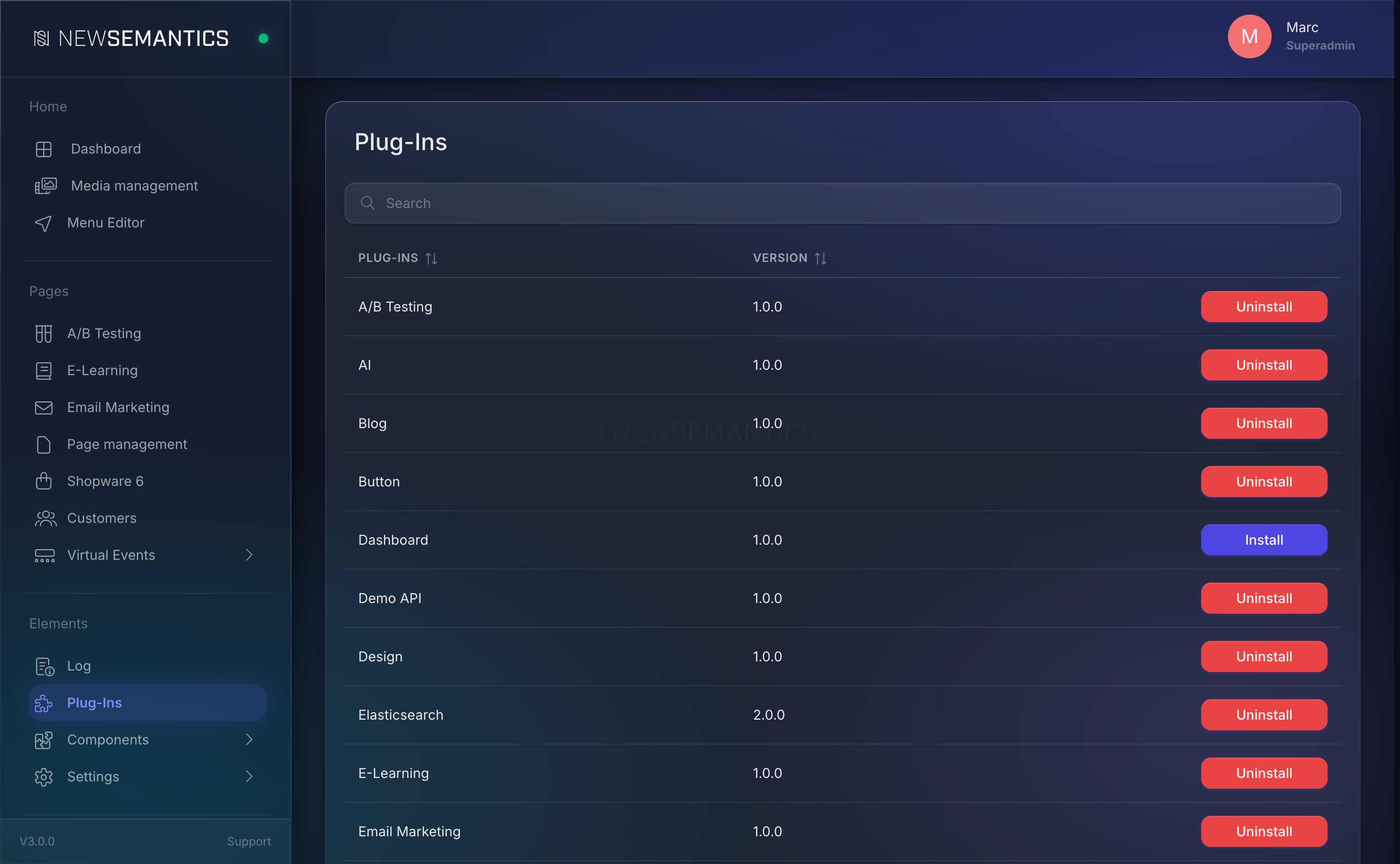
Columns:
| Column | Purpose |
|---|---|
| Name | Human-readable plugin title. |
| Version | Plugin version from its bootstrap.php. |
| Status | Installed (green) or Not installed (grey). |
1. Install a plugin
Find the plugin in the list. If its status is Not installed, a green Install button is on the row. Click it.
A confirmation dialog asks: Do you want to install the plugin?. Click Install.
What happens behind the scenes:
- The plugin's
install()method runs — registers URL rewrites, content types, API endpoints, webhook events, and scheduled tasks. - Any migrations under
_public/extensions/core/backend/{plugin}/migrations/run. - The plugin's sidebar entry appears on the next page load.
Refresh the page to pick up the new sidebar entry.
2. Uninstall a plugin
Find the plugin. If its status is Installed, a red Uninstall button is on the row. Click it.
A confirmation dialog asks: Do you want to safely uninstall the plugin?. Click Uninstall.
What happens:
- The plugin's sidebar entry is removed.
- API endpoints and webhook events registered by the plugin are de-registered.
- Scheduled tasks owned by the plugin are removed from the scheduler.
- The plugin's
uninstall()method runs.
Uninstall keeps the data
Uninstalling does not drop the plugin's database tables. Your blog posts, orders, course records, or e-learning certificates stay in the database. Re-installing the plugin brings the data back. To truly delete the data, drop the tables manually after uninstall.
Undeletable plugins
Some plugins are marked as uninstallable: 0 because the system depends on them — for example base (site master data), user_management, demoAPI. These do not appear in the Plugin Manager list at all. They are always installed.
Search and sort
The header has a search field that filters by plugin name. The column headers are sortable — click to toggle ascending / descending.
What a plugin brings
| Part | Example |
|---|---|
| Sidebar entry | "E-Learning" appears under the E-Commerce group. |
| Database tables | elearning_courses, elearning_episodes, elearning_certificates, … |
| API endpoints | /api/elearning/catalog, /api/backend/elearning. |
| Pagebuilder widgets | The elearning widget becomes available in the Widget Picker. |
| Scheduled tasks | Certificate expiry checks, reminder emails. |
| Webhook events | elearning.purchased, elearning.certificate_issued. |
Uninstalling removes all of the above except the tables and their rows.
Common issues
I uninstalled a plugin but a page still shows an error. A Pagebuilder page references a widget that no longer exists. Open the page, remove the orphaned widget, save. Re-install the plugin if you need the widget back.
I re-installed the plugin but my old data is gone. Check that the tables still exist in the database. If the developer dropped them manually, they are gone for good — only a backup can bring them back.
I cannot find a plugin to install. Only plugins that live in _public/extensions/core/backend/ are listed. Plugins shipped via the Update Manager land there automatically; custom developer plugins need to be copied to that directory.
See also
- User Groups — plugins appear in the rights editor only after installation.
- Update Manager — installs new plugins as part of a system update.