
Categories & Canonical
The Categories tab holds a local cache of the Shopware category tree. newmeta uses the cache to:
- Render the category dropdown in the
sw6ProductListingandsw6CategoryTeaserwidgets. - Compute a canonical URL for every Shopware product — even when the product lives in multiple categories.
- Show which categories already have a dedicated CMS page (Direct / Inherited / None).
Open the tab
Click VOD / Shop → Shopware 6 → Categories.
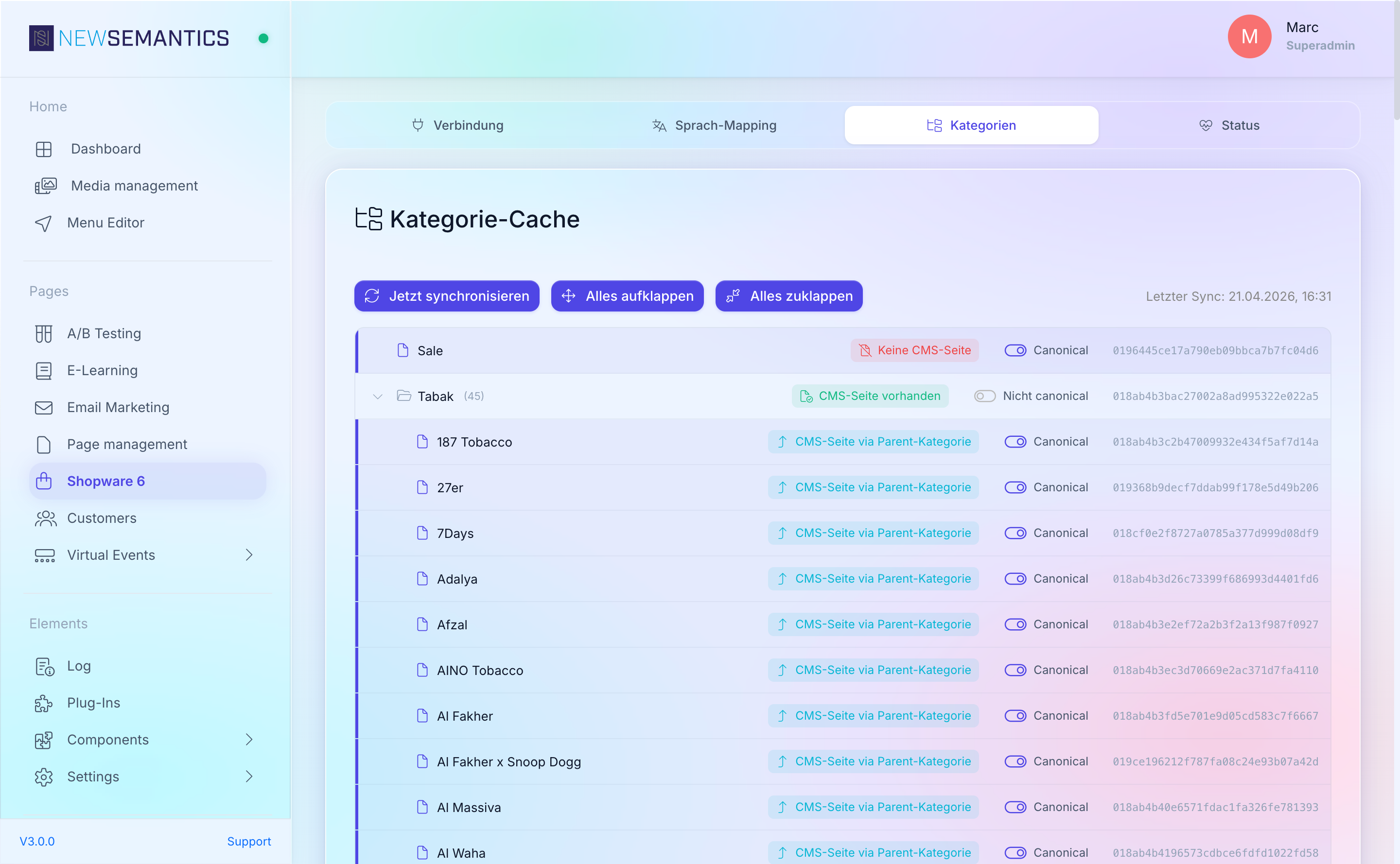
Sync the category tree
Click Sync now. The CMS reads the current Shopware navigation tree and writes it to sw6_category_cache.
- The sync runs automatically every 6 hours (scheduled task
sw6_sync_categories.php). - Manual sync is immediate.
- The timestamp of the last sync is shown next to the button.
Expand / collapse
- Expand all / Collapse all — toggle the whole tree.
- Chevron on each row — toggle a single branch.
What each row shows
| Element | Meaning |
|---|---|
| Folder / file icon | Category with / without children. |
| Category name | As stored in sw6_category_cache.name for the current language. |
(N) | Number of direct children. |
| hidden / inactive badge | Category is hidden in navigation or marked inactive in Shopware. |
| CMS status icon + label | Direct, Inherited, or None (see below). |
| Canonical toggle | Turns this category into a canonical root for its products. |
| Category UUID | The Shopware category ID. |
CMS status — Direct / Inherited / None
A Shopware category may or may not have a matching CMS page. The CMS status answers "which CMS page does this category map to?":
| Status | Meaning |
|---|---|
| Direct | There is a CMS page hosting a sw6ProductListing or sw6CategoryTeaser widget filtered to this category. |
| Inherited | No direct CMS page, but the parent category has one — the child inherits the parent's URL as its base. |
| None | No CMS page, no parent with a CMS page. Products of this category fall back to a generic detail URL. |
Build category landing pages
Categories with None status are invisible on your Frontend navigation unless you point a sw6ProductListing or sw6CategoryTeaser widget at them. Build a CMS page per top-level category to avoid dead ends.
Canonical toggle
Shopware products can belong to many categories. The Canonical toggle tells newmeta which category to use when constructing the product's canonical URL.
- Canonical (indigo toggle): products use this category as their canonical root when it is the deepest canonical-marked category they belong to.
- Not canonical (grey toggle): this category is ignored for canonical URL computation.
Click the toggle to flip it. The change:
- Writes to
sw6_category_cache.canonical_enabled. - Invalidates the Product canonical cache for affected products.
- Triggers an async recalculation (number of affected products is shown as a toast).
A badge manual appears when the value was set by a user — automatic defaults keep the badge absent.
One canonical per product tree
Flipping too many categories to Canonical leads to conflicting canonicals. The rule of thumb: only the top-level navigation branch of each product family needs to be canonical. Leave deep sub-categories off.
When the tree is empty
If the tree shows "No categories in cache.", one of these is true:
- Connection tab is not yet green.
- Root Category ID is empty or wrong — the sync finds nothing under that root.
- The sync has never run.
Fix the first two, then click Sync now.
Common issues
Tree duplicates
If the same category appears twice in the tree, your CMS admin language does not match one of the configured Language Mappings. The on-page code filters the tree to one language (WHERE language_short = 'current'); switch the admin UI language, then re-open the tab.
Category name in English despite DE admin
The tree reads category names from sw6_category_cache filtered by the current admin language. If the name is wrong, re-sync after confirming the Language Mapping for the language.
Canonical toggle does nothing on the frontend
The canonical is read by the Product canonical cache. After toggling, wait for the next Product Cache sync (or trigger it manually on Product Cache) for the frontend <link rel="canonical"> to update.
See also
- Product Cache — canonical URLs are materialised there.
- Shopware 6 Setup — the Root Category ID lives on the Connection tab.
- Troubleshooting