
Certificates
Certificates are the final output of a CME course. The system issues them automatically when a learner meets the completion rules, prints them on A4 landscape with your letterhead, and keeps every issue in the backend for 10 years.
This page covers what editors and admins can do with certificates in the backend — issuing, downloading, bulk CSV export, and configuring the certificate appearance.
Prerequisite: Admin or editor role. Only admins can download certificates of other participants; editors see metadata only.
When a certificate is issued
A certificate is issued when either of these completion rules is met:
- Video completion — every episode (or the main video) has
watched_seconds >= 95 percentof its configured duration. - Exam pass — the learner reached at least Pass threshold (%) on the exam.
Both rules award different CME points: Video points for video completion, Exam points additionally on exam pass.
Upgrade path
If a learner first completes the video and later passes the exam, they get a new certificate with the higher point value. The old certificate is kept and referenced as previous_certificate_id on the new one — the printed PDF notes the upgrade.
1. Configure the certificate appearance
Open the Settings tab. Fill in the fields once per installation.
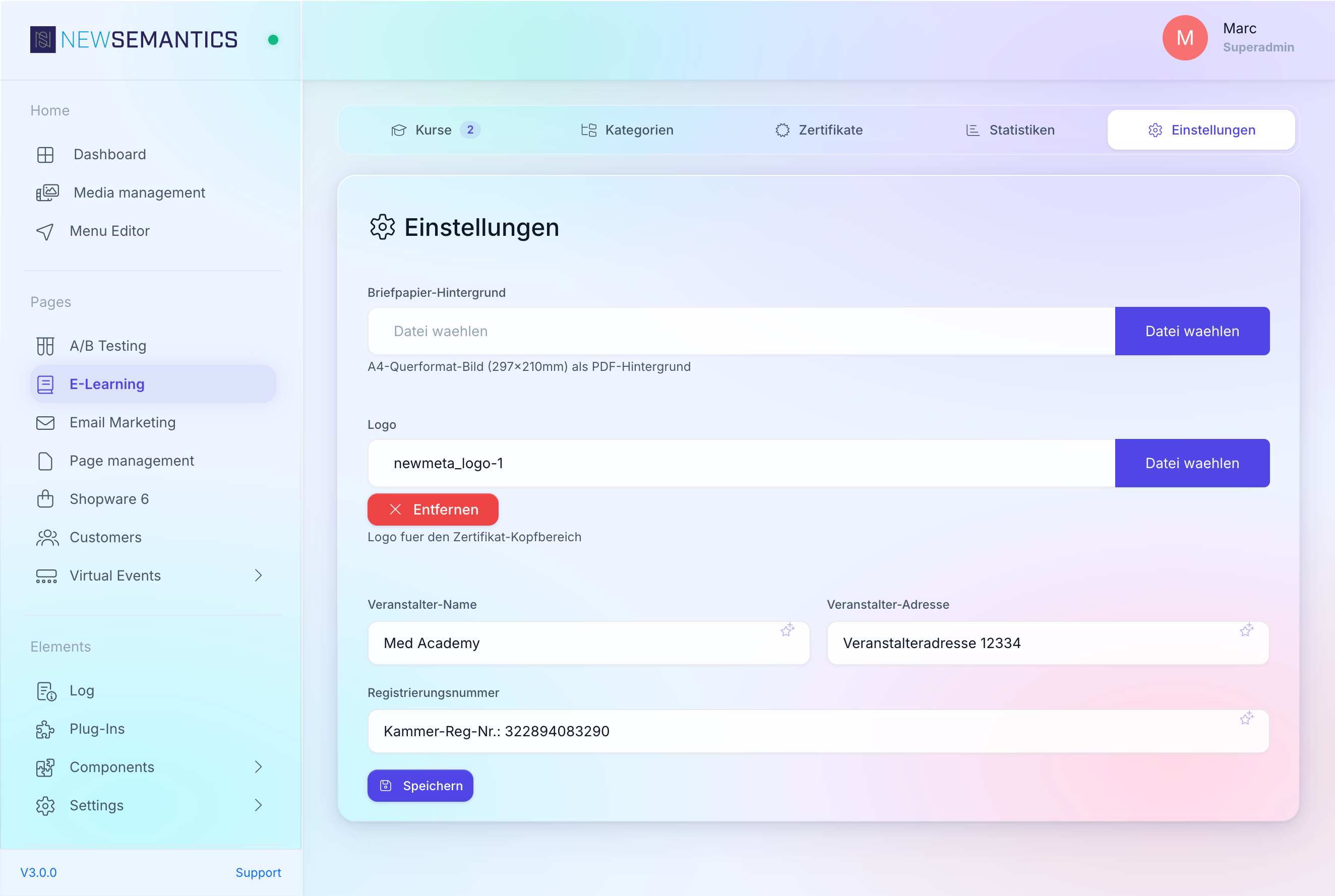
| Field | Purpose |
|---|---|
| Letterhead background | A4 landscape image (297x210 mm) used as the PDF background. Pick from the Media Manager. |
| Logo | Logo printed in the header section. |
| Organizer name | The organizer name printed on every certificate. |
| Organizer address | Street and city of the organizer. |
| Registration number | Chamber registration number printed at the bottom. |
Click Save. The next certificate issued uses the new settings.
Existing certificates keep their old snapshot
Certificates already issued will not re-render with new settings. The generated PDF is a snapshot of the data at issue time.
2. Browse and search certificates
Open the Certificates tab. The table shows every issued certificate with server-side pagination, search, and sorting.
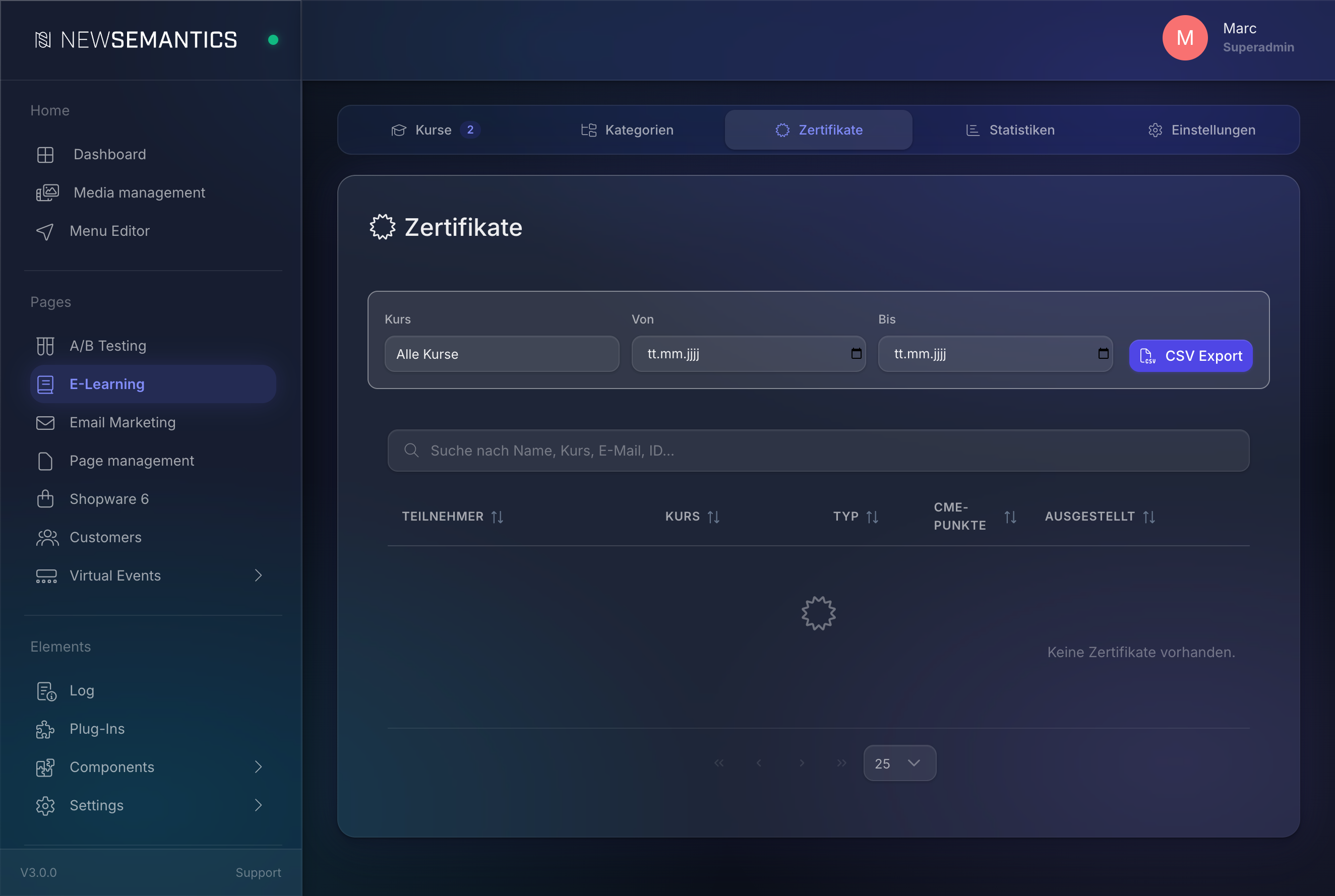
| Column | Meaning |
|---|---|
| Participant | Name, email, address snapshot from the time of issue. |
| Course | Course title snapshot. |
| Type | Exam (exam pass) or Video (video completion). |
| CME points | Points awarded by this certificate. |
| Issued | Issue date. |
Use the search box (top of the table) to filter by name, course title, email, or certificate ID.
3. Download a single certificate
Click the download icon at the end of a row. The PDF opens in a new tab. Admins can download every certificate; editors only see metadata.
4. Export certificates as CSV
Above the table the export bar lets you filter by course and date range, then download a CSV.
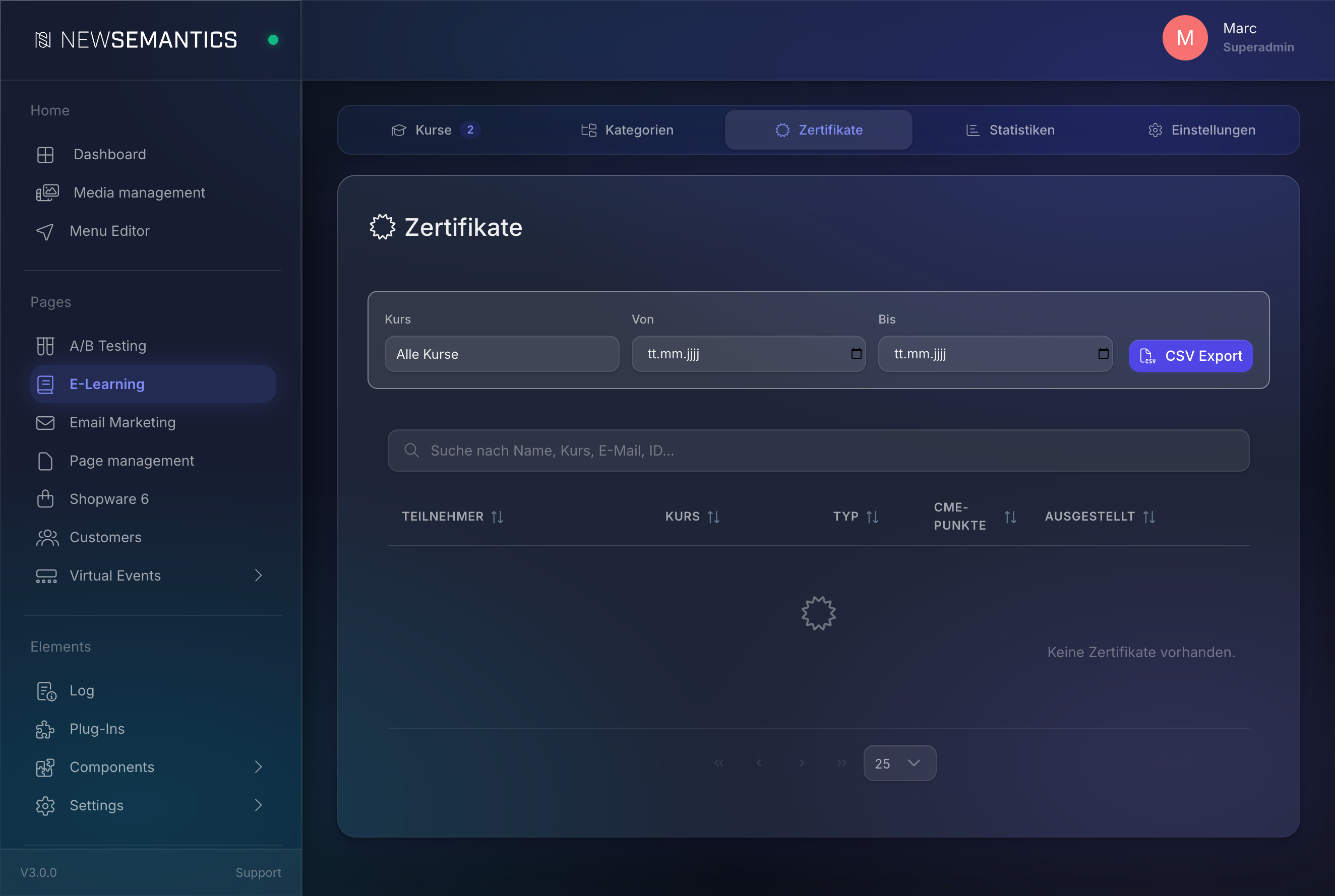
- Pick a Course or leave on All courses.
- Enter From and To dates to restrict the range.
- Click CSV Export. The file downloads immediately.
Use the CSV for audits, chamber reporting, or yearly statistics.
5. Verify a certificate publicly
Every certificate has a public verify endpoint that shows only the initials of the participant, the course, the issue date, and the point value — no personally identifying data. The verification URL is printed on the PDF. Share it with chambers that want to cross-check authenticity.
8-points-per-day rule
BZAEK limits CME points to 8 per day (Europe/Berlin timezone). The certificate endpoint enforces the rule when issuing. If a learner upgrades from video to exam on the same day, the old points are subtracted before the new ones are added — the learner always ends up with the correct daily total.
Data retention
Certificates and their supporting data are kept for 10 years (BZAEK retention rule). A daily scheduled task deletes or anonymizes records older than that. You do not manage this manually.
Common issues
No certificate issues for a learner who watched the whole video. Check Content duration (seconds, without outro) on the General tab. The 95 percent threshold is calculated against this field; if it is larger than the actual video, the threshold is unreachable.
A certificate shows the wrong EIV number. Certificates snapshot the EIV number at issue time. Open the course's General tab, correct VNR, and re-issue by deleting the old certificate (admin only). New certificates for future learners will carry the corrected number.
Admin sees "Access denied" when downloading. The session may have expired. Reload the page and try again — admin status is re-confirmed on each download.
See also
- E-Learning overview — module overview
- Create a course — how-to
- Exam questions — how-to