
Place and configure Widgets
Add Widgets to Columns, edit their content, and reorganize them with copy, paste, duplicate, and drag.
Prerequisite: You have a page open in the Pagebuilder with at least one Row and one Column. If you do not, start with Create your first page.
Add a Widget
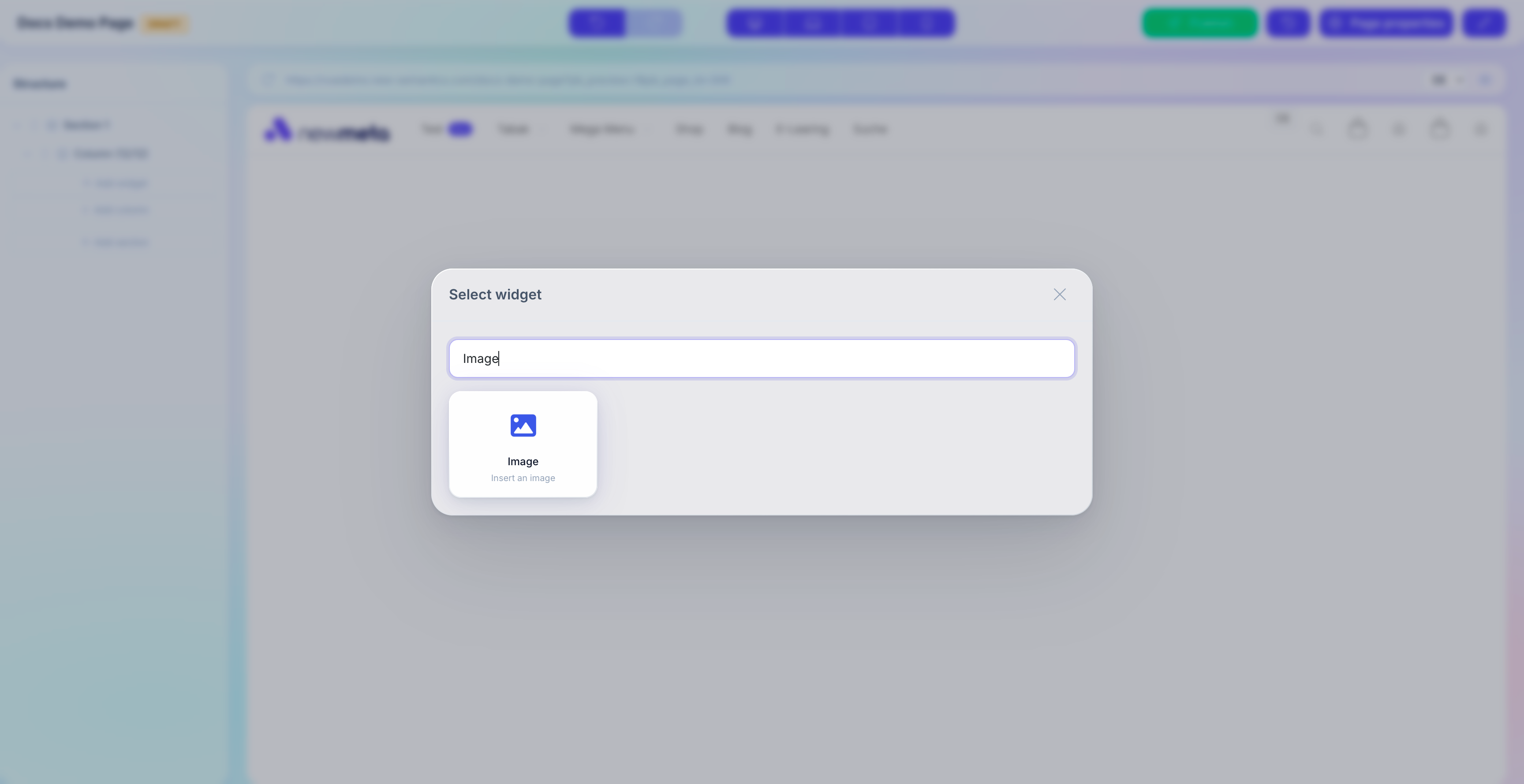
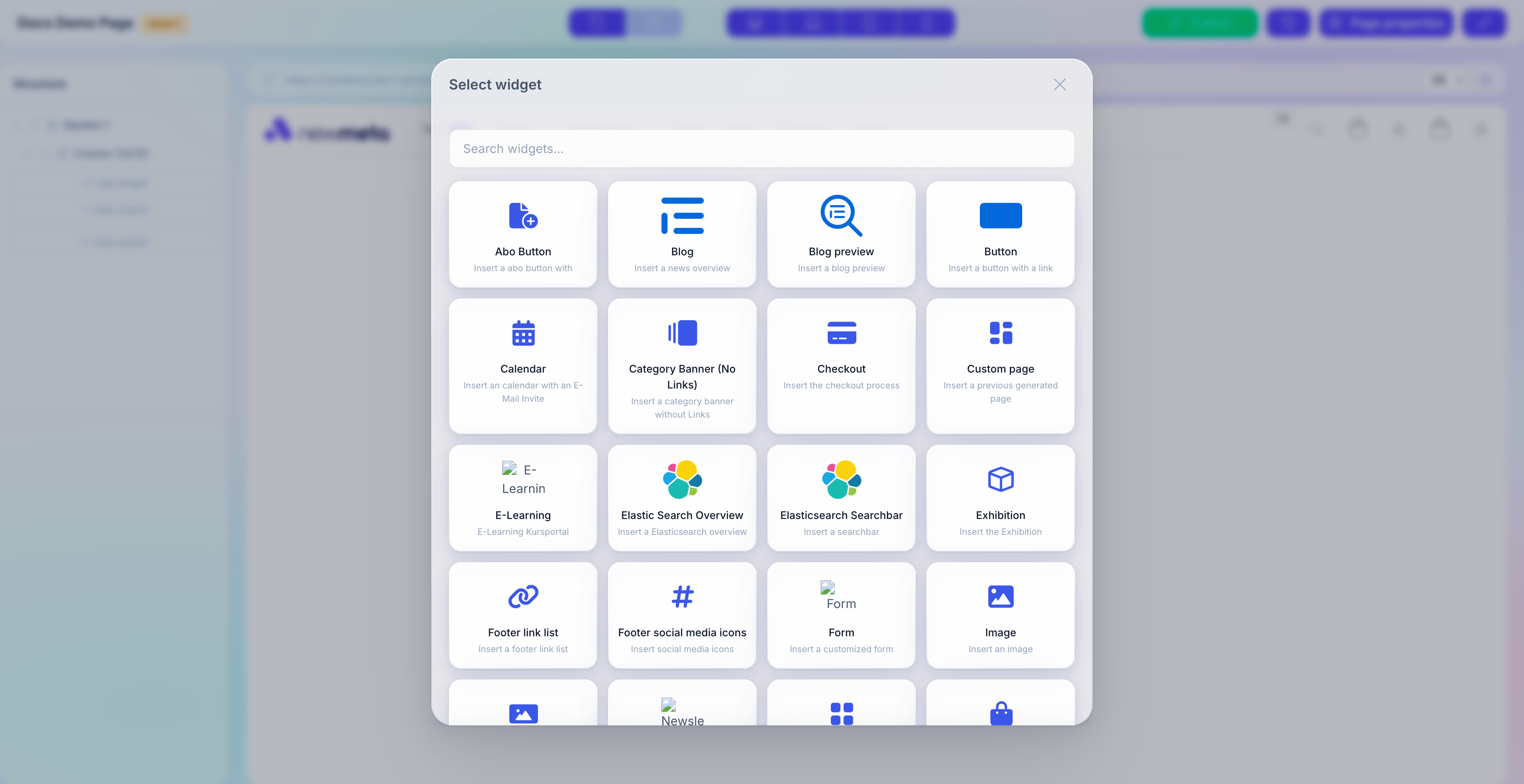
Inside any Column, click the +-icon to open the Widget Picker. Pick a Widget from one of the categories:
- Text — Text, Headline, Rich Text, Quote.
- Media — Image, Gallery, Video, Slider.
- Structure — Accordion, Tabs, Columns, Divider.
- Forms — Contact Form, Newsletter Signup.
- Commerce — Product Listing, Product Detail, Cart, Checkout, Search Bar.
- E-Learning — Course Listing, Course Detail.
- Integration — Blog Preview, A/B Test Gate.
The picker supports search — type to filter across all categories.
Edit Widget content
Selecting a Widget in the Structure Tree or the Live Preview opens its settings in the right-hand Properties Panel.
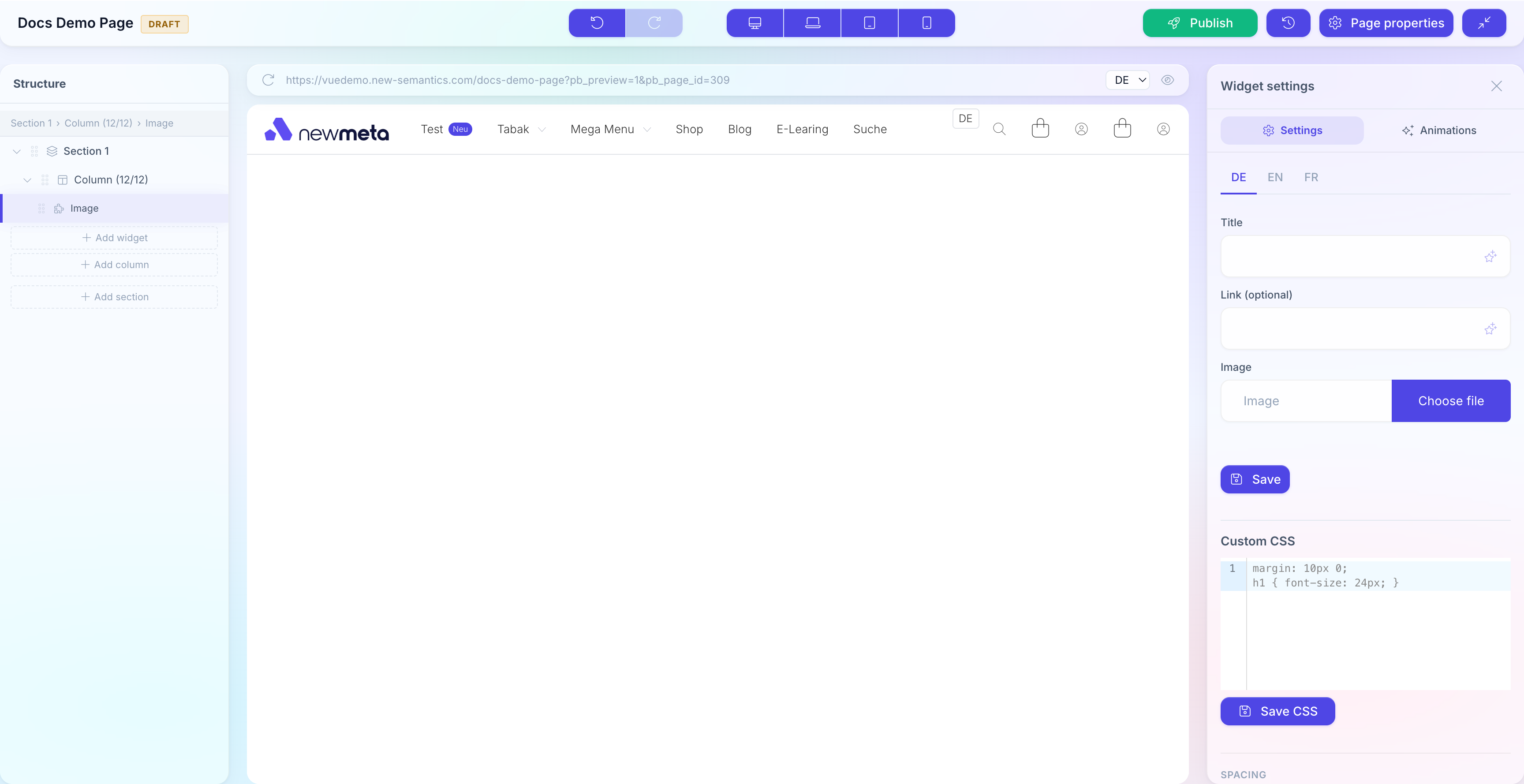
Each Widget has its own fields:
- Text fields — single-line or textarea inputs for titles and subtitles.
- Rich Text (CKEditor) — formatted text with headings, lists, links.
- Image / Media field — opens the Media Manager when clicked.
- Select — dropdown options (e.g. category or layout variant).
- Items (repeater) — list of sub-items (e.g. accordion panels, slider slides).
- Custom CSS — CodeMirror editor with syntax highlighting (power users only).
After you change any field, click Save at the top of the Properties Panel. Unsaved changes are marked with a dot on the tab header.
Unsaved changes lost on navigation
Switching to a different Widget without saving discards your edits. If the tab title has a dot, save first.
Reorder Widgets
You have two options:
- Drag in the Structure Tree: grab a Widget row and drop it at the new position. You can move it inside the same Column, into a different Column, or into a different Row.
- Up / Down icons on the Widget card — use for small moves inside the same Column.
Duplicate, Copy, Paste, Delete
Right-click a Widget in the Structure Tree to open the context menu. Available actions:
- Duplicate — clones the Widget with all its settings and items in place.
- Copy — stores the Widget in the clipboard (kept across pages).
- Paste — inserts a previously copied Widget or Column.
- Delete — removes the Widget. A confirmation dialog asks once.
The clipboard survives page changes — copy a Widget on page A, navigate to page B, paste it there.
Keyboard shortcuts
Select a Widget and press Ctrl+C / Cmd+C to copy, Ctrl+V / Cmd+V to paste. Ctrl+Z / Cmd+Z undoes the last action.
Control visibility per breakpoint
In the Widget Settings tab, expand the Visibility section. Check or uncheck Desktop, Laptop, Tablet, Mobile to hide the Widget on specific screen sizes.
Hidden Widgets still exist in the Structure Tree (with a crossed-out eye icon) but are not rendered on the live site at that breakpoint.
Add Widget Items (repeater fields)
Some Widgets have an items list — e.g. Accordion panels, Slider slides, Feature List entries.
Click Add entry at the bottom of the items list. A new empty item appears. Fill in its fields and click Save.
Items can be reordered with drag handles and duplicated via the context menu.
Custom CSS per Widget
Every Widget has a Custom CSS field. Use CSS Nesting to style child elements:
.widget_123 {
  background: var(--color-primary);
  padding: 2rem;

  h3 {
    color: white;
  }
}
The wrapper class .widget_{id} is added automatically. When you load an existing minified CSS value, it is auto-formatted in the editor for readability.
Advanced feature
Custom CSS can break layouts if used carelessly. If you are not comfortable with CSS, leave it empty and use the Spacing, Flex, and Animation controls instead.
See also
- Rows, Columns, and responsive layout — Column widths, Spacing, Flex.
- Drafts, Publishing, Versions — publish and recover.
- Media Manager — image fields and uploads.
- Pages & Pagebuilder overview