
Email Marketing
The Email Marketing module connects your site to an external email service provider (ESP) and turns any form on your pages into a subscribe endpoint. Subscribers live at the provider — the CMS never stores email addresses locally.
The module supports four providers out of the box: Mailchimp, Brevo, Rapidmail, and Klaviyo. Each connection is a separate account or API key; you can have multiple.
This page covers connections. See Forms and blacklist for the form builder and the suppression list.
Where the module lives
Open Pages → Email Marketing in the sidebar. The screen has four tabs:
- Connections — connections to providers.
- Forms — subscribe form definitions.
- Subscribers — read-only lookup, fetched live from the provider.
- Blacklist — suppression list checked before any subscribe call.
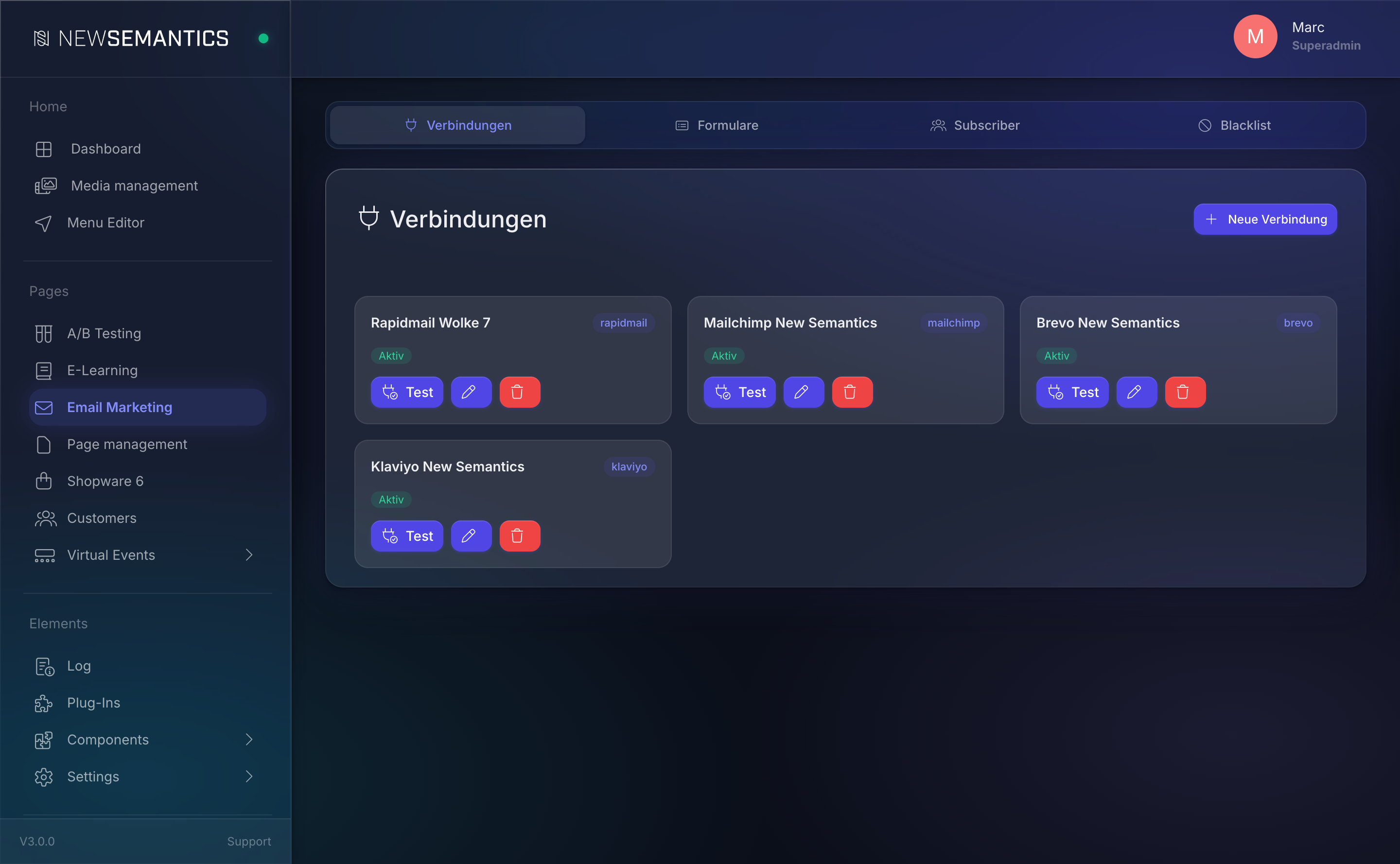
1. Add a provider connection
On the Connections tab click New Connection. The modal asks for a name, a provider, the API credentials, and a visibility flag.
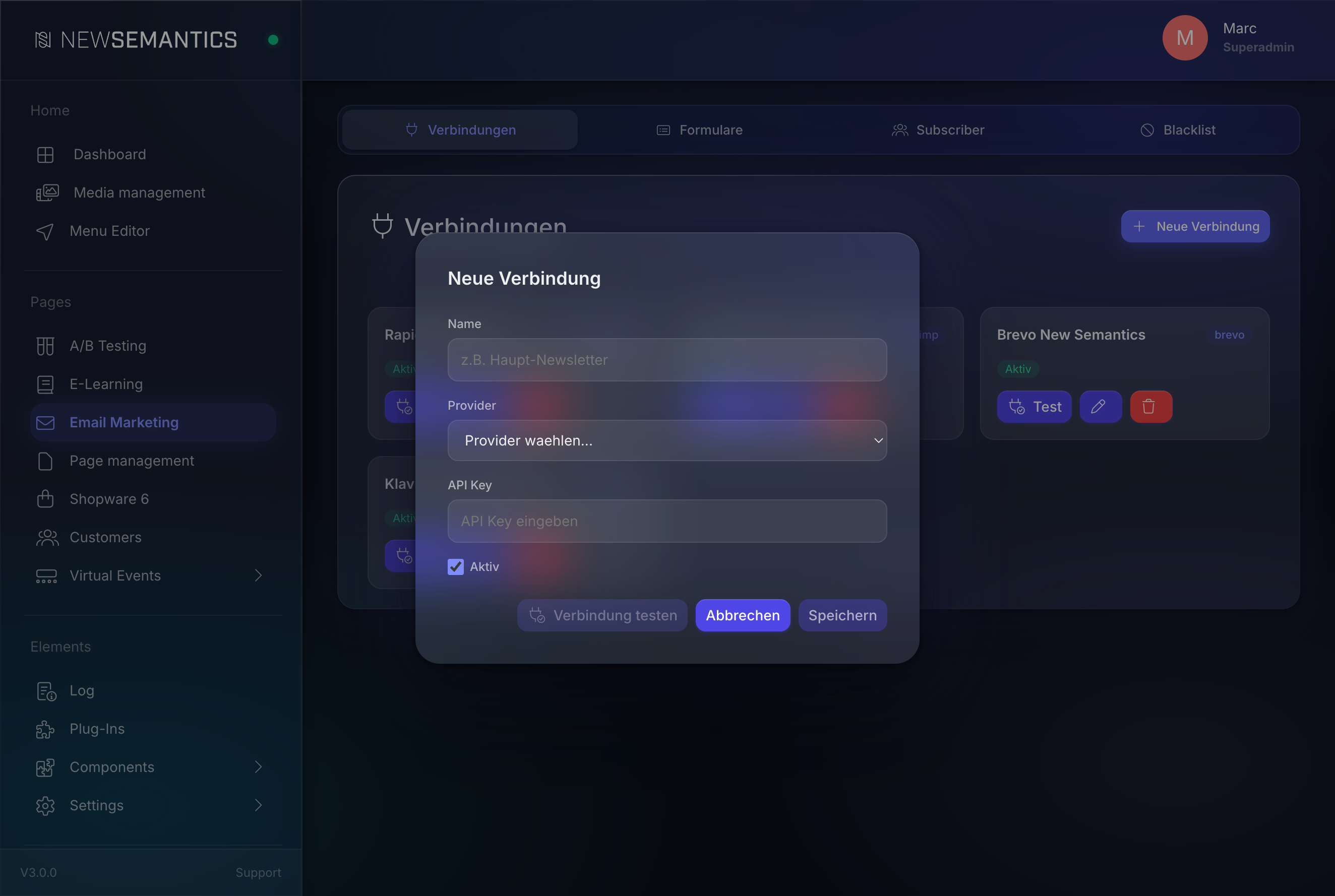
| Field | Purpose |
|---|---|
| Name | A human label for this connection, e.g. Main Newsletter. |
| Provider | Mailchimp, Brevo, Rapidmail, or Klaviyo. |
| API Key | The key from your provider account. |
| API Secret | Rapidmail only. The second half of Basic Auth. |
| Server Prefix | Mailchimp only. The short suffix after the dash in the API key, e.g. us14 or us21. |
| Active | Connection enabled. Uncheck to temporarily disable without deleting. |
The API key is stored encrypted
Keys are written to the database with AES-256-CBC. The backend never shows the stored key back — when editing a connection, leave the API Key field empty to keep the existing value.
Where to find each provider's credentials
| Provider | Where |
|---|---|
| Mailchimp | Profile → Extras → API keys. The key ends with -us14 or similar — copy the whole string. |
| Brevo | Profile → SMTP & API → API Keys v3. |
| Rapidmail | REST API settings — requires both API User and API Password. |
| Klaviyo | Account → Settings → API Keys → Private API Keys. Use a key with the lists:read and lists:write scopes. |
2. Test the connection
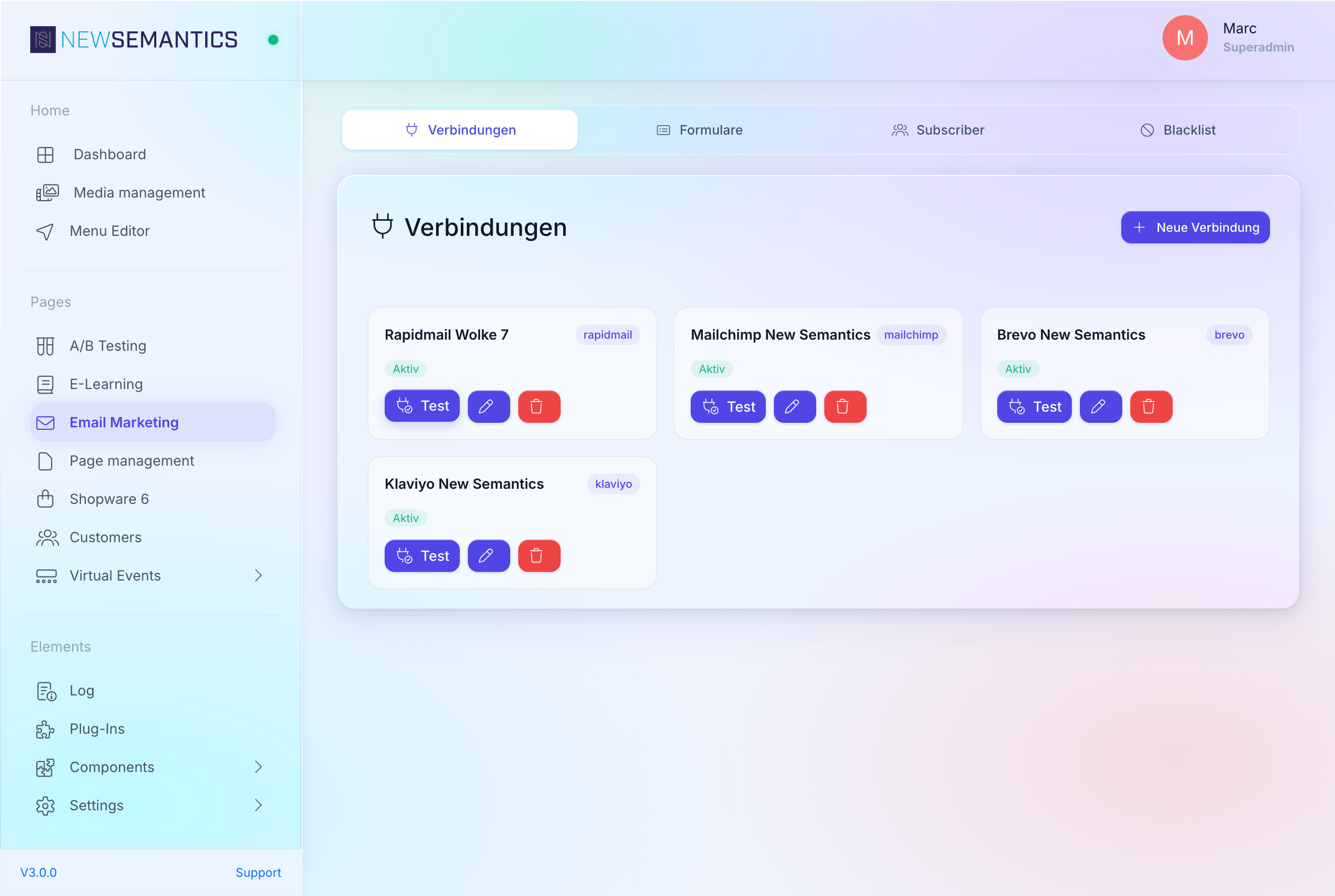
Click Test connection at the bottom of the modal (before or after saving). The result bar shows a green check mark on success or a red cross with the provider error on failure.
Common failure reasons:
- Mailchimp — wrong or missing Server Prefix.
- Brevo — the key belongs to a different account (the v2 key format is deprecated).
- Rapidmail — either the user or the password was copied with a trailing space.
- Klaviyo — the key lacks the
lists:readscope.
Fix and test again. Click Save when the test succeeds.
3. Use the connection in a form
Every subscribe form is bound to exactly one connection. When you create the form (see Forms and blacklist), you pick the connection first — then the list dropdown populates live from the provider.
No local subscriber table
Subscribers are stored at the provider. The Subscribers tab reads them back over the API (up to 500 entries per page). The CMS keeps only the consent log (em_consent_log) and the blacklist.
4. Delete a connection
The trash icon on a connection card deletes it. Forms bound to the deleted connection stop accepting subscriptions — the public subscribe endpoint returns an error until you rebind the form.
Provider capabilities
| Provider | Double-Opt-In | Custom fields | Notes |
|---|---|---|---|
| Mailchimp | Yes (managed by provider settings) | Merge fields (FNAME, LNAME, etc.) | |
| Brevo | Yes, requires DOI Template ID on the form | Attributes | |
| Rapidmail | Yes (send_activationmail parameter) | Custom fields | |
| Klaviyo | Yes (handled via list settings in Klaviyo) | Profile properties, JSON:API format |
Common issues
The list dropdown in the form builder is empty. The connection failed its last API call. Open the connection and run Test connection. If the test passes, re-open the form builder — the lists reload on connection change.
Test passes but subscribes fail on the public site. Check the Blacklist tab — the address might be in the suppression list. Blacklist is evaluated before any provider call.
Mailchimp returns "Invalid resource" on subscribe. Some lists require GDPR consent fields. Open Mailchimp, enable the list's GDPR mode, and add the matching consent text on the form.
See also
- Forms and blacklist — how-to
- Newsletter widget — how the form is embedded on a page