
Media Manager
The Media Manager is the central library for every file your site uses: images, PDFs, videos, icons, and 3D models. Every Widget that accepts an image, a document, or a download picks the file from the Media Manager — you upload once and reuse everywhere.
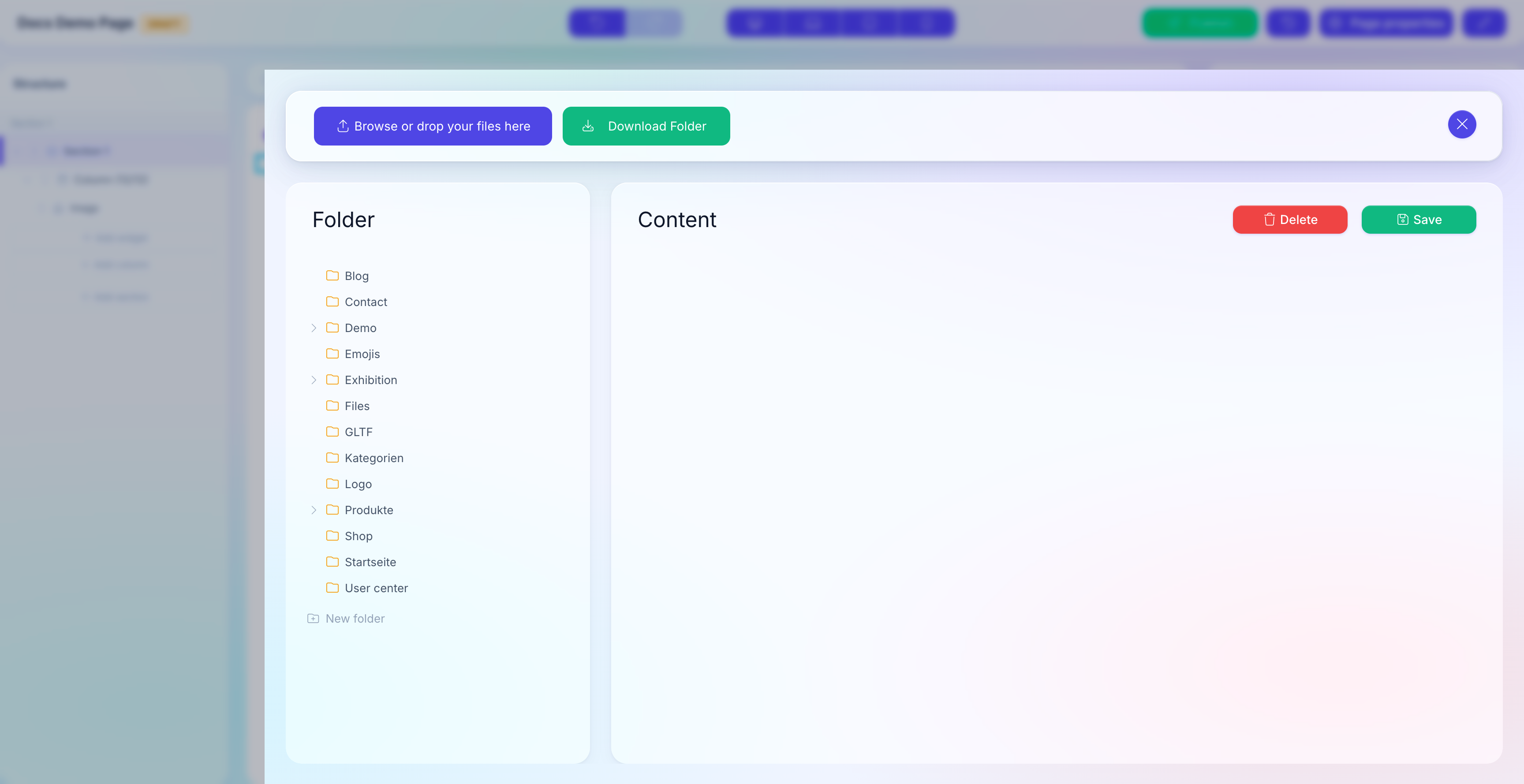
The two panels
The Media Manager always shows two regions:
- Folder tree (left) — your folders, nested as deeply as you need. A fresh install starts empty; you create folders for campaigns, product shoots, team photos, and so on.
- File grid (right) — the files inside the currently selected folder. Click a thumbnail to select it; click again to deselect.
Above both panels sit three actions: Upload, Download Folder (ZIP export of the selected folder), and Close.
Where the Media Manager appears
You reach the Media Manager in three ways:
- From the top bar — the folder icon in the admin header opens the standalone Media Manager. Use this for bulk uploads, reorganization, or when you just want to look.
- From a Widget field — any Pagebuilder Widget field of type Image, Gallery, or File opens the Media Manager as a picker. Select one or many files, click Save, and the Widget stores the reference.
- From the Menu Editor — menu items with an image (Mega Menu image slot, for example) open the same picker.
The underlying library is the same everywhere. A file you uploaded while editing a Widget is immediately available on every page.
Supported file types
The Media Manager accepts these extensions:
| Category | Extensions |
|---|---|
| Images | jpg, jpeg, png, gif, svg, webp (auto-generated), ico |
| Documents | pdf, vcf |
| Video | mp4, mov |
| 3D | glb, gltf |
| Archives | zip (treated as a folder import — see Upload files) |
Everything else is rejected on upload with a "status":"error" response. If you need another format, ask your administrator to extend the allow-list.
WebP is automatic
Every image (except mp4, mov, pdf, vcf, zip) gets a .webp version generated on upload. Your Frontend serves the WebP variant to modern browsers automatically — no extra step needed.
File naming
File names are normalized on upload to stay safe across web servers and databases:
- Spaces are removed.
- Umlauts are transliterated:
äbecomesae,öbecomesoe,übecomesue,ßbecomesss. - Quotes and backslashes (
',",`,\) are stripped. - The file extension stays untouched.
So Hero Banner ÄöÜ.jpg lands as HeroBanneraeoeUe.jpg on disk. The Title you see in the grid stays human-readable — only the underlying file name is sanitized.
Rename with care
Once a file is referenced by Widgets, renaming it changes the URL on every page that points at it. See Organize folders and files for the safe way to rename.
Permissions
Two permissions gate the Media Manager:
| Permission | What it allows |
|---|---|
mediamanager_mediamanager_view | Open the Media Manager, browse the tree, download folders. |
mediamanager_mediamanager_edit | Upload, replace, rename, delete, create folders. |
Superadmins have both by default. Editor and author roles usually get view + edit; read-only reviewers get view only. Ask your administrator if a button is missing from your UI.
See also
- Upload files — how to add files to a folder.
- Organize folders and files — create, rename, move, delete.
- Use media in Widgets — pick a file from a Widget field.
- Pages & Pagebuilder — where Widgets live.