
Episodes and video tracking
Split a course into multiple video episodes when one long video is not enough. The learner sees episodes as a checklist; each episode is tracked independently and the next one plays automatically when the current one finishes.
Prerequisite: The course exists (see Create a course) and is open in the detail view under Courses → Select course.
When to use episodes
- The course has natural chapters (e.g. four 15-minute lectures).
- The course has optional intro/outro segments you want the learner to see separately.
- You want to show progress per chapter instead of one big bar.
If the course is a single video, leave the episodes list empty and use the Video URL field on the General tab.
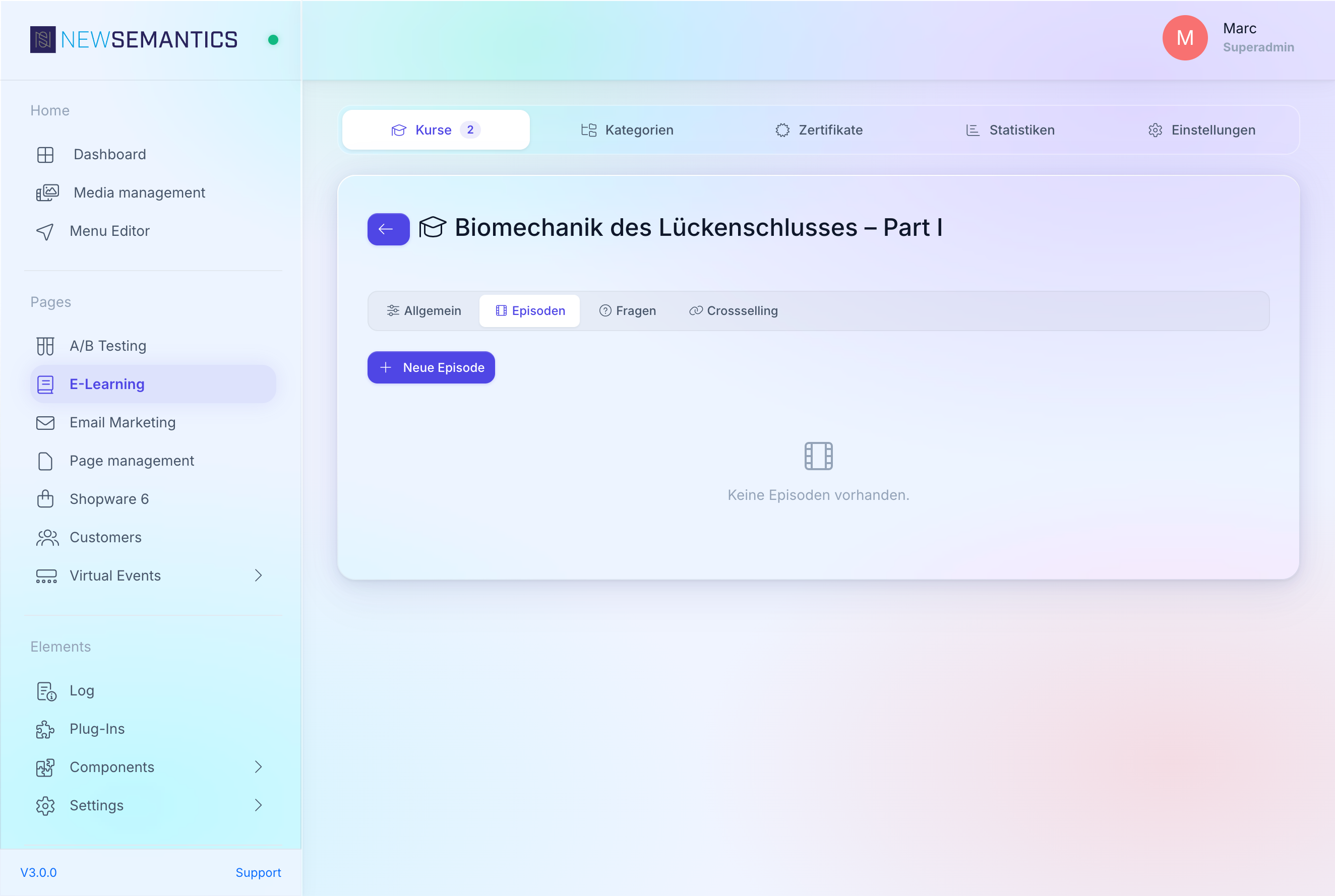
1. Open the Episodes sub-tab
Inside the course detail view switch to the Episodes sub-tab. If no episodes exist yet, the list shows an empty state.
2. Add an episode
Click New Episode. A modal opens with three fields:
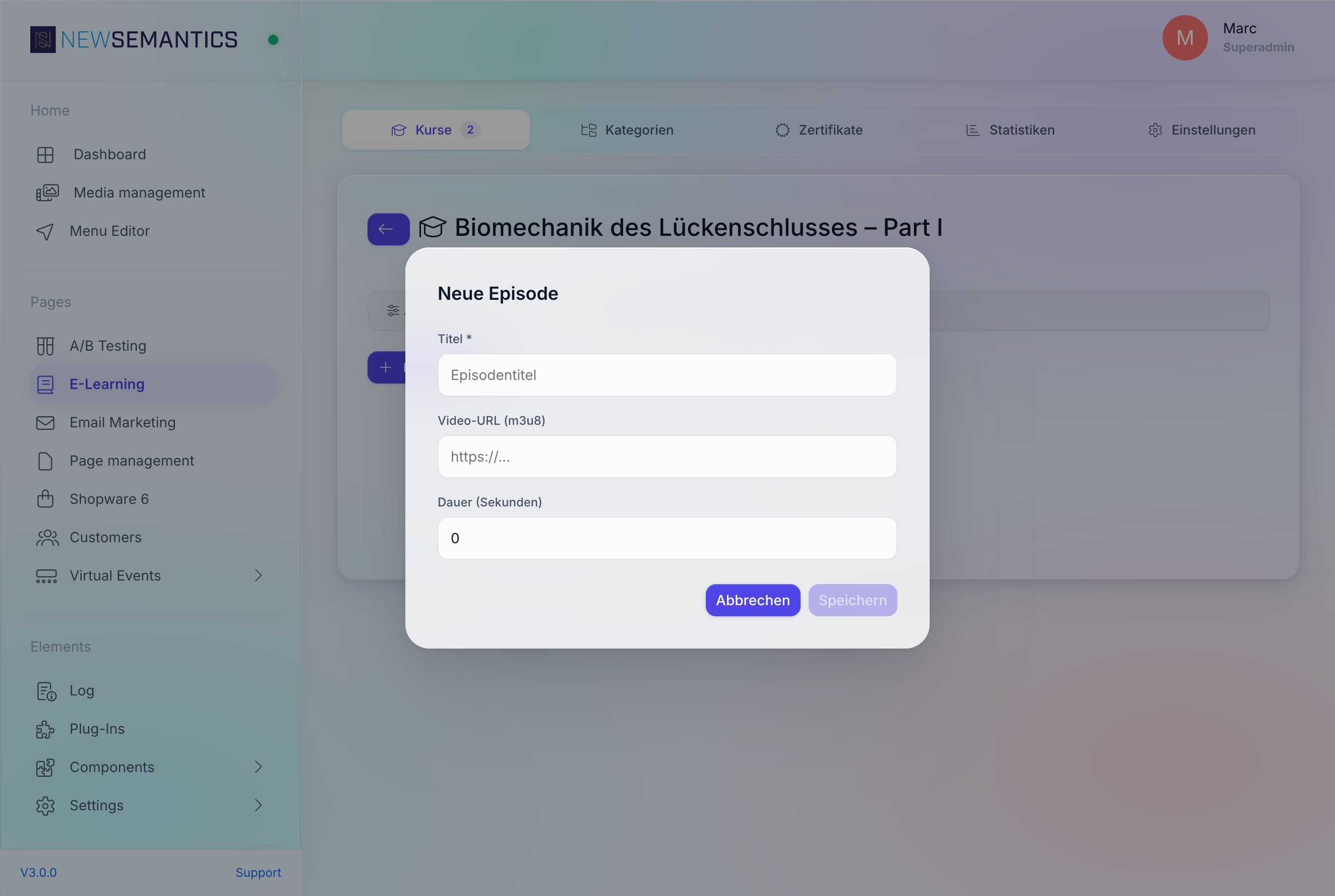
| Field | Purpose |
|---|---|
| Title | Shown as the chapter heading in the player. |
| Video URL (m3u8) | HLS stream URL for the episode. |
| Duration (seconds) | Episode length in seconds. Used for progress and for the 95 percent completion threshold. |
Click Save. The episode appears at the end of the list.
3. Reorder episodes
Use the up/down arrow buttons in the first column to move an episode. The position updates immediately — no extra save needed.
4. Edit or delete
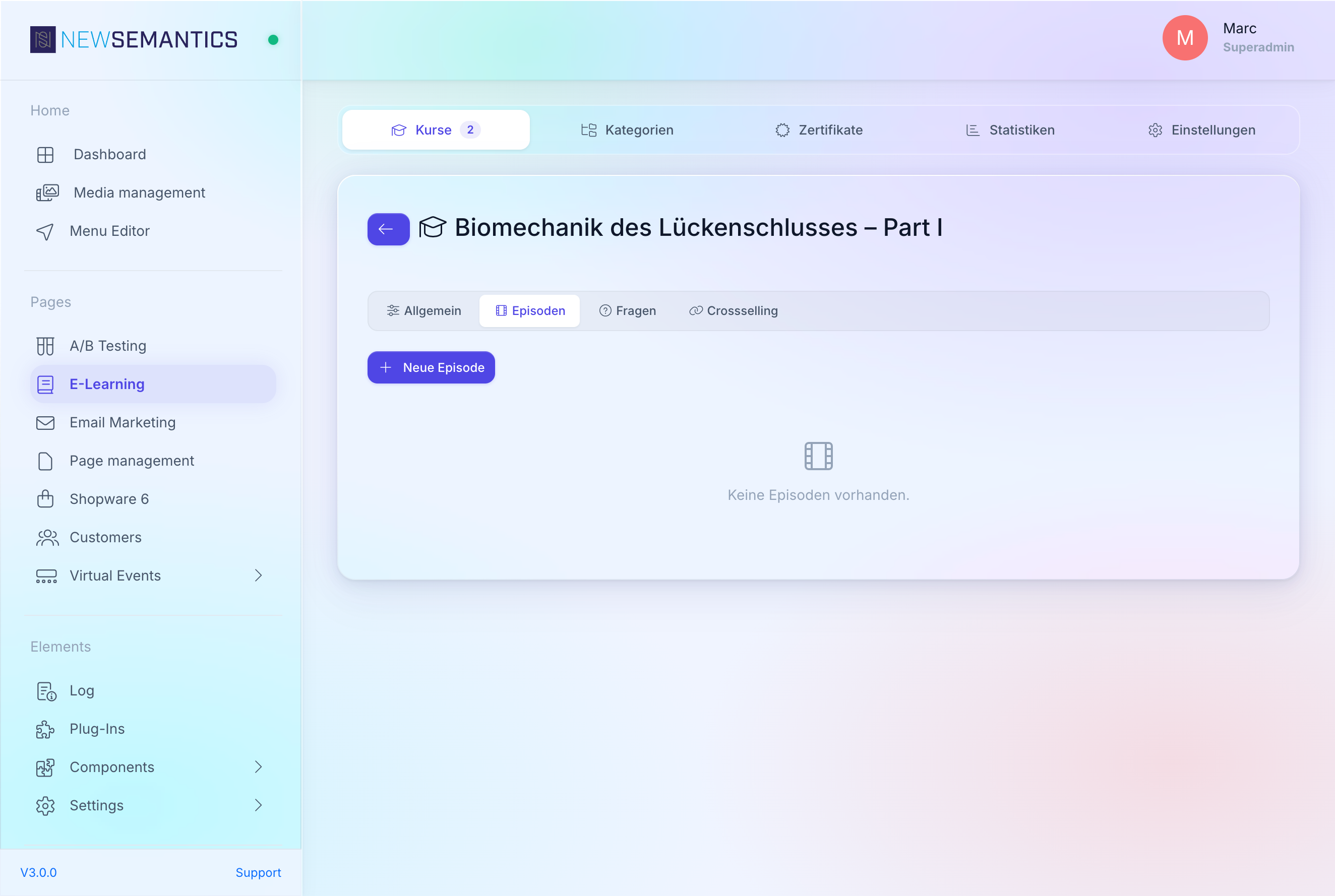
Use the pen icon to edit and the red trash icon to delete. Deleting an episode removes it permanently; tracking records for that episode stay in the audit log but no longer count toward progress.
How tracking works
The frontend player sends a heartbeat every 30 seconds (batched every 60 seconds). The server stores:
watched_seconds— total time the learner actually watched.max_watched_position— furthest point reached. Protects against fast-forwarding.- A row in the append-only tracking log.
A progress update is only accepted if at least 15 seconds have passed since the last one. The new watched-seconds value may not grow more than 5 percent faster than real elapsed time — this blocks client-side tampering.
An episode is marked completed when watched_seconds reaches at least 95 percent of its configured duration (per episode, or of the main video when the course has no episodes). The course is marked completed when every episode is complete.
When a learner switches tabs
The player pauses tracking while the tab is hidden. The learner does not lose watched-seconds, but the server does not advance progress either.
Progress display in the backend
You cannot edit a learner's progress. To spot-check how a course is doing, switch to the Statistics tab — it shows totals for sales, average exam score, and issued certificates across all courses.
Common issues
The next episode does not autoplay. Check the Duration (seconds) field. If it is 0, the player cannot calculate the 95 percent completion point and does not trigger the next episode.
A learner says their progress reset. Progress is append-only on the server. If the player shows the start position, the browser likely lost its local cache — the server still has the correct max_watched_position. Ask the learner to reload the detail page.
Certificate refuses to issue. The certificate endpoint requires watched_seconds >= 95 percent of the configured Content duration for each episode (or the main video, if no episodes exist). If a learner scrubbed past parts, watched-seconds never reached the threshold.
See also
- Create a course — how-to
- Exam questions — how-to
- Certificates — how-to