
Upload files
Add images, PDFs, videos, or ZIP archives to the Media Manager. You can upload one file at a time, many at once, or drop a ZIP that becomes a folder tree.
Prerequisite: You need the mediamanager_mediamanager_edit permission. Without it, the Upload button does not appear.
Steps
1. Open the Media Manager
Click the folder icon in the top bar, or open any Pagebuilder Widget that has an image field and click its thumbnail.
2. Pick the target folder
In the folder tree on the left, click the folder where the file should land. The selected folder is highlighted and its file grid appears on the right.
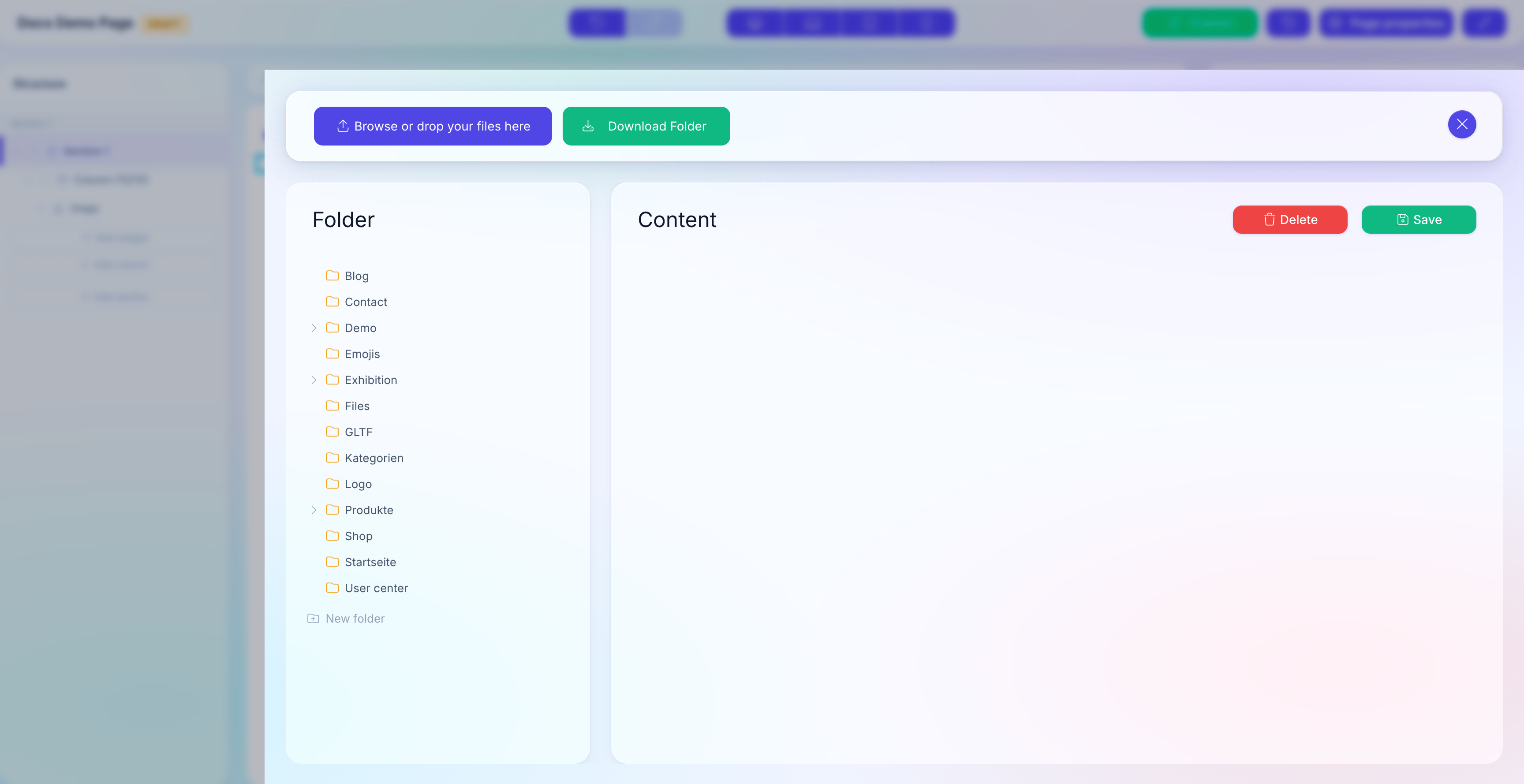
3. Upload
You have two ways to upload:
- Click the upload area labeled Browse or drop your files here. The OS file picker opens; select one or many files and confirm.
- Drag and drop one or many files from your desktop straight onto the upload area. A dashed highlight confirms the drop zone is active.
Both ways support multi-file upload. Every file is processed independently; a rejected file does not cancel the rest of the batch.
4. Wait for the grid to refresh
Small images finish in a second; large videos and PDFs take longer. The grid reloads automatically once a file is done. You can keep working in other tabs while an upload runs — the queue is per-tab.
Supported formats
| Category | Extensions |
|---|---|
| Images | jpg, jpeg, png, gif, svg, ico |
| Documents | pdf, vcf |
| Video | mp4, mov |
| 3D | glb, gltf |
| Archives | zip |
Anything else is silently rejected. The grid does not show the new file. Check the file's extension and try again.
Preview is generated automatically
- Images get a
.webpvariant so your Frontend can serve a smaller file to modern browsers. - PDFs get a preview image so the grid shows the first page as a thumbnail. PDFs must be unencrypted — encrypted PDFs upload but have no thumbnail.
File name rules
File names are normalized on upload:
| Input | Stored as |
|---|---|
Hero Banner.jpg | HeroBanner.jpg |
Produkt Übersicht.pdf | ProduktUebersicht.pdf |
Team Schön-Berlin.png | TeamSchoen-Berlin.png |
My "Cover".jpg | MyCover.jpg |
Spaces are removed, ä ö ü ß are transliterated to ae oe ue ss, and the characters ', ", `, \ are stripped. The Title in the grid keeps the original, human-readable name — only the file on disk is sanitized.
Duplicate file names
If you upload two files with the same normalized name into the same folder, the second upload lands in a newly generated disk folder — both files coexist in the grid but live in different physical directories. The reference stays unique.
ZIP folder import
A .zip upload is treated specially: the archive is extracted and the folder structure inside is recreated under the target folder.
- Pack your folder on your machine so the root of the ZIP is the folder name (e.g.
Campaigns.zipwith everything inside aCampaigns/root). - Drop the ZIP onto the upload area of the target folder.
- The Media Manager extracts the archive, creates sub-folders for every directory in the ZIP, and imports each file with the same normalization rules as a single upload.
Zip Slip protection
The importer refuses any archive that contains .. or paths starting with /. This is a security protection; do not try to work around it.
If the archive carries a map.json manifest (produced by Download Folder), the original Media Manager IDs are preserved. See Organize folders and files for the round-trip workflow.
What to do if upload fails
Common reasons for a failed upload
- File too large: the server's PHP limit (
upload_max_filesize/post_max_size) is reached. Ask your administrator; the default is typically 64 MB. - Extension rejected: the file type is not in the allow-list. Convert or rename.
- Disk quota: the server has no free space. Ask your administrator.
- Session timed out: reload the admin UI and sign in again.
See also
- Media Manager overview — folders, file types, permissions.
- Organize folders and files — rename, move, delete.
- Use media in Widgets — from upload to visible on a page.