
Design Tokens
Design Tokens are the central knobs for your site's look and feel. Colors, fonts, spacing, border radius, breakpoints — all live in one LESS stylesheet that compiles to CSS and applies everywhere on the public site.
This page shows you how to open the editor, change tokens, preview the result, and save.
Where the module lives
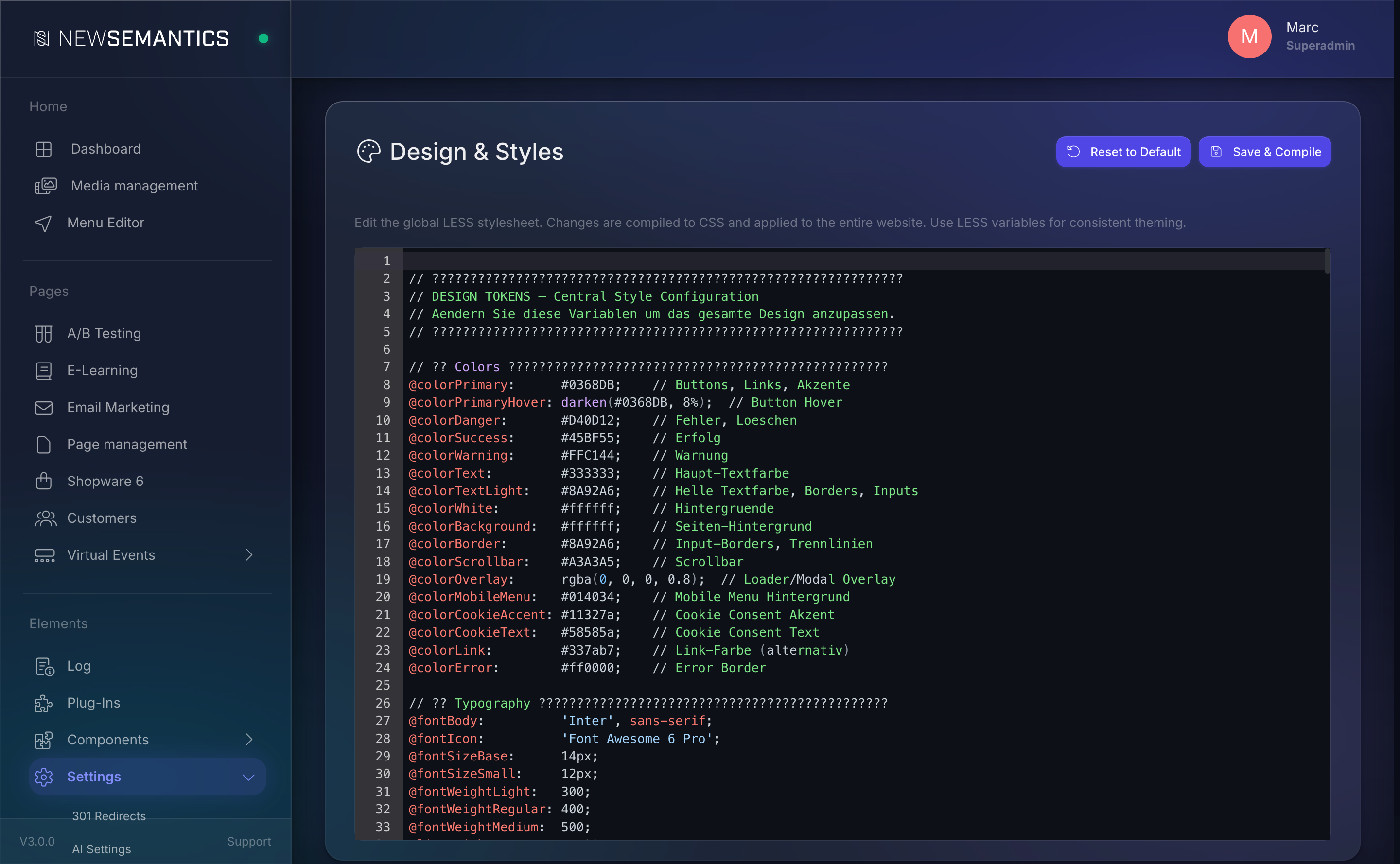
Click Settings → Design in the sidebar. The CodeMirror LESS editor opens with the live stylesheet loaded from the database.
What lives in the stylesheet
The top section of the file is a flat list of LESS variables grouped by purpose. Below them, the :root { ... } block exposes the same values as CSS custom properties for runtime access (for example from widget CSS).
Everything below that point is regular CSS. You can edit it too, but the tokens at the top are where most changes should happen — they flow through the whole design.
Colors
| Token | Purpose |
|---|---|
@colorPrimary | Buttons, links, accents. The dominant brand color. |
@colorPrimaryHover | Hover state for buttons. Usually a darkened primary. |
@colorDanger | Errors, delete actions. |
@colorSuccess | Success messages. |
@colorWarning | Warnings, soft alerts. |
@colorText | Body text. |
@colorTextLight | Secondary text, borders, input outlines. |
@colorBackground | Page background. |
@colorBorder | Input borders, dividers. |
@colorLink | Text links (alternative to primary). |
@colorError | Error input border. |
Typography
| Token | Purpose |
|---|---|
@fontBody | Main font stack for body text. |
@fontIcon | Icon font (Font Awesome by default). |
@fontSizeBase | Base font size (default 14px). |
@fontSizeSmall | Small text, captions, labels. |
@fontWeightLight / @fontWeightRegular / @fontWeightMedium | Weights used across the site. |
@lineHeightBase | Base line height. |
Spacing
| Token | Purpose |
|---|---|
@spacingBase | Unit for fine adjustments (8px). |
@spacingSmall / @spacingMedium / @spacingLarge / @spacingXLarge | Progressive paddings and margins. |
@spacingSection | Vertical gap between Pagebuilder rows (.ns-row). |
@spacingForm | Gap between form groups. |
Layout and shadows
| Token | Purpose |
|---|---|
@radiusBase | Corner radius for buttons, inputs, cards. |
@radiusRound | Pill-shaped elements. |
@inputHeight | Height of form inputs. |
@buttonLineHeight | Line height for .btn. |
@shadowCard | Card / nav drop shadow. |
Breakpoints
| Token | Purpose |
|---|---|
@breakpointDesktop | Below this width, desktop rules stop applying (default 991px). |
@breakpointMobile | Below this width, mobile rules kick in (default 768px). |
Change a token
- Open Settings → Design.
- Locate the variable at the top of the file (for example
@colorPrimary). - Change the value. Use any valid LESS value — hex,
rgb(),rgba(), LESS helpers likedarken(#0368DB, 8%). - Click Save & Compile in the top right.
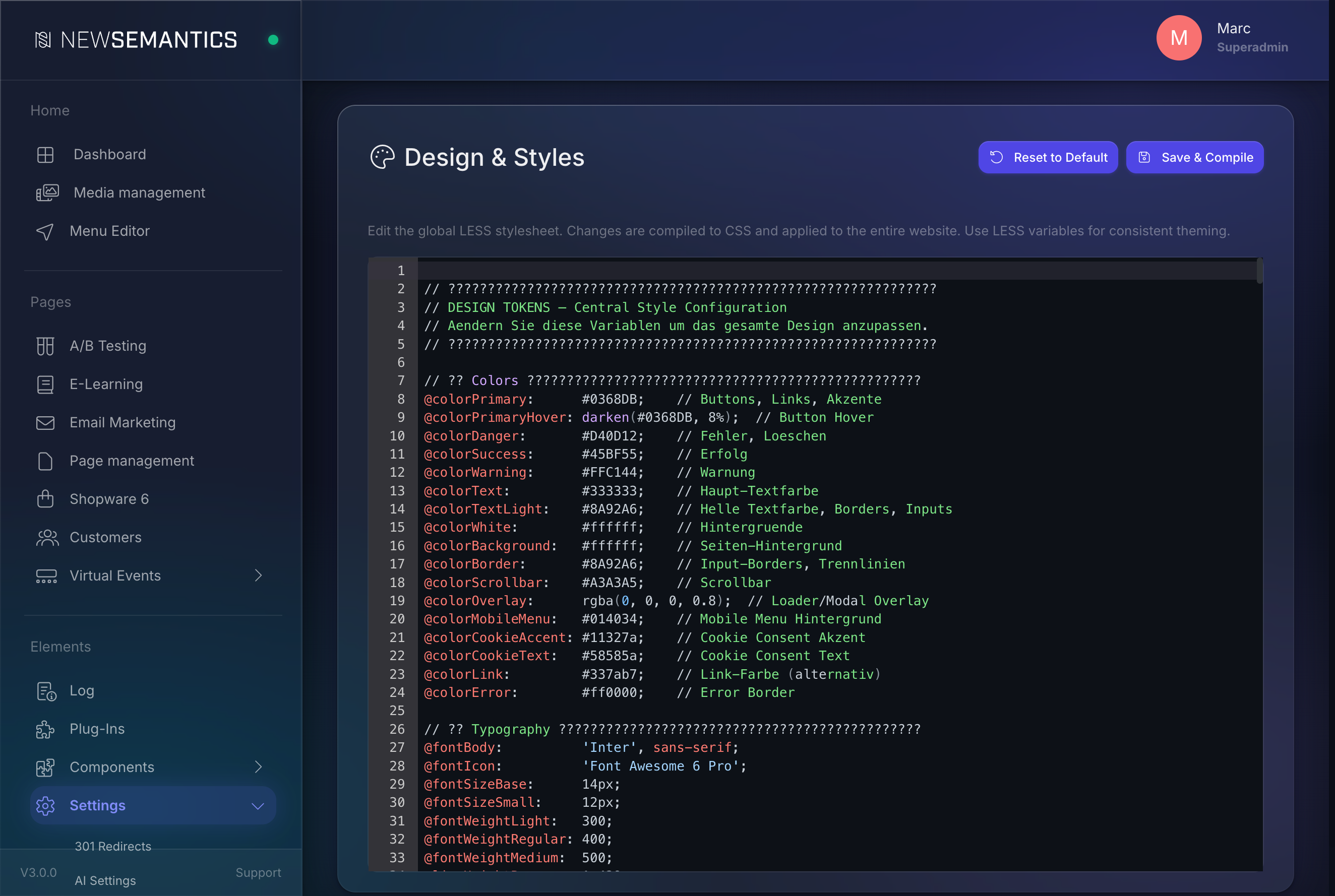
The Frontend picks up the new CSS on the next page load — no deployment, no Nuxt rebuild needed.
Preview before save
Changes are only applied after Save & Compile. Open the public site in a second browser tab and reload it after saving to see the result.
Reset to the default stylesheet
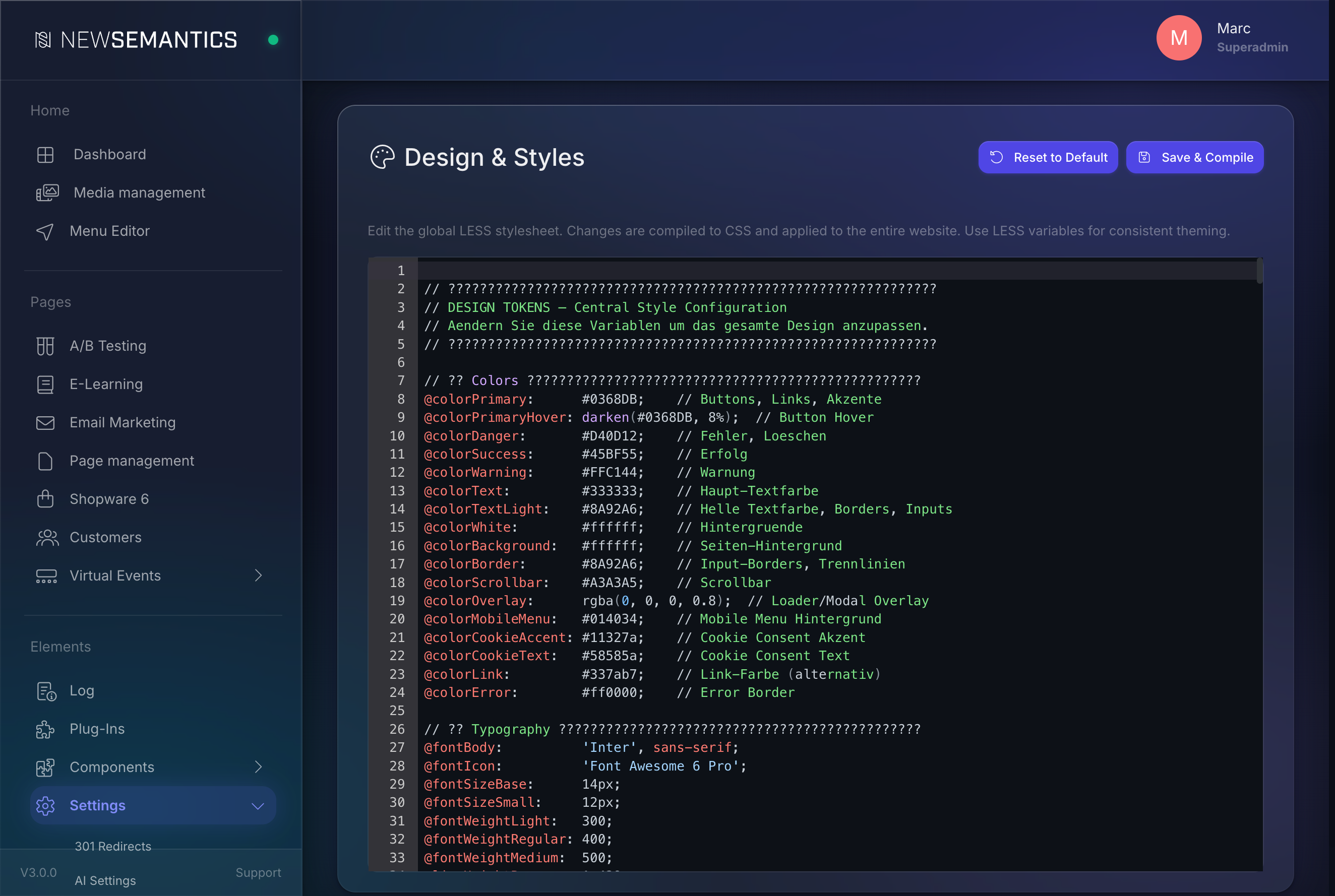
If you need to undo a session's worth of changes, click Reset to Default in the top right. You are asked to confirm. The editor loads the shipped default LESS file; Save & Compile writes it back to the database.
Reset wipes the custom stylesheet
Reset replaces every line in the editor — your own CSS rules below the token section are also lost. Copy custom blocks you want to keep before you reset.
Copy a design from another website
Instead of hand-tuning every token, Design-Copy measures an existing website — its colors, typography, spacing — and generates a matching token draft for you. Only token values are read; no foreign CSS or HTML is imported into your site.
The Design-Copy panel sits at the top of Settings → Design.
- Enter one or more source URLs (one per line, max 5).
- Pick the breakpoints to measure (desktop, tablet, mobile).
- Tick the confirmation that you are allowed to clone the design.
- Click Start clone. A progress bar shows the stages (harvesting → analyzing → assembling → …).
When the run finishes, a Pending design draft panel appears with a coverage report and a side-by-side diff of the current Live stylesheet versus the new Draft.
- Preview opens the live site with the draft applied as an overlay — nothing is saved yet.
- Apply to live writes the draft into the live stylesheet. The current live styles are snapshotted first, so you can roll back.
- Discard throws the draft away without touching the live site.
To roll back the last apply, click Undo apply in the editor header — it restores the styles from before the apply.
Only clone designs you may use
Cloning reads the visual tokens of the source site. Only run it against sites you own or are licensed to reproduce.
Tokens, not a copy
Design-Copy never imports the source site's CSS, fonts, or markup. It derives token values (colors, font families, sizes) and writes them into your own token set — so the result stays fully yours and editable.
Created designs
Every design you successfully create is kept under Created designs, newest first, labelled by source site and date. Failed runs are not listed.
- Preview renders that design over the live site without changing anything — a quick visual check.
- Restore loads the design back as a draft. From there you preview and apply it through the normal draft flow above.
This means you can return to any earlier design at any time, even after you applied a different one.
E-mail colors
The E-mail colors panel sets the colors for outgoing system and transactional e-mails — password reset, registration, order and subscription confirmations, and notifications. These values are rendered directly into the e-mail template.
They are a separate token set from the site LESS tokens above, because e-mail clients (Outlook, Gmail) do not support CSS variables — the colors must be baked into each mail as literal values.
| Field | Controls |
|---|---|
| Background | The page background behind the e-mail card. |
| Surface (card) | The e-mail card and header background. |
| Subtle (footer) | Footer background and table-header background. |
| Text | Body text. |
| Heading | Headings (h1–h3). |
| Muted text | Footer and secondary text. |
| Accent (links / button) | Links and the call-to-action button background. |
| Accent text | Text on the accent button. |
| Border | Dividers in the header, footer, and tables. |
| Font family | The font stack for the whole mail. Use web-safe fonts — e-mail clients cannot load web fonts reliably. |
- Open Settings → Design and scroll to E-mail colors.
- Pick a color per field via the swatch, or type a hex value. Set the Font family.
- Watch the live mini-preview (header → heading → text → button → footer) update as you change values.
- Click Save. Defaults resets every field to the shipped values.
Where these colors apply
Every e-mail that uses the central template inherits these colors — reset, registration, confirmation, and notification mails alike. There is no per-mail color override.
Custom LESS vs. Theme LESS
Two stylesheet layers combine on the public site:
- Custom LESS (this editor) — lives in the database, editable in the Backend, reloads without a deploy.
- Theme LESS (
_theme/{project}/public/css/…) — ships with the Nuxt theme. Only changeable by a developer with access to the code. Compiled at build time.
Custom LESS is loaded after Theme LESS, so Custom rules win when they match the same selector.
If a token is defined in Custom LESS, it also overrides the theme default for the --me-* Menu Editor variables and any widget that uses the --color-* custom properties.
Where the file is stored
The compiled CSS goes into the server's CSS cache and the LESS source lives in the website.custom_less column. A syntax error in your LESS keeps the previous CSS in place and surfaces an error under the editor — so you can never break the live site by typing a wrong bracket.
Common issues
Syntax errors block save
If LESS does not compile, the save fails and a red banner shows the error line. Fix the error and click Save & Compile again. The old CSS stays live in the meantime.
Color functions need hex input
LESS helpers like darken(), lighten(), fade() require hex values. Passing rgb() or a CSS variable into them does not work.
Browser cache
After save, force-reload the public site (Ctrl+Shift+R or Cmd+Shift+R) if you still see the old colors. The CMS sets cache headers on the compiled CSS but browsers can ignore them on a soft reload.
See also
- SEO Meta per page — title, description, canonical, OG image.
- Redirects — keep URLs working after a rename.
- AI Text Generation — generate CSS snippets with AI.