
URL Translations
URL Translations map URL slugs from one language to another. The English slug products becomes produkte in German — without this mapping the German site would have mixed-language URLs like /de/products that look unprofessional and hurt SEO.
Open Settings → URL Translations. The list shows every registered URL translation.
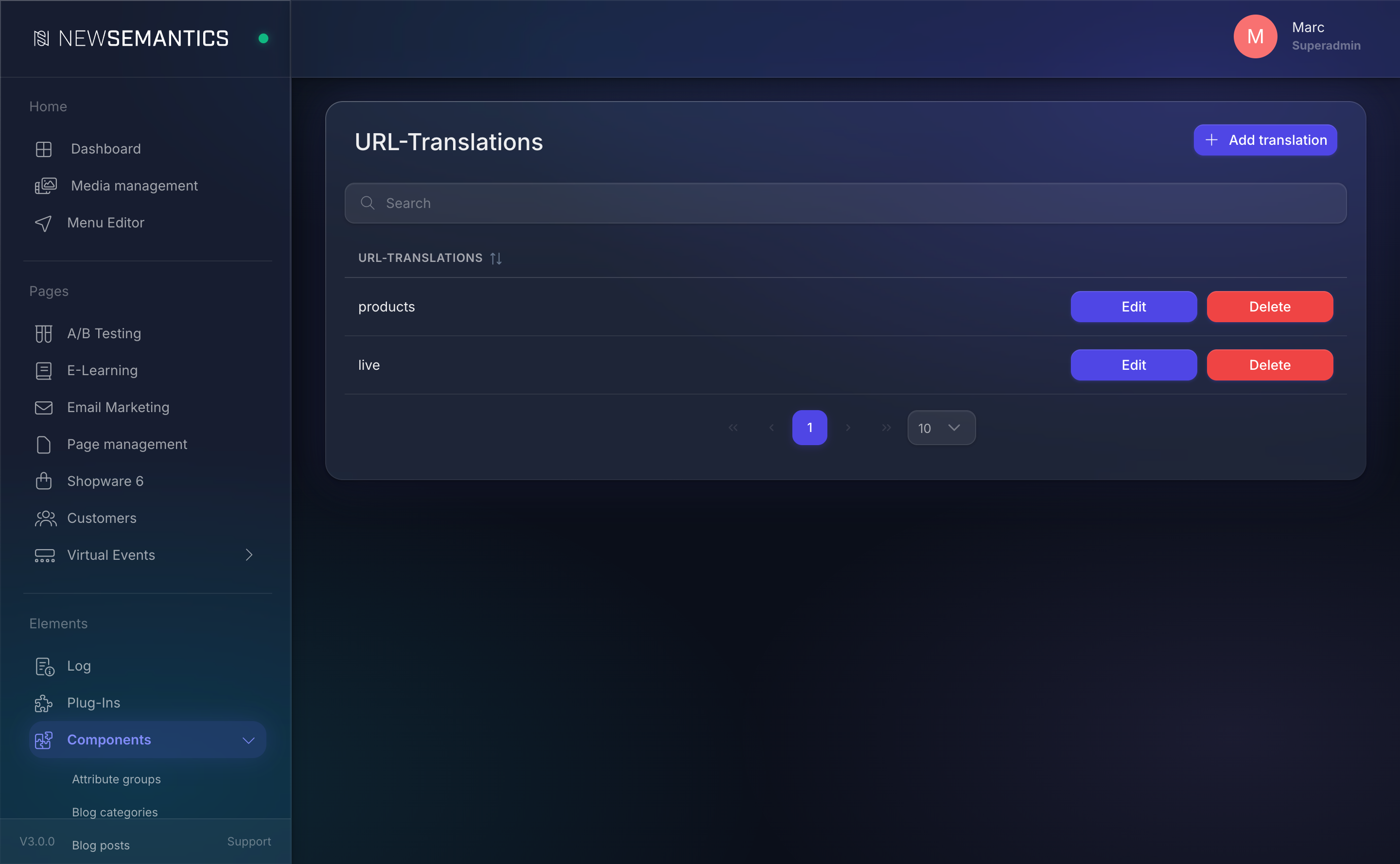
Columns
| Column | Purpose |
|---|---|
| Original URL | The slug in the main language, e.g. products. |
| Translation | The translated slug for a specific language. |
Translations are keyed by the main-language slug. Each translation row carries a language tag (the ISO code the translation belongs to). Tabs in the edit modal let you set the same original for every configured language.
1. Add a URL translation
Click Add translation in the top right.
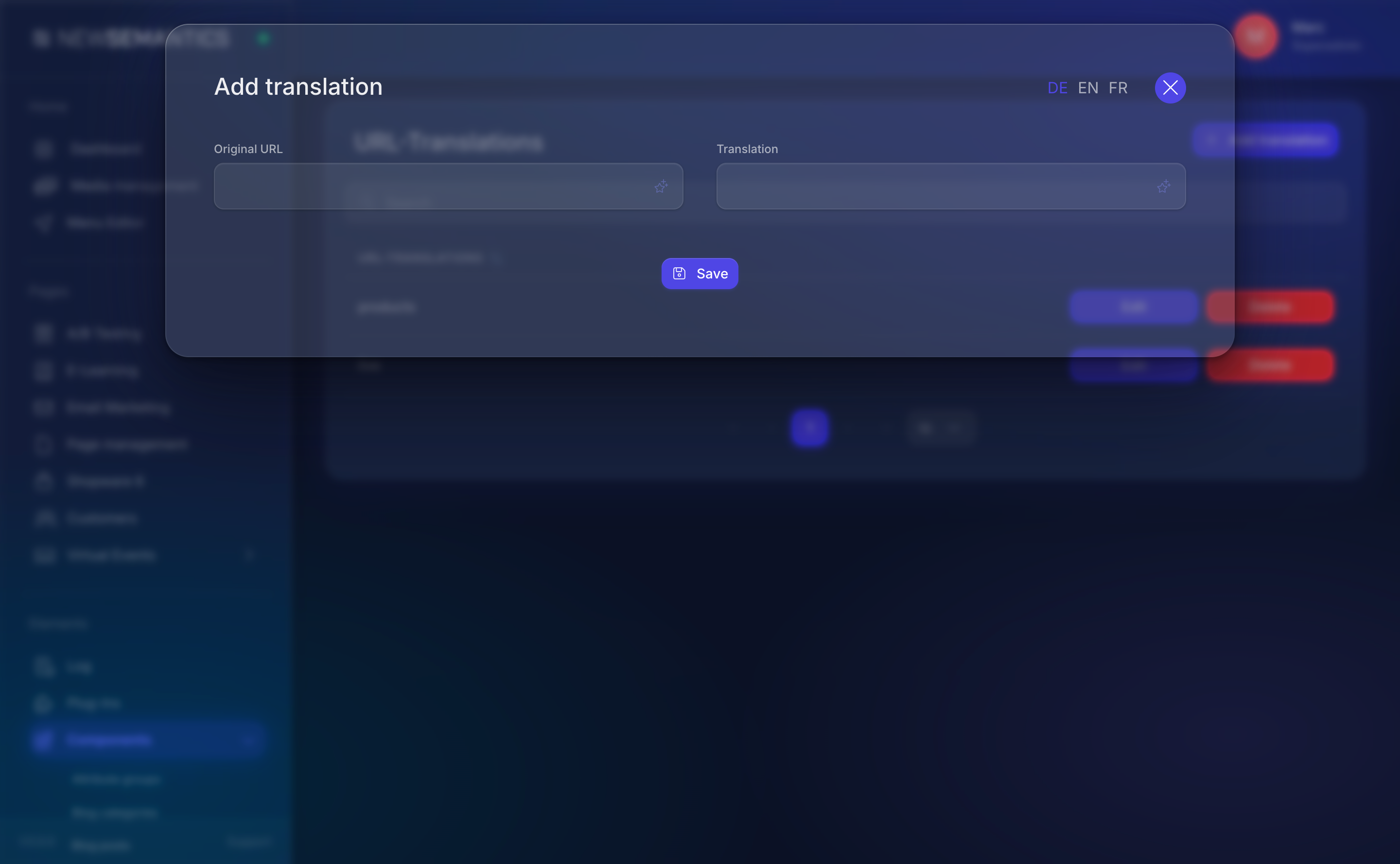
| Field | Purpose |
|---|---|
| Original URL | Slug in the main language — lowercase, hyphenated, no leading slash. Example: products. |
| Translation | Slug in the target language. Same formatting rules. Example: produkte for German. |
The language tabs in the modal let you fill translations for every configured language at once. Click Save.
2. Edit a translation
Click the pencil Edit icon. Open the correct language tab, change the translated slug, save.
Editing the original slug is possible but risky — any cached frontend or external link still points to the old path. Prefer adding a redirect from the old URL and editing the slug in place afterwards.
3. Delete a translation
Click the trash Delete icon. A confirmation modal asks twice.
When a translation is removed, the frontend falls back to the original (main-language) slug. For example, /de/products still resolves to the product listing, but /de/produkte stops working — add a redirect or restore the translation to keep the old link alive.
What gets translated
URL translations apply to URL segments — the path parts a plugin builds URLs from. Typical segments:
| Segment | Where it appears |
|---|---|
products | Native-shop product listing. |
product | Individual product detail. |
blog | Blog overview. |
category | Blog or product category filter. |
search | Elasticsearch search page. |
checkout | Shop checkout flow. |
my-account | Customer account pages. |
They do not apply to page slugs configured per page under Page management → Edit page → URL. Those slugs live on the page record itself and have their own translation field on the page's language tab.
Two layers of slugs
- Page slugs (in the page editor) — translated per page row.
- URL translations (here) — translated per URL segment that plugins build at runtime.
If a URL under /de/... is not what you expect, check both layers.
Common issues
/de/products still shows "products" in the URL. The translation row exists but the language tab for de is empty. Open the row, switch to the German tab, fill in produkte, save.
Frontend links to /de/produkte/123 but the detail page 404s. Usually the segment product (singular) is also translated and the frontend builds the detail URL with the singular form. Add both products → produkte and product → produkt.
An old URL stops working after I deleted a translation. Either re-add the translation or set up a redirect from the old path.
See also
- Languages — configure which languages exist.
- Translations — translate runtime UI strings (not URLs).
- Redirects — redirect old URLs to new ones.