
Create an A/B test
Set up a page-level A/B test in under five minutes. You will create the test shell, add a variant, balance traffic, start the test, and later pick a winner.
Prerequisite: The page you want to test is published. For additional variants you need at least one saved Page Version of that page (see Pages & Pagebuilder). You are signed in as editor or admin.
1. Open the A/B Testing module
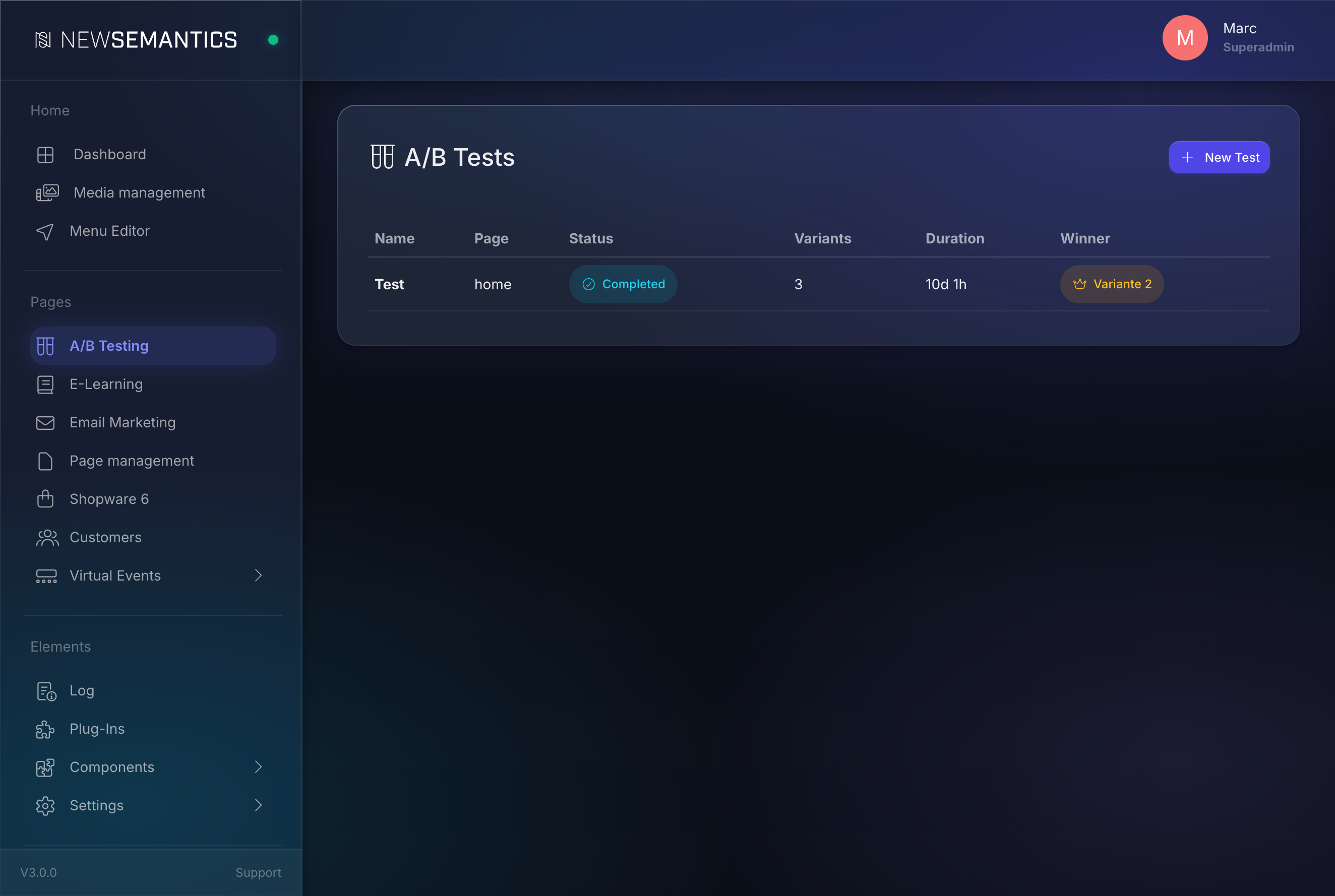
Click Pages → A/B Testing in the sidebar. The test list opens. If no tests exist yet, the empty state invites you to click New Test.
2. Create the test
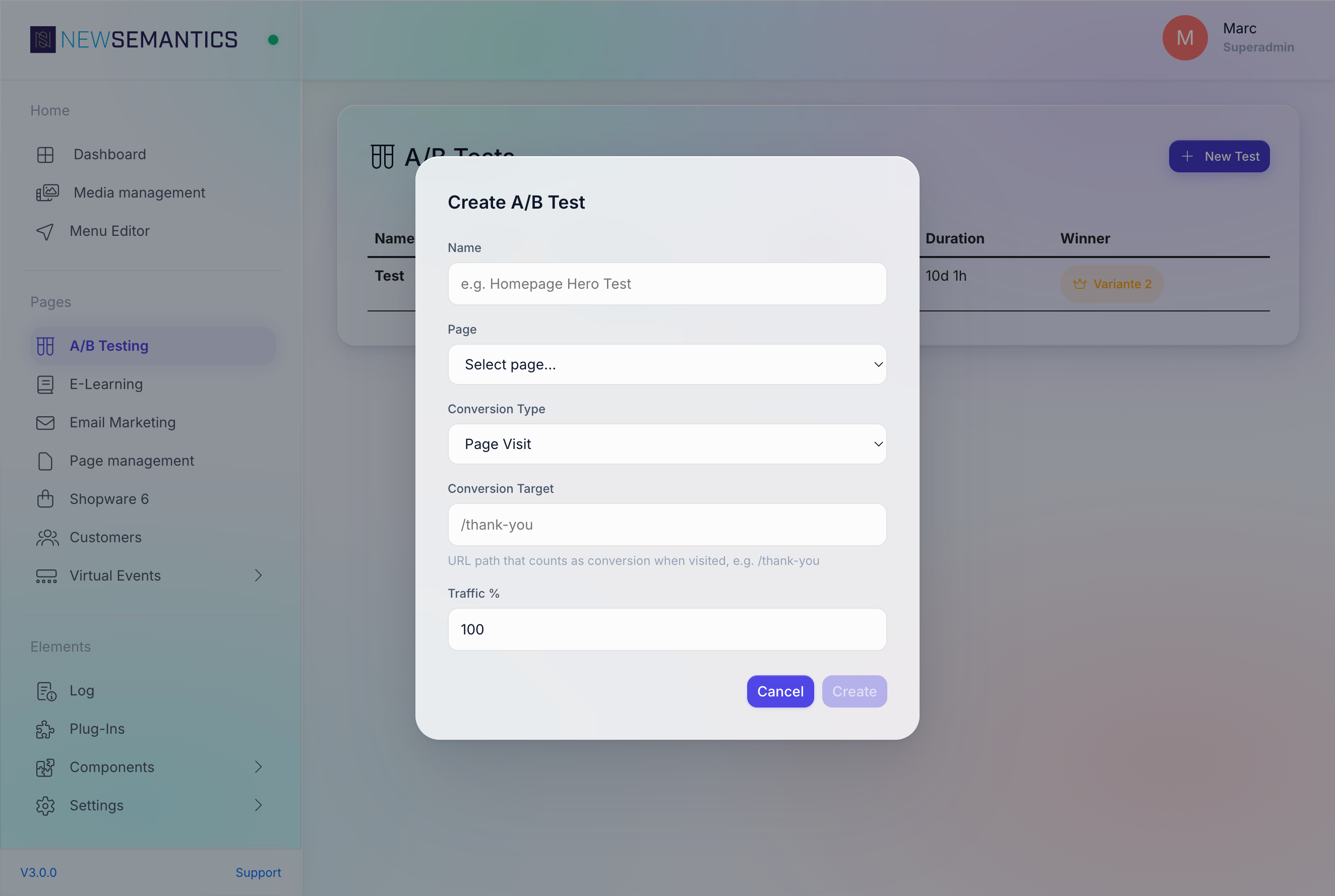
Click New Test. The modal asks for six fields.
| Field | Purpose |
|---|---|
| Name | Internal label, e.g. Homepage Hero Test. |
| Page | The page to test. Only published pages are listed. |
| Conversion Type | Page Visit, Button Click, Form Submit, or Custom. |
| Conversion Target | A URL (for Page Visit), a CSS selector (for Button Click / Form Submit), or an event name (for Custom). |
| Traffic % | How much of the visitor pool goes into the test. Leave on 100 to test all visitors. |
Keep Traffic at 100 unless you must shield revenue
Reducing traffic slows data collection. Use a lower percentage only when the page has high commercial stakes (checkout, cart) and you want a safety buffer.
Click Create. The test opens in detail view with the control variant already populated.
3. Add a variant
Every test needs at least two variants — the control (your live page) and one challenger. Click Add Variant on the Variants panel.
| Field | Purpose |
|---|---|
| Version | Either Current page state (a fresh snapshot) or a named Page Version you saved earlier. |
| Name | Display name, e.g. Variant B. |
| Weight % | Traffic share this variant gets. |
Click Add. The variant appears as a card next to the control. Repeat if you want more than two variants.
4. Balance traffic
Variant weights must sum to exactly 100%. The Traffic Distribution panel shows the live sum and highlights the number red if it is off.
Adjust the inputs until the sum is green, then click Save.
5. Start the test
On the test info panel click Start Test. The status turns from draft to active and impressions start accumulating.
You cannot add variants to a running test
To change the variant mix you must Pause the test first. Paused tests keep showing variants to visitors who already got a cookie, but no new assignments happen.
6. Let it run
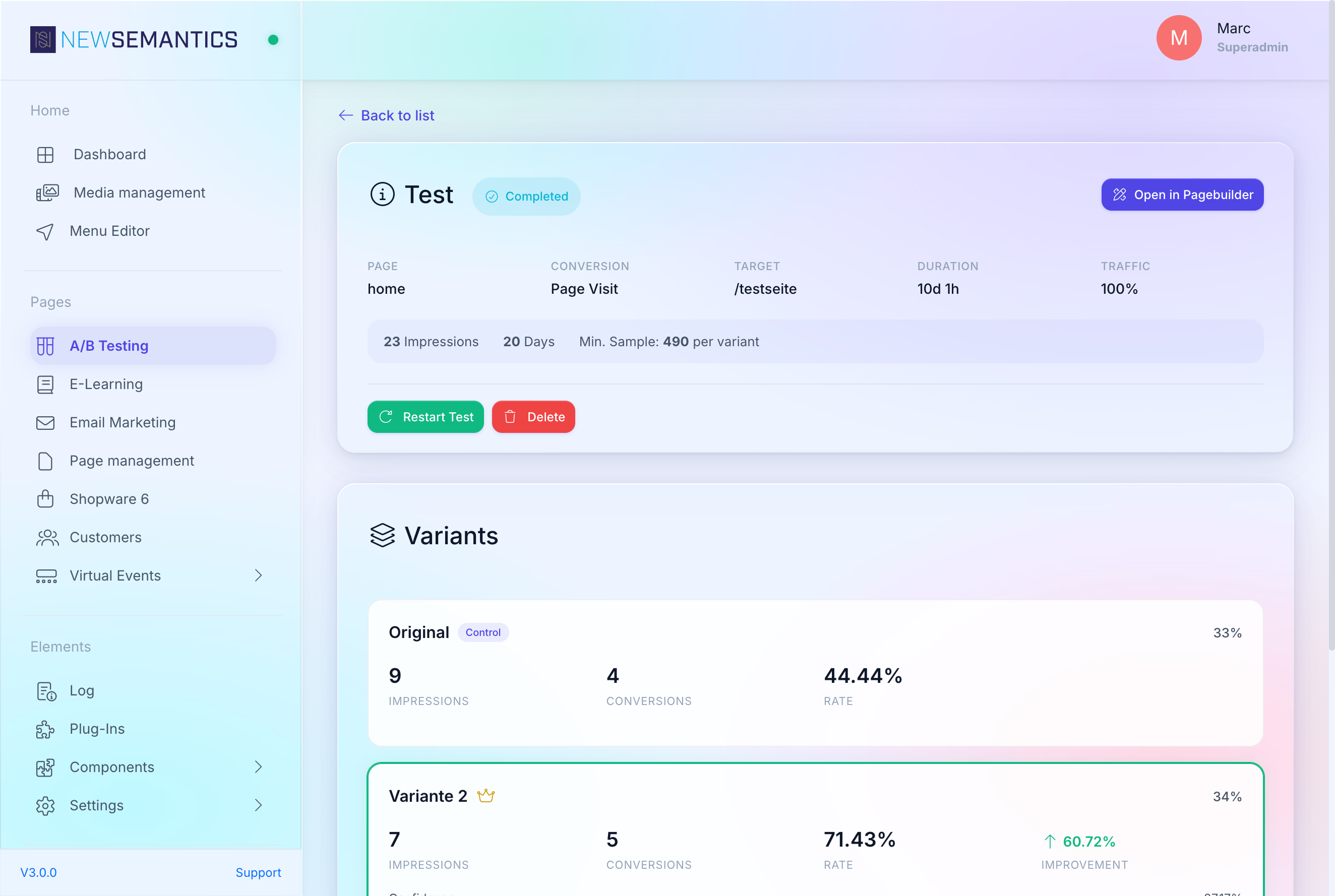
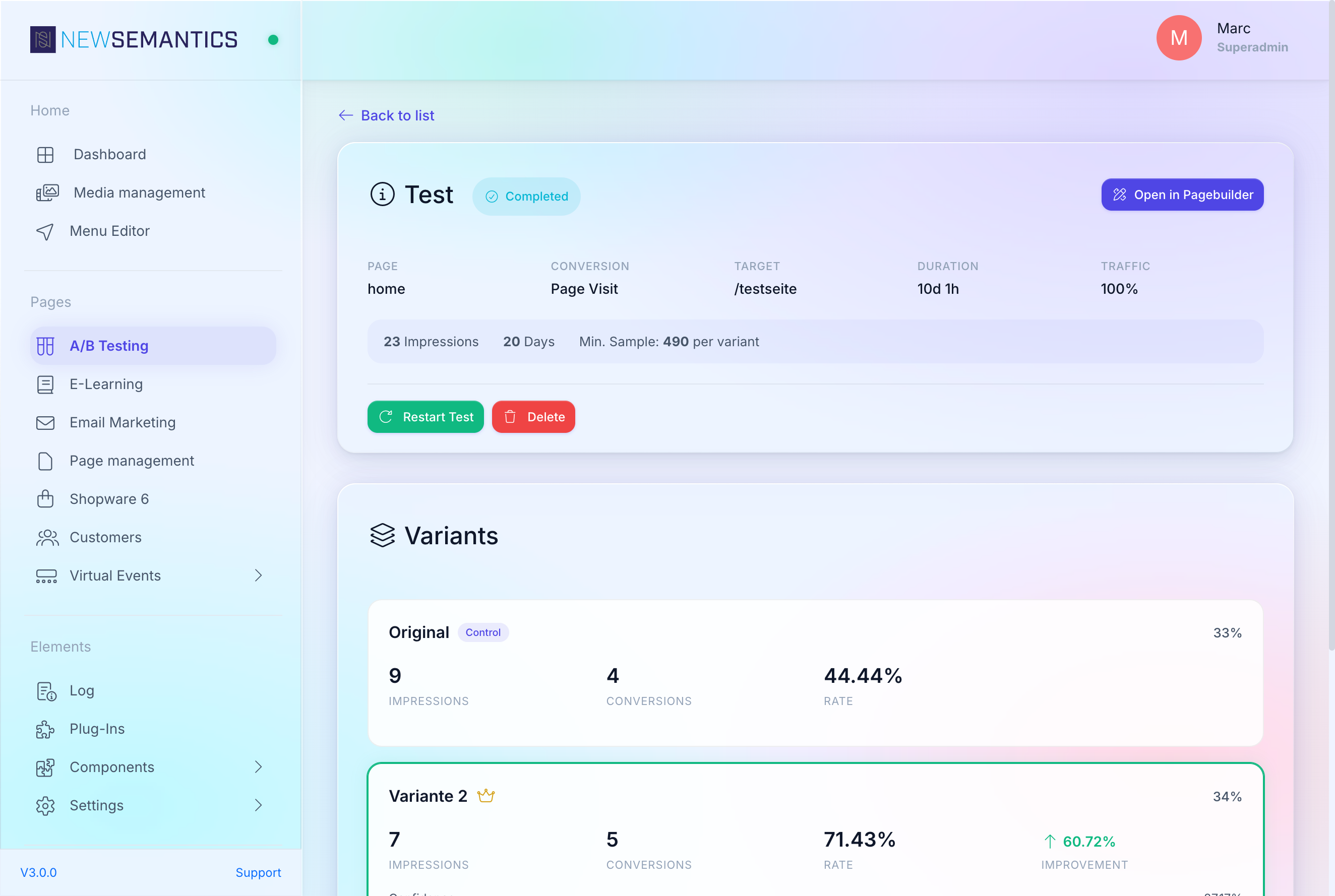
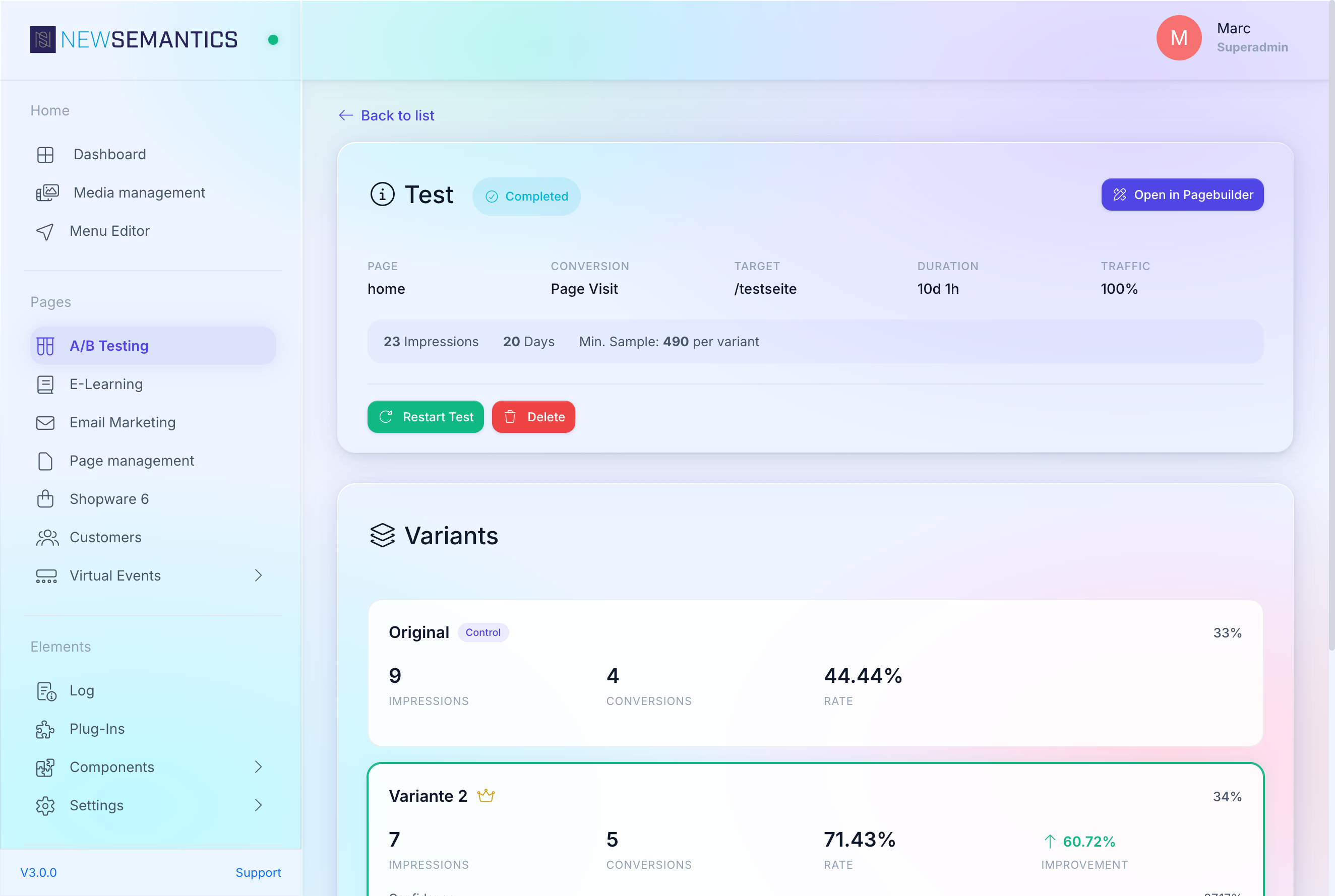
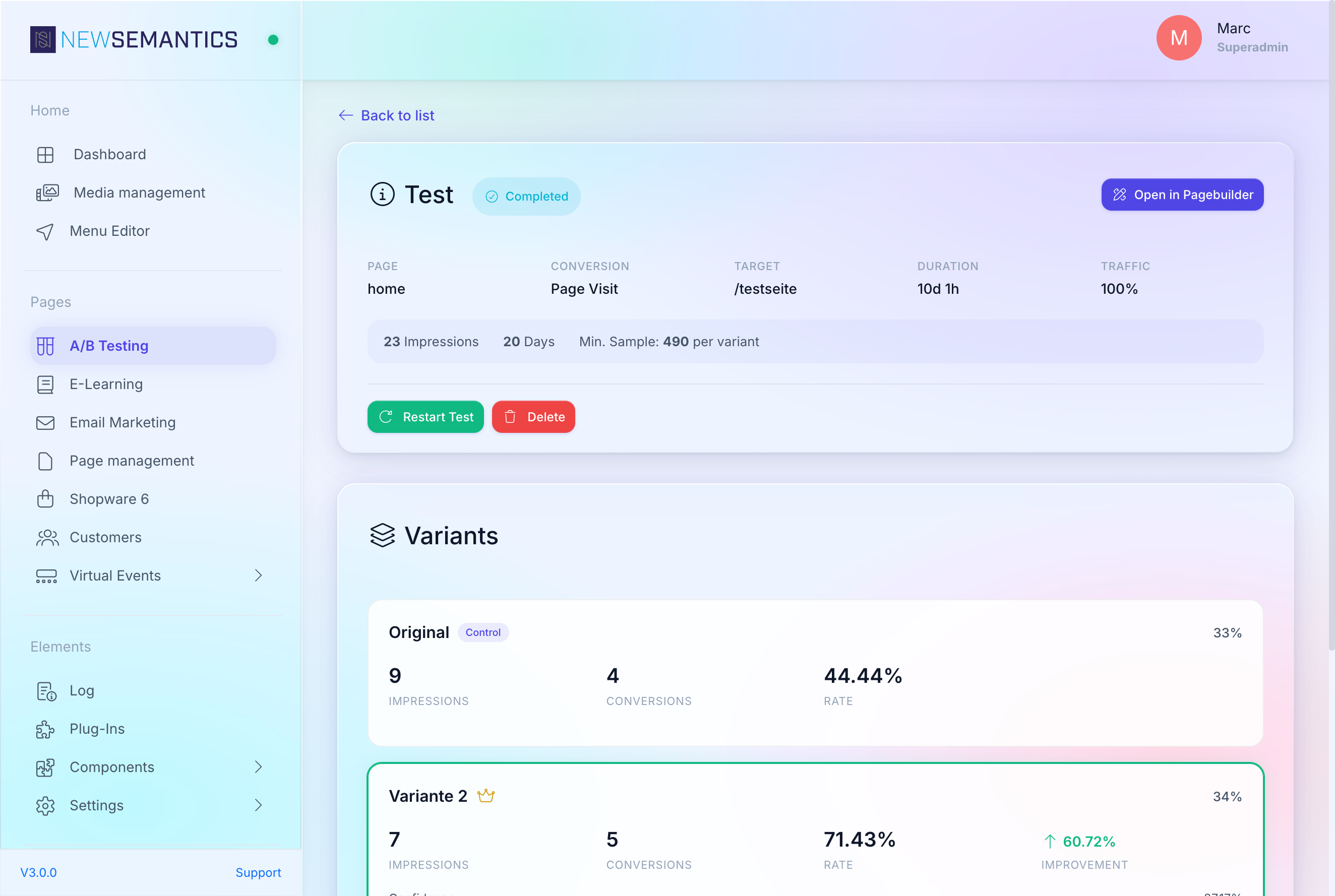
Check back after enough traffic has passed to reach statistical confidence. The Confidence bar on each variant card turns green at 95% confidence. The Min. Sample indicator in the total-stats bar tells you how many impressions per variant you need.
Rough guideline: small traffic sites need 1–2 weeks; high traffic sites reach confidence in hours.
7. End and apply
Click End Test when you have enough data or when the winner is obvious. The status turns to completed. Impressions freeze.
Click Apply Winner (admin only). Pick the winning variant from the dropdown and click Apply. The variant's page snapshot is copied onto the live page.
Applying the winner overwrites the live page
The original published version is replaced by the winning variant's snapshot. A/B test records stay, but the live page now matches the winner. Back up the original as a Page Version first if you want to keep it.
Restart a completed test
A completed test can be restarted — click Restart Test. Impressions reset to zero; variants keep their snapshots.
Delete a test
Click Delete on a test. Impressions and conversions are wiped together with the test. Applied winners stay on the live page — deleting the test does not revert the page.
Common issues
The Start Test button is disabled. You have fewer than two variants, or the weights do not sum to 100. Fix both and the button enables.
Impressions stay at zero despite visitors hitting the page. Most visitors declined the statistics cookie category. Check the cookie-consent banner copy to make sure the user understands what they are declining. Consider asking for consent more prominently on test pages.
Confidence never turns green. Either the variants are genuinely equivalent or the sample size is too small. Keep the test running longer; if confidence is still flat after several multiples of min_sample_size, pick the winner by secondary metrics or abandon the test.
See also
- A/B Testing overview — explanation
- Pages & Pagebuilder — Page Versions