
User Groups
A user group is the permission set shared by a set of users. Every user belongs to exactly one group. A group either allows all rights (*) or carries a comma-separated list of enabled rights per plugin and per action.
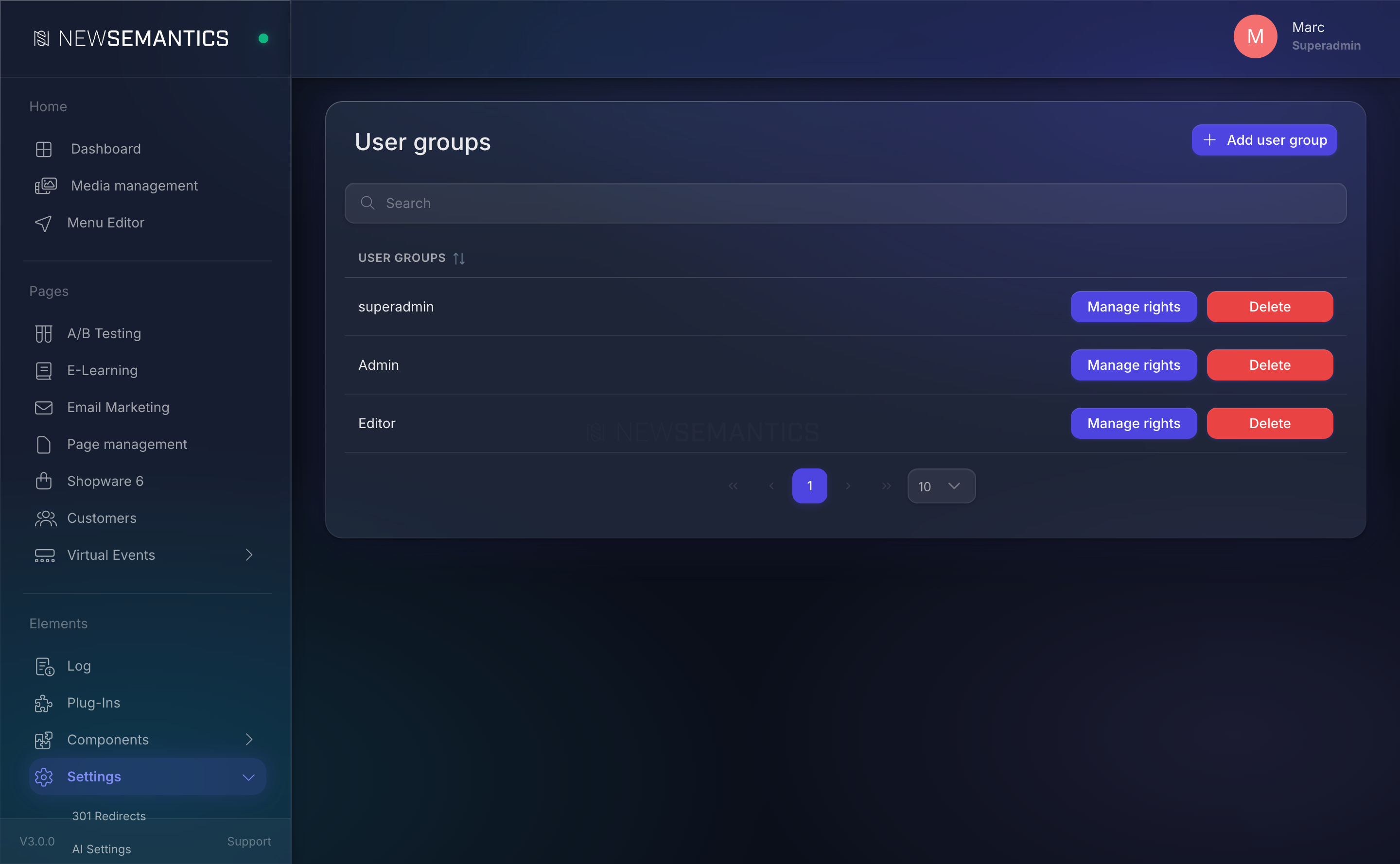
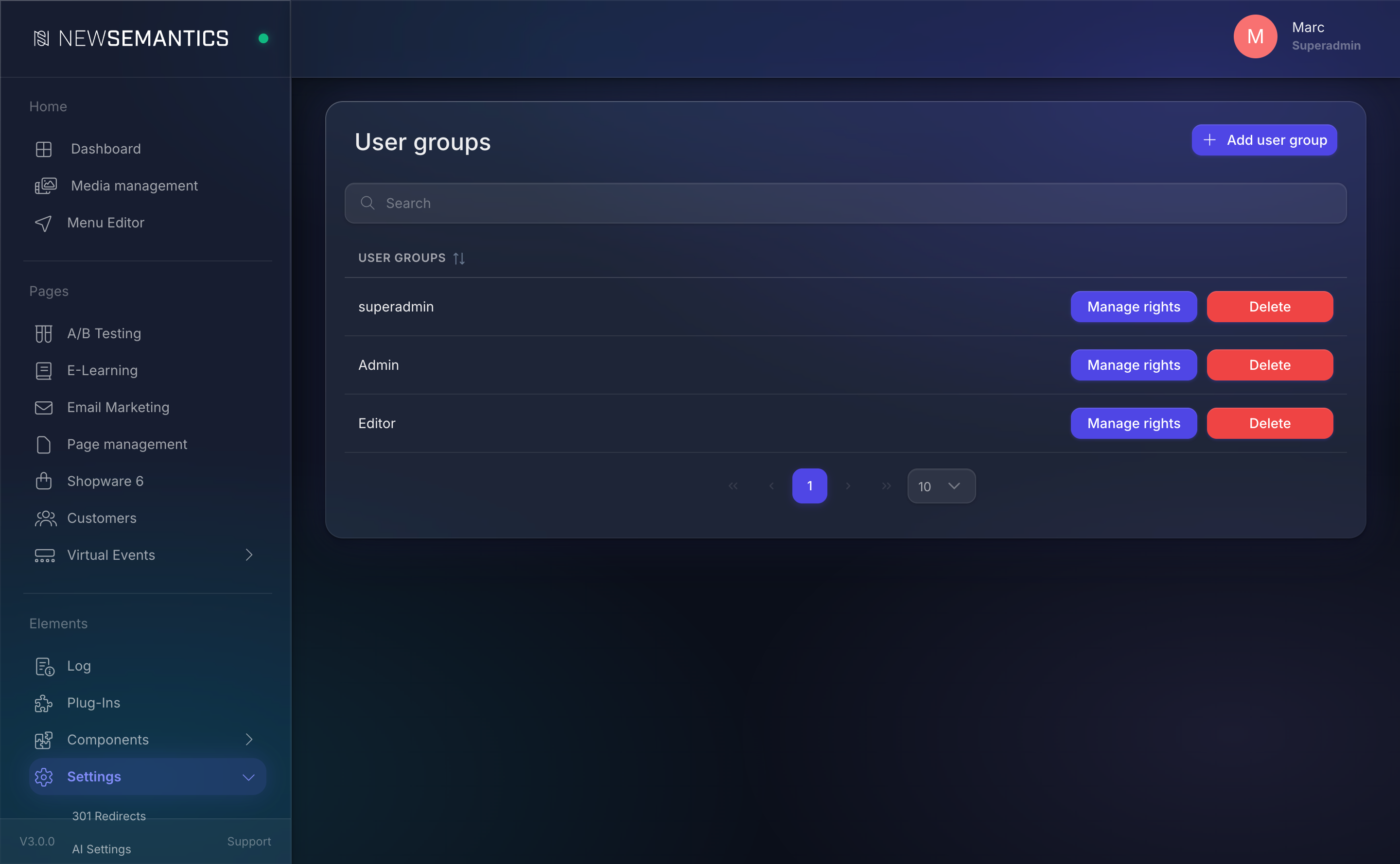
Open Settings → User Groups. You see the list of groups with a Manage rights button and a Delete button per row.
1. Add a group
Click Add user group in the top right. The modal asks for a single field:
| Field | Purpose |
|---|---|
| Title | A human label for the group, e.g. Editors, Shop Managers. |
Click Save. The new group is created with no rights. A user assigned to an empty group sees a blank sidebar — always configure the rights before assigning members.
2. Manage rights
Click Manage rights on a group row. The rights editor opens.
The editor groups rights by plugin. Each plugin row has:
- A top-level switch that toggles the sidebar entry for the plugin.
- For each sub-page (e.g. a table listing, a form, a template), a create and delete checkbox (when the page is a table).
- For each action button on a page, a view and edit checkbox.
The right levels
| Level | Effect |
|---|---|
| Plugin main | Shows or hides the plugin's sidebar entry. |
| Sub-page | Shows or hides a specific backend page inside the plugin. |
| create | Allows the user to create new rows in a table listing. |
| delete | Allows the user to delete rows in a table listing. |
| view | Allows the user to open an action button (e.g. an edit modal). |
| edit | Allows the user to submit changes from that modal. |
Click Save at the bottom. The rights apply on the user's next page load.
Full-access groups
Check every box or set the raw rights field in the user_groups table to * to grant all rights. The administrator group typically uses the wildcard.
3. Delete a group
Click the minus Delete icon. A confirmation modal asks twice.
Orphaned users
Deleting a group does not delete or reassign its users. Affected users keep their user_group ID but the lookup returns no row — the Backend falls back to an empty ruleset and the users see a blank sidebar. Reassign users to a different group before deleting the old one.
The Media Manager row
The Media Manager is not a plugin in the usual sense — it is a cross-cutting service. The rights editor lists it as its own row at the top with view/edit checkboxes. Grant view to let users browse the media library; grant edit to let them upload, move, and delete files.
Common issues
A user sees the sidebar entry but clicking it shows a 403. The plugin-main switch is on, but no sub-page is enabled. Enable at least one sub-page under the plugin.
An action button is missing from a row. The button requires view permission for that button ID in the plugin's rights. Open Manage rights, find the plugin, and tick the matching box.
Edits save but no success message appears. The user has view but not edit. Tick both checkboxes.
See also
- Users — how to assign users to a group.
- Plugin Manager — which plugins are installed at all.
- Log — audit who edited what.