
Users
Every person who logs into the Backend is a user. Users are created, edited, and deleted in Settings → Users. Each user belongs to exactly one user group that controls which modules the user can see and which actions the user can perform.
This page covers user management. Permissions are defined per group — see User Groups. The external REST-API uses API keys instead of user sessions — see API Keys.
Where the module lives
Open Settings → Users in the sidebar. The list shows every registered user with their Username and their User group.
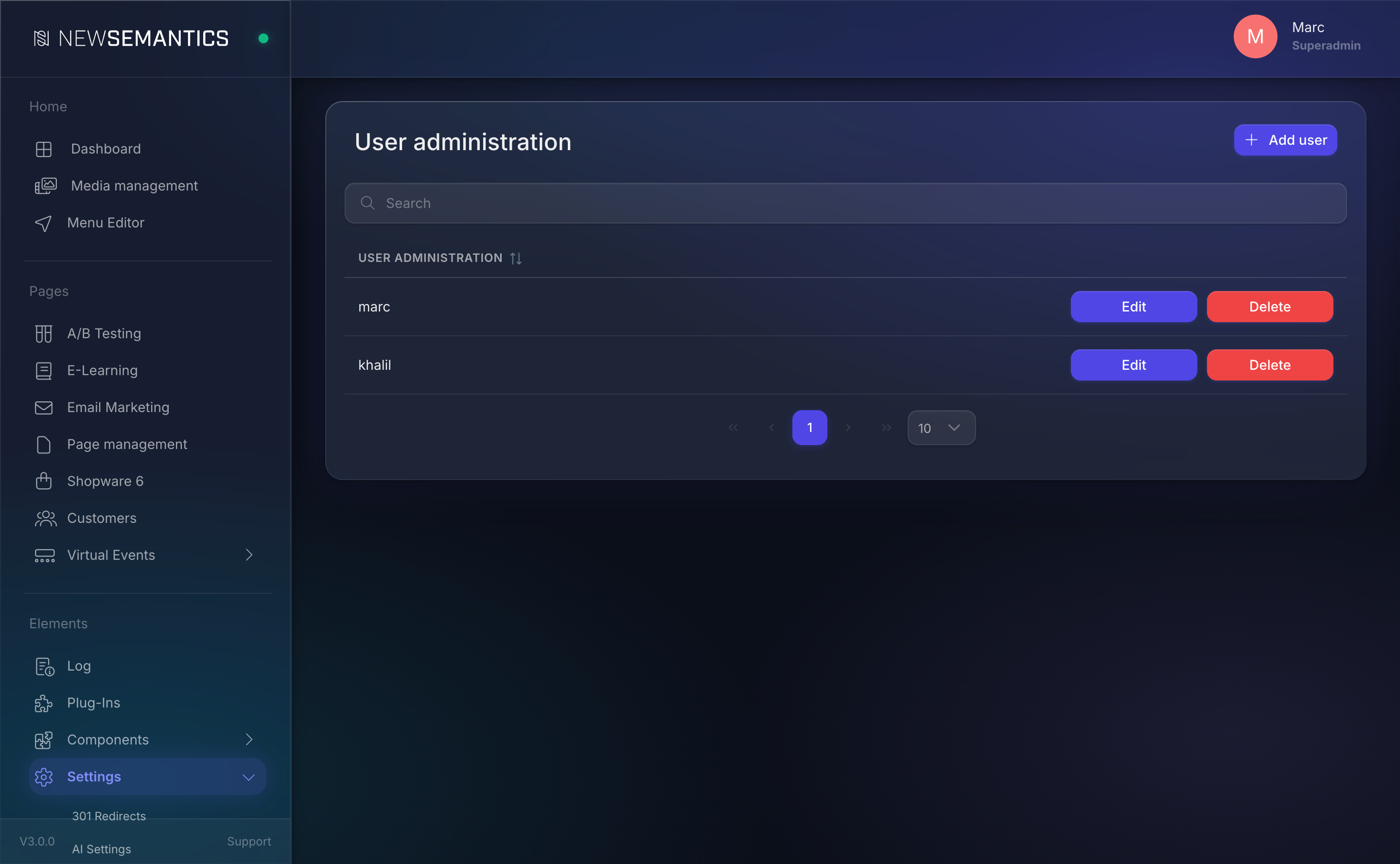
Columns:
| Column | Purpose |
|---|---|
| Username | The login name. Unique across the system. |
| User group | The group whose permissions the user inherits. |
1. Add a user
Click Add user in the top right. A modal opens.
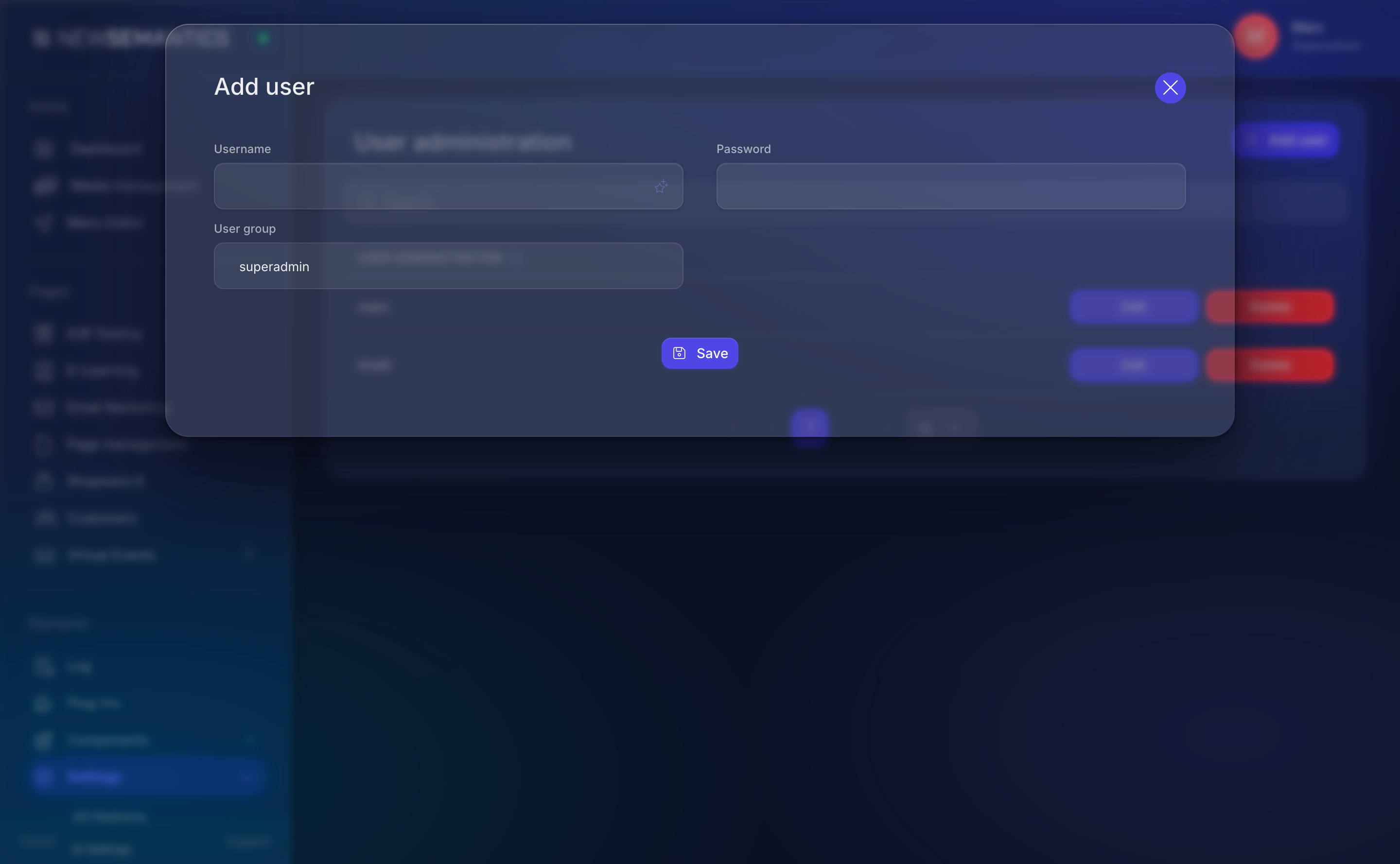
| Field | Purpose |
|---|---|
| Username | The login name. Must be unique. |
| Password | Initial password. The user should change it on first login. |
| User group | Pick an existing group. The group's rights apply immediately. |
Click Save. The user can log in right away.
Password policy
The Backend does not enforce a minimum length. Pick strong passwords (12+ characters, mixed case, digits, a symbol). For shared accounts, rotate the password on a schedule.
2. Edit a user
Click the pencil Edit icon on a user row. The same modal opens with the current values.
- Leave the password field empty to keep the existing password.
- Change the User group to move the user to a different permission set.
Click Save.
3. Delete a user
Click the minus Delete icon. A confirmation modal asks twice before removing the user. Deletion is permanent and cannot be undone.
Active sessions stay alive
Deleting a user does not terminate their current Backend session. The next request after deletion returns a 401 and the user is logged out. If you need an immediate disconnect, change the user's password first, then delete.
Sessions and auto-logout
Sessions are tracked in the database with a last_activity timestamp. A scheduled task cleans up sessions that have been inactive for more than two hours. You cannot end a specific user's session from the Backend UI — change the password or delete the user instead.
Two-factor authentication (TOTP)
2FA is available for Backend users via time-based one-time passwords (TOTP). When a user enables 2FA in their profile, the system shows a QR code for the authenticator app and a set of recovery codes.
To reset 2FA for a locked-out user, delete the user's TOTP secret via a direct database update (column users.totp_secret, set to NULL) — there is no UI button for this yet.
Common issues
A user cannot log in but the password is correct. Check whether the user belongs to an active user group. A group with no rights shows no sidebar at all — the user sees a blank page and assumes the login failed.
New user cannot reach a module you expect them to see. Permissions are on the group, not on the user. Open the group under Settings → User Groups and click Manage rights to verify the checkboxes.
See also
- User Groups — the permission model.
- API Keys — for machine-to-machine access.
- Log — see who logged in, when, and from where.