
Shopware 6 Setup
This page walks you through connecting the newmeta CMS to a Shopware 6 shop. After you finish, your CMS talks to Shopware over the Store API and the seven Shopware widgets (plus the Offcanvas Cart plugin) are usable in the Pagebuilder.
What you'll need
- A running Shopware 6 shop (admin access).
- A Sales Channel of type "Storefront" in Shopware.
- The Store API Access Key of that Sales Channel.
- Optional: a Root Category ID if you want to scope the category tree to a sub-branch.
1. Create or pick a Sales Channel in Shopware
In the Shopware admin: Sales Channels → Storefront. You can use an existing Storefront sales channel or create a dedicated one for the headless frontend.
Note down two values:
- Sales Channel ID — visible in the URL when you edit the channel.
- API access → Access key — the
SWSC…string.
2. Open the CMS Shopware 6 screen
Click VOD / Shop → Shopware 6 in the sidebar. The screen opens on the Connection tab.
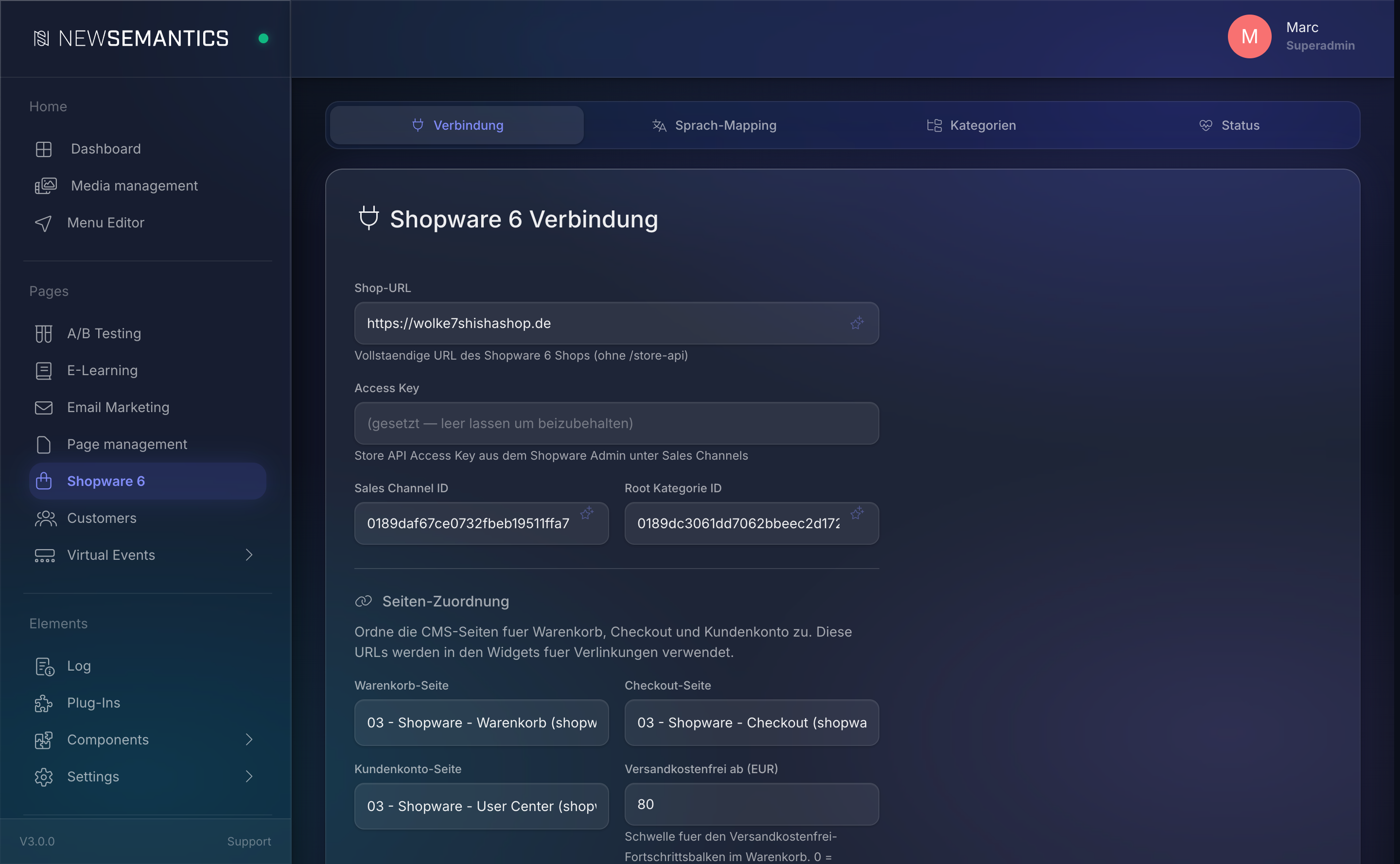
3. Fill the connection fields
| Field | What to enter |
|---|---|
| Shop URL | Full URL of your Shopware 6 shop, without /store-api. E.g. https://shop.example.com. |
| Access Key | The Store API Access Key (SWSC…) from the Sales Channel. |
| Sales Channel ID | Optional, but recommended. The UUID of the Sales Channel. |
| Root Category ID | Optional. Shopware main category ID to scope the sync to. Leave empty to sync the whole tree. |
Access Key stays encrypted
The Access Key is stored AES-256-CBC encrypted in sw6_config. The field shows (set — leave empty to keep) once set — leave it empty when you save other fields so the existing key is preserved.
4. Assign CMS pages for cart, checkout, account
The Page Assignment section links a CMS page to each commerce flow. The Shopware widgets use these URLs when they need to link to cart or checkout.
| Field | What to pick |
|---|---|
| Cart Page | The CMS page that hosts the Shopware Cart widget. |
| Checkout Page | The CMS page that hosts the Shopware Checkout widget. |
| Customer Account Page | The CMS page that hosts the Shopware Customer Account widget. |
| Free shipping from (EUR) | Threshold for the free-shipping progress bar in the cart. 0 disables. |
The dropdowns list only pages that have a URL-Rewrite in the current admin language. Build the three pages (cart, checkout, account) first, then return to this screen.
5. Frontend URL and PayPal Client-ID
| Field | What to enter |
|---|---|
| Frontend URL (redirect after payment) | URL of the newmeta frontend used for payment redirects. Leave empty to auto-detect from the request. |
| PayPal Client ID | Optional. PayPal Client ID from the Shopware PayPal plugin. Enables the direct PayPal button in the checkout (PayPal JS SDK). |
Where to find the PayPal Client ID
In the Shopware admin: Extensions → My extensions → PayPal → API credentials. The Client ID lives next to the Secret.
6. Save
Click Save. The value is written to sw6_config.
7. Test the connection
Click Test connection. The button hits /api/backend/shopware6?action=test_connection and shows:
- Green Connected — [Sales Channel] (language), currency on success.
- Red Error on failure.
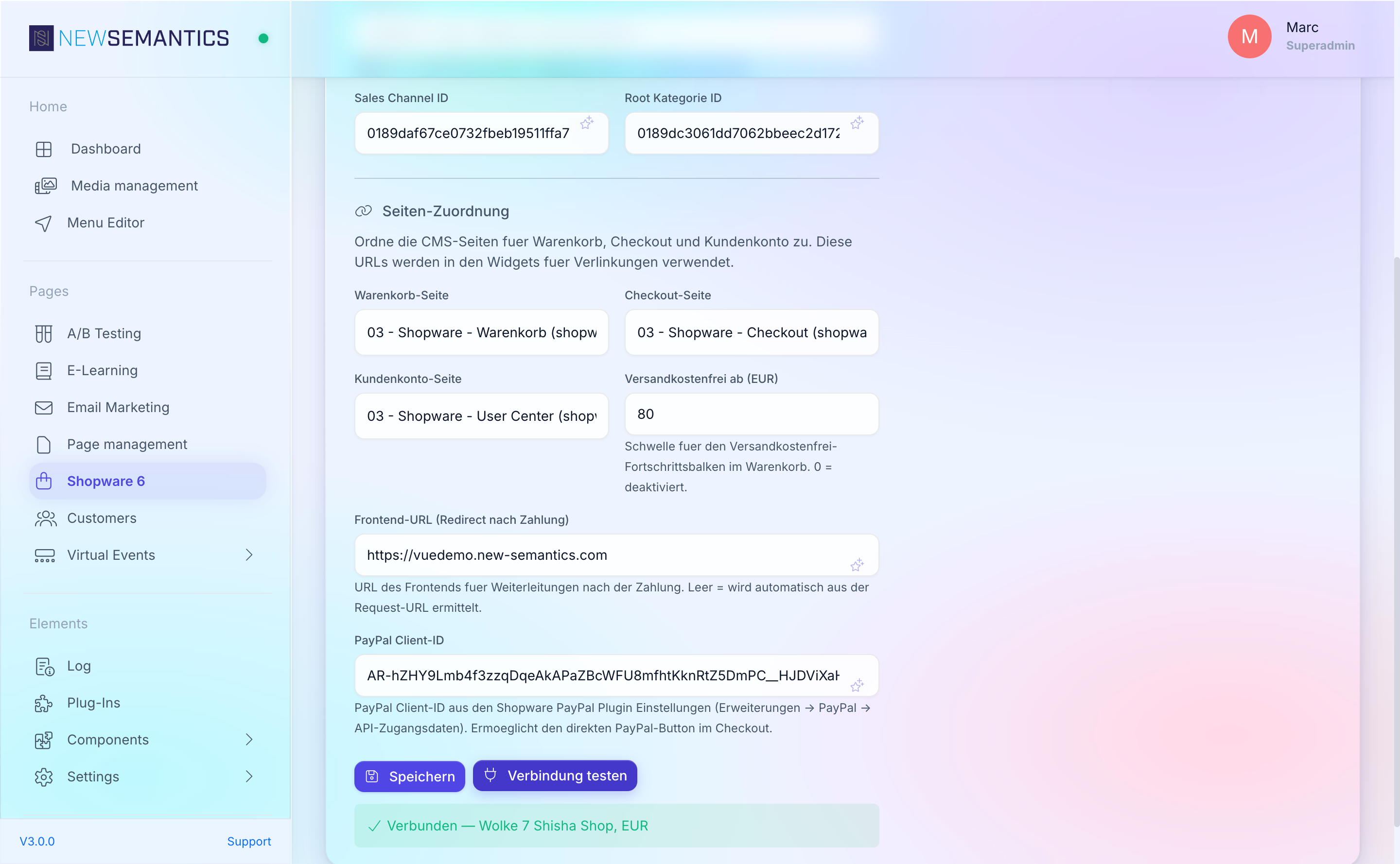
On the first green result, move on to Language Mapping.
Common issues
Cannot reach Shopware
If the test fails with "timeout" or "connection refused":
- Shop URL has a typo — it must start with
https://and must not end with/store-api. - Your server cannot reach the Shopware shop (firewall, DNS). Try
curl https://shop.example.com/store-api/contextfrom the CMS server.
Invalid Access Key
If the test fails with HTTP 401: the Access Key is wrong or was regenerated in Shopware. Re-copy from Sales Channel → API access → Access key and paste again.
Root category empty
Leaving Root Category ID empty syncs the whole category tree including technical root categories. Populate it with a real navigation root to keep the sync focused.
What you've learned
- How to read the Shopware Store API Access Key from a Sales Channel.
- How to wire the CMS to Shopware in the Connection tab.
- How to assign CMS pages for cart, checkout, and account.
- How to verify the connection with Test connection.
Next up
- Language Mapping — map CMS languages to Shopware languages.
- Categories & Canonical — sync the category tree.
See also
- Shopware 6 — overview.
- Troubleshooting