
Menu Editor
The Menu Editor is where you build the main navigation, footer links, side menus — any structured list of links that your frontend renders. It uses a three-pane layout similar to the Pagebuilder and supports drag-and-drop sorting, per-item icons, badges, visibility rules, and mega menus.
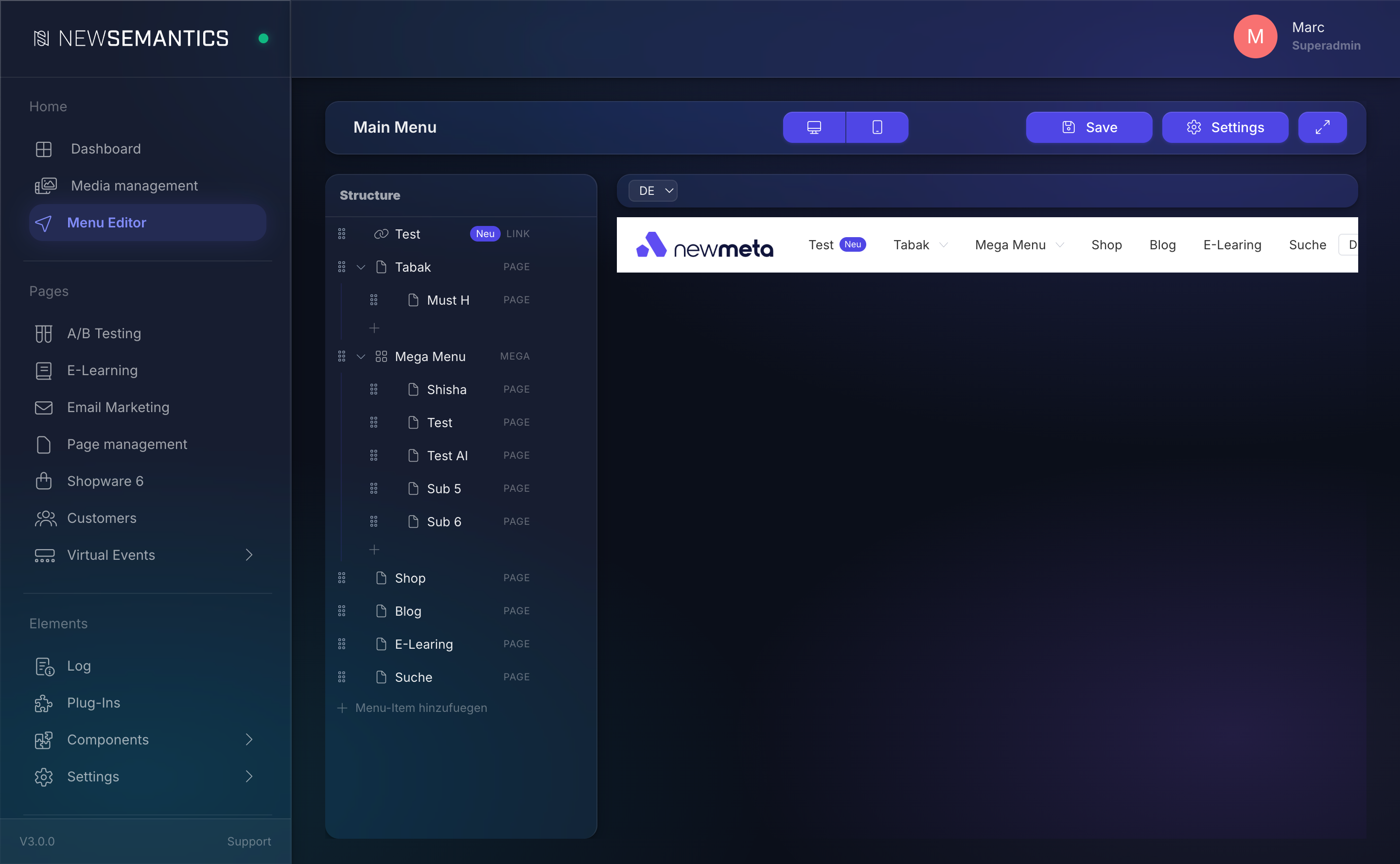
Where to find it
Click Menu Editor in the sidebar. The editor loads the last menu you edited. If there is no menu yet, it opens an empty structure.
The three-pane layout
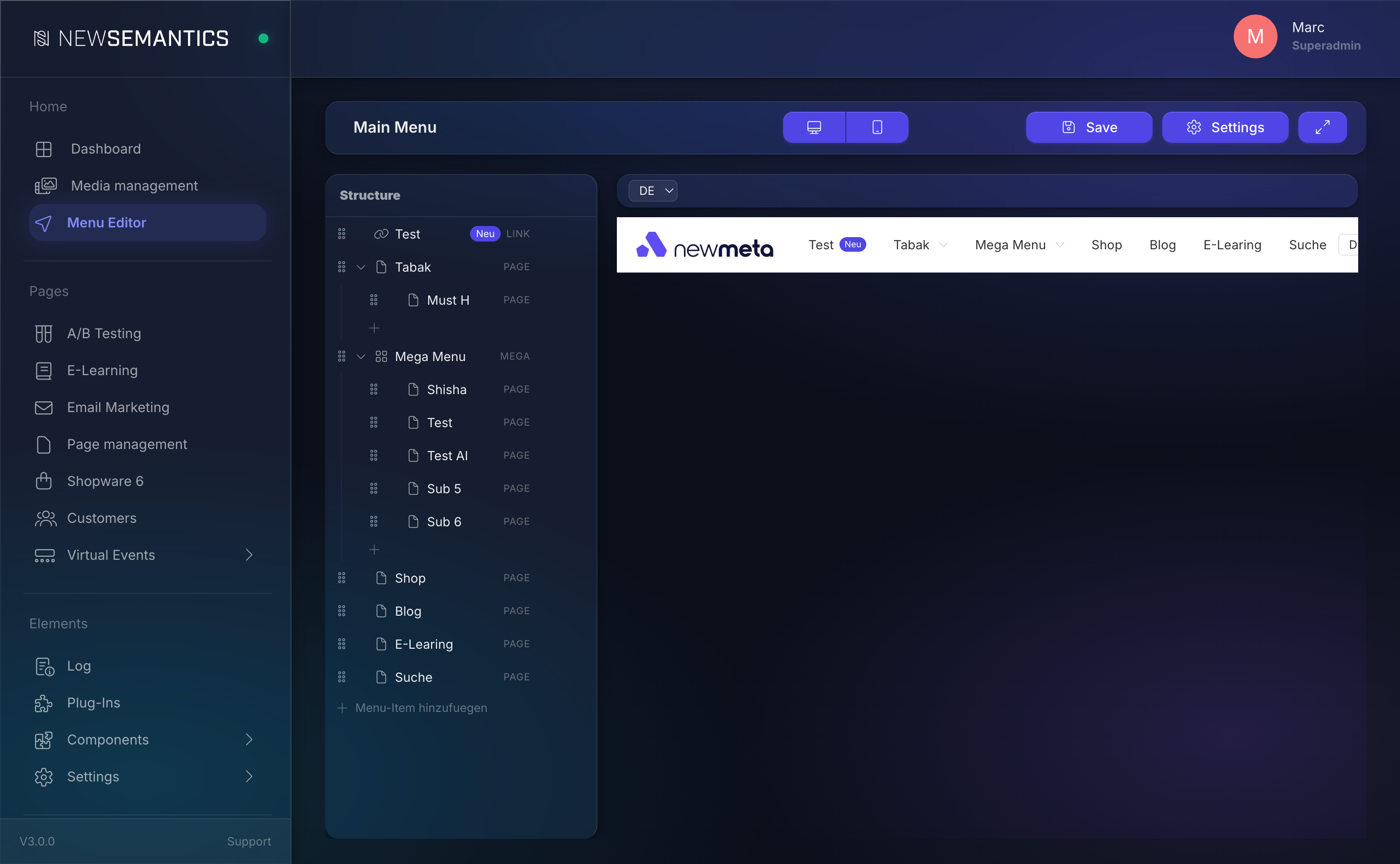
- Structure Tree (left) — the menu items in hierarchical order. Drag to reorder, nest to create submenus, click to select.
- Live Preview (center) — the menu rendered as it will appear on the frontend. Switch between Desktop and Mobile with the top-bar breakpoint icons.
- Properties Panel (right) — settings for the currently selected item. Read Menu items for field details.
The top bar
- Menu name field — rename the current menu by typing and pressing Enter.
- Breakpoint switcher — Desktop and Mobile preview modes.
- Save — saves the current structure.
- Settings — opens the menu-level settings modal (slug, which frontend region the menu is for).
- Fullscreen toggle — expands the editor to the full viewport.
Saving is manual
Changes are not persisted until you click Save. If you navigate away without saving, a warning dialog asks you to confirm.
Multiple menus
A site often needs several menus — main navigation, footer, mobile bottom bar. The Menu Editor supports any number of menus. You pick which one to edit from the menu-settings modal or the top-bar menu selector.
How to build a menu
- Start on an empty menu or the one you want to extend.
- Click Add menu item at the top of the Structure Tree.
- In the Properties Panel, pick the item type (Page, Link, Anchor, Label, Mega) and fill in the required fields.
- Drag items in the tree to reorder. Drop an item onto another to nest it as a child.
- Click Save when done.
Languages
Every menu item has a language-tab row in the Properties Panel. The fields Label, Link URL, Page identifier, Badge text, and Image all translate per language. Item type, icon, CSS classes, and visibility rules are shared across languages.
See also
- Edit menu items (Page, Link, Anchor, Label, Mega) — configure each item type.
- Build a mega menu — multi-column dropdowns with images.
- Pages & Pagebuilder — the page targets you link from menu items.
- Backend Tour — where the Menu Editor lives in the sidebar.
- Design Tokens — the tokens that style the menu on the frontend.