
AI Text Generation
The AI plugin brings generative AI into the Backend — right where you edit content. Generate SEO titles, rewrite paragraphs, write alt text for images, translate content, even generate full Pagebuilder layouts from a prompt.
The CMS uses a BYOK model: bring your own API keys. You configure one or more AI Connections (OpenAI, Anthropic, Google Gemini, or Mistral) and pick which AI Feature uses which Connection.
This page explains the setup. The AI Features reference lists every feature with its input, output, and placeholders.
Where the module lives
Click Settings → AI Settings in the sidebar.
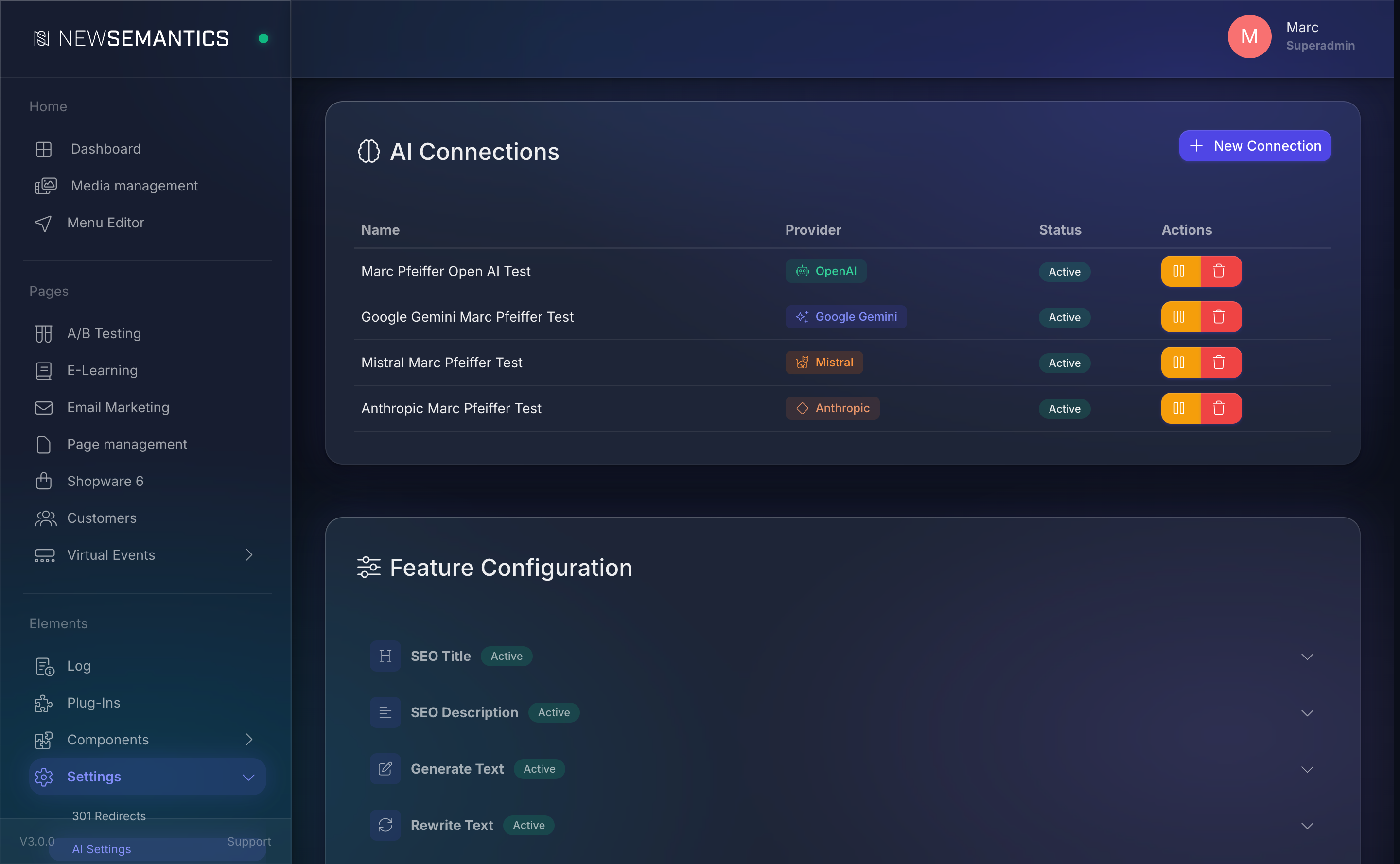
The screen has three sections:
- Connections — your API keys for external AI providers.
- Features — one configurable entry per AI Feature (e.g. SEO Title, Rewrite Text, Layout Generate).
- Usage — token usage for the current month, grouped by Feature and by Connection.
Supported providers
The CMS ships with four provider adapters. Pick one or mix them — every Feature can use its own Connection.
| Provider | Notes |
|---|---|
| OpenAI | GPT-4, GPT-4o, GPT-4o-mini, and newer models. Most widely documented, strong in general text. |
| Anthropic | Claude Opus, Claude Sonnet, Claude Haiku. Strong on long-form reasoning and careful writing. |
| Google Gemini | Gemini Pro, Gemini Flash. Native JSON mode, strong at structured output. |
| Mistral | Mistral Large, Mistral Medium, Pixtral. EU-based, GDPR-aligned hosting. Drop-in OpenAI-compatible API. |
Which provider to pick
Start with OpenAI or Anthropic for English / German content and pick Mistral if GDPR hosting in the EU matters to you. Google Gemini is the cheapest option for long, structured output (for example Layout Generate).
Create a Connection
- Click Add Connection in the Connections panel.
- Fill the form:
- Name — a label so you can tell Connections apart (
OpenAI Prod,Claude Billing,Mistral EU). - Provider — pick from the four providers above.
- API Key — paste the key from your provider's dashboard.
- Model — optional default model (can be overridden per Feature).
- Name — a label so you can tell Connections apart (
- Click Test Connection to verify the key works.
- Click Save.
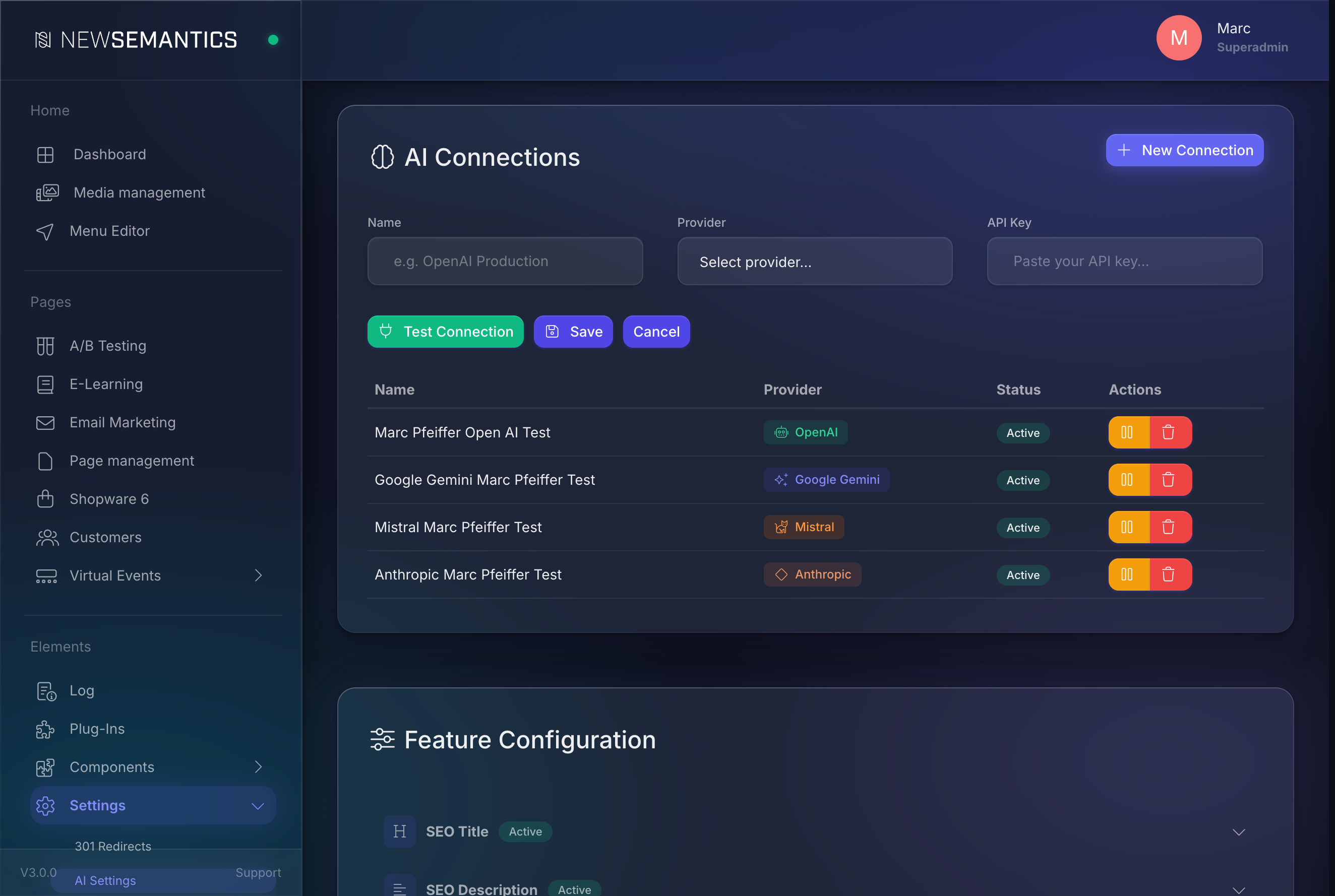
The API key is encrypted with AES-256 before it hits the database. Nobody reading the ai_connections table can recover it.
Where to find an API key
- OpenAI: https://platform.openai.com/api-keys
- Anthropic: https://console.anthropic.com/
- Google: https://aistudio.google.com/app/apikey
- Mistral: https://console.mistral.ai/
Configure a Feature
Every AI Feature in the CMS is listed in the Features accordion. Expand a Feature to configure it:
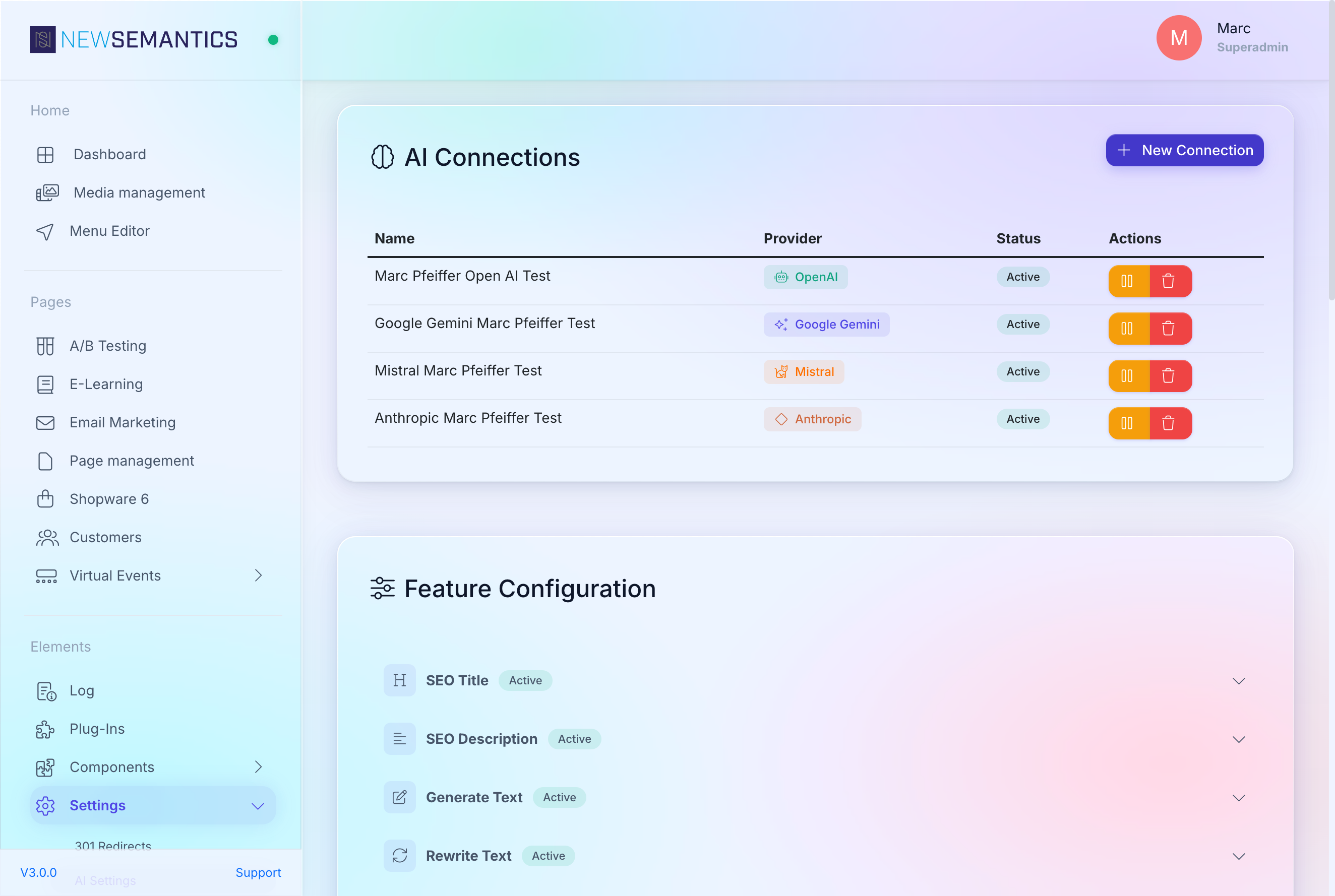
Fields per Feature:
| Field | Purpose |
|---|---|
| Connection | Which Connection powers this Feature. Required — without it the Feature is inactive. |
| Model | Optional override. Leave on "Default (connection model)" to use the Connection's model. |
| Temperature | 0.0 is deterministic, 1.0 is creative. 0.3 – 0.7 is a useful range. |
| Max Tokens | Upper bound on the output length. Default 2000. |
| System Prompt | Your custom prompt for this Feature. The placeholder shows the default prompt you can start from. |
| Active | Off hides the Feature's button in the editor. |
Click Save at the bottom of the Feature card to write the config to the database.
Placeholder legend
Under the System Prompt, a "Show placeholders" link reveals what placeholders like {content}, {language}, {tone} get filled with when the Feature runs. See the AI Features reference for the full list per Feature.
The 14 AI Features
Every Feature solves one editorial task. Full details including placeholders and example output live in the AI Features reference.
| Feature | What it does |
|---|---|
| SEO Title | Generate optimized meta title (50–60 characters). |
| SEO Description | Generate meta description (120–160 characters). |
| Generate Text | Write web copy from a short brief. |
| Rewrite Text | Rewrite with different phrasing, same meaning. |
| Shorten Text | Shorten to roughly 50% length, keep core message. |
| Extend Text | Expand with more detail, roughly double length. |
| Improve Text | Fix grammar, spelling, and style. |
| Alt Text | Describe an image for accessibility (Vision — needs a vision-capable model). |
| Translation | Translate HTML content preserving structure. |
| Tone Adjust | Rewrite in a specific tone (professional, casual, …). |
| Custom CSS | Generate valid CSS from a natural-language description. |
| Content Analysis | Readability + SEO score with improvement suggestions. |
| Keywords | Suggest relevant keywords and search phrases. |
| Layout Generate | Generate complete Pagebuilder structures from a prompt (special case — see below). |
Layout Generate — the special case
Layout Generate creates full Pagebuilder sections from a text prompt. You describe a page ("a hero with image + headline + CTA button, then a three-column features block, then a testimonial"), and the AI returns valid Pagebuilder JSON that the Backend pastes into your page.
Where to find it:
- In the Pagebuilder's Structure Tree empty state — "Generate AI Section" button.
- From the context menu on any Row — "Generate AI Section".
The CMS takes care of everything behind the scenes: it sends the Widget catalog (so the AI knows which Widgets exist), the Media catalog (so it picks real image IDs), a request for clean CSS-Nesting styling, and validates the AI output before pasting.
Runs are asynchronous — the Backend shows a progress indicator, polls every 2 seconds, and inserts the result when done. Timeouts are generous (up to 5 minutes) because a full-page layout takes tens of seconds.
Use a strong model for Layout Generate
Layout Generate is the most demanding Feature. Use GPT-4o, Claude Sonnet 4.5, Gemini 2.0 Flash, or Mistral Large. Cheaper models produce shorter, less interesting layouts.
Token budget
Layout Generate can use 5 000 – 15 000 tokens per run. Monitor the Usage panel to keep your bill under control.
Usage and billing
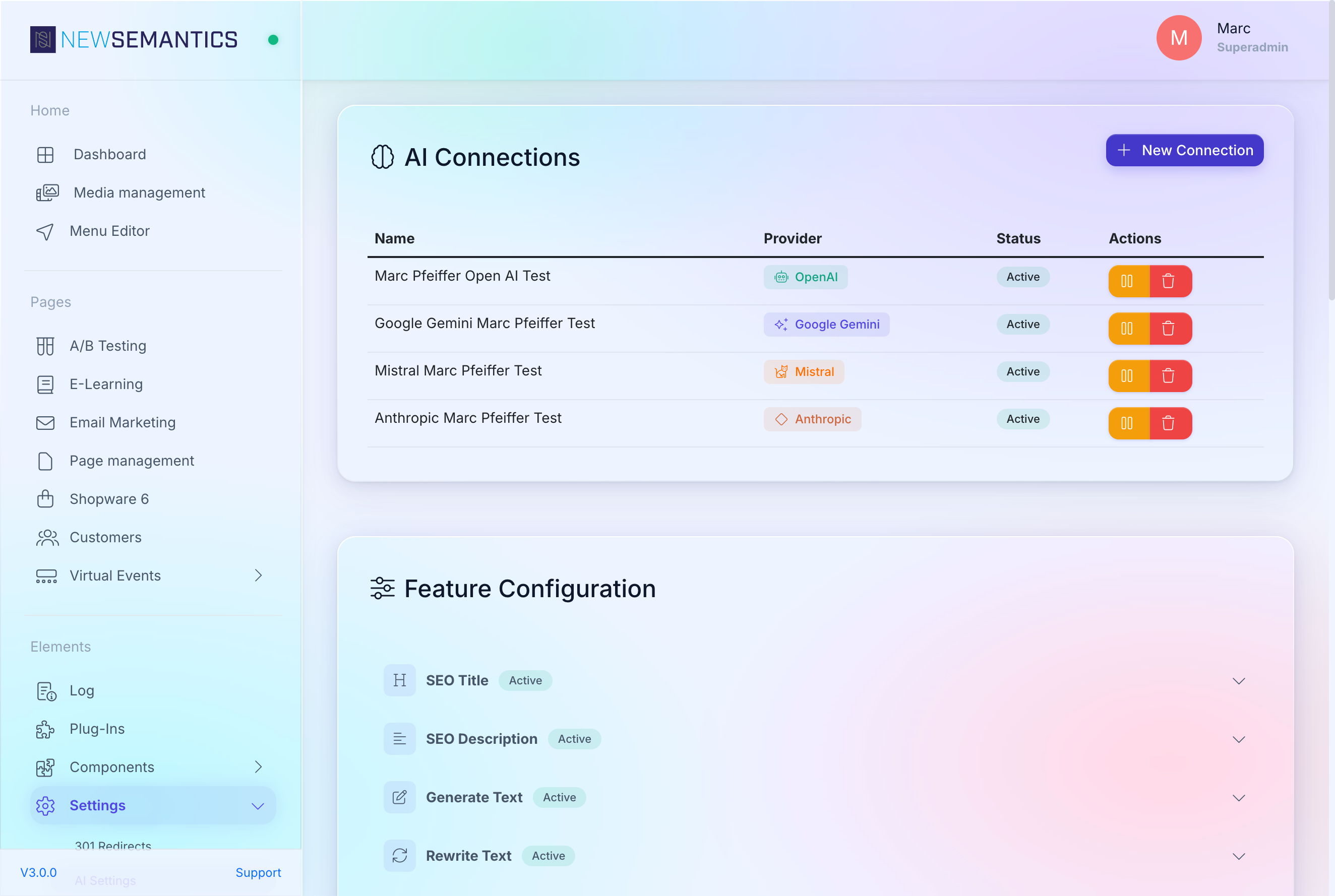
The Usage panel shows the current month's usage:
- Per Feature — which Features were used, how many requests, how many tokens.
- Per Connection — which Connection consumed how many tokens.
You pay your AI provider directly — the CMS never handles billing. The Usage panel helps you reconcile the bill and spot Features that unexpectedly eat budget.
Common issues
Test Connection fails
Re-check the API key — paste errors are the most common cause. If the provider recently rotated keys, generate a new one.
A Feature button does not appear in the editor
Open Settings → AI Settings, expand the Feature, check that a Connection is assigned and Active is on. Save and reload the Backend.
Alt Text returns "vision not supported"
Alt Text requires a vision-capable model. Use gpt-4o (OpenAI), claude-opus-4 or claude-sonnet-4 (Anthropic), gemini-1.5-pro (Google), or pixtral-large-latest (Mistral). Older text-only models cannot read images.
See also
- AI Features reference — the full list with placeholders and output format.
- Design Tokens — combine Custom CSS with the Design Token editor.
- Pages & Pagebuilder — where Layout Generate plugs in.