
Shopware 6 Troubleshooting
This page collects the common failure modes of the Shopware 6 integration and how to fix each. Start with the Status tab — it shows every relevant indicator at a glance.
Open the Status tab
Click VOD / Shop → Shopware 6 → Status.
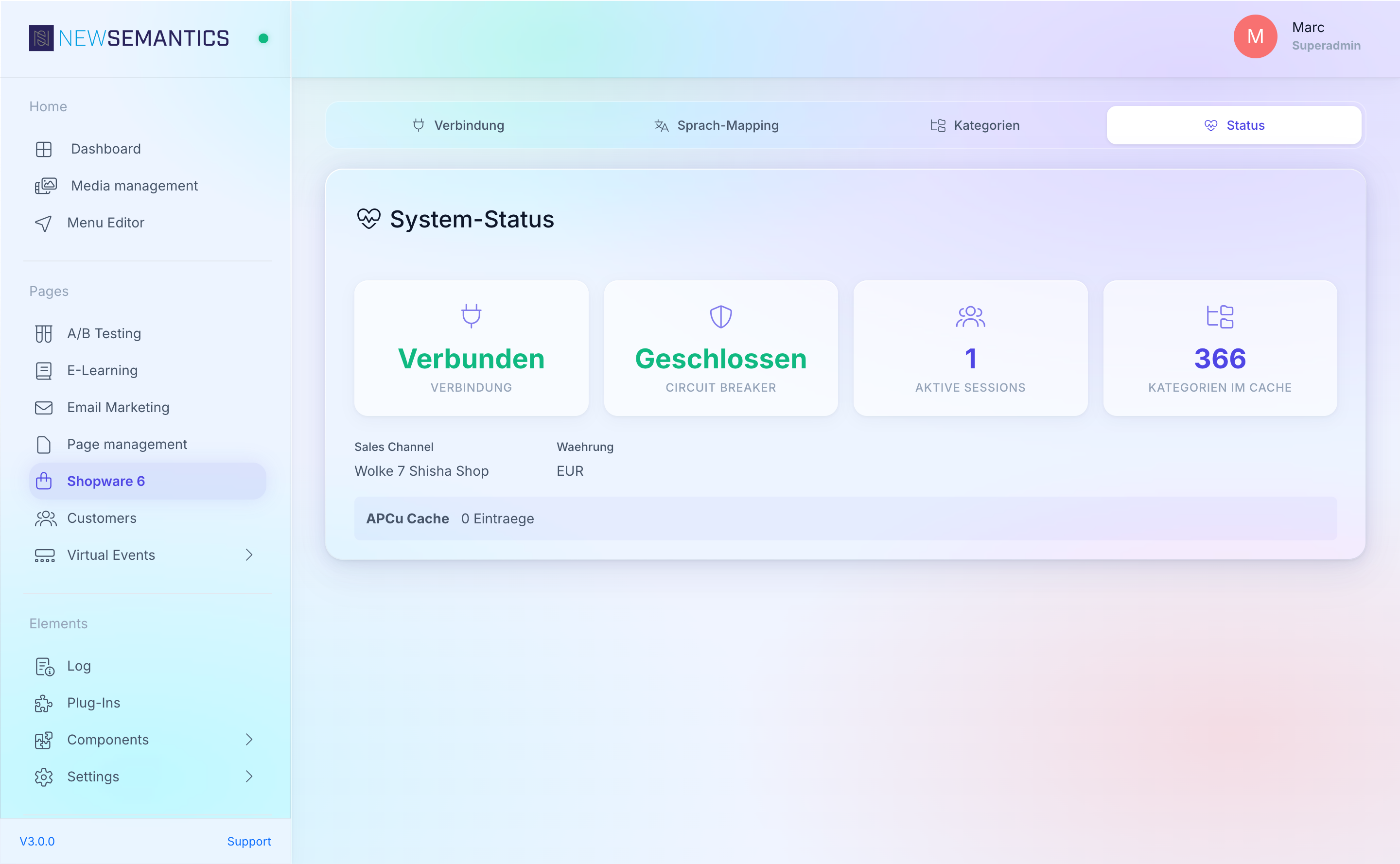
Four stat cards report:
| Card | Healthy value |
|---|---|
| Connection | Connected (green). |
| Circuit Breaker | Closed (green). |
| Active Sessions | Any non-zero count (customers currently shopping). |
| Categories in Cache | Non-zero after the first sync. |
"Disconnected" on the Connection card
Cause: the Store API is unreachable from the CMS server.
Fix:
- Click Test connection on the Connection tab.
- Read the red error banner — it tells you whether the failure is DNS, HTTP 401, HTTP 404, or a timeout.
- Depending on the error:
- Timeout / connection refused → firewall or Shopware is down. Try
curl https://shop.example.com/store-api/contextfrom the CMS server. - HTTP 401 → Access Key wrong or regenerated. Re-copy from Shopware.
- HTTP 404 → Shop URL has
/store-apiappended, or the Sales Channel is disabled.
- Timeout / connection refused → firewall or Shopware is down. Try
See Shopware 6 Setup for the correct values.
"Open (N)" on the Circuit Breaker card
The Circuit Breaker opens after repeated failures to protect the frontend from hanging on every request. N is the number of consecutive failures that opened the breaker.
What happens when it is open:
- Product / cart / checkout widgets show a temporary error.
- No outgoing calls to Shopware for the cooldown window (default: a few minutes).
- Once the cooldown ends, the breaker half-opens; a successful call closes it; another failure re-opens.
How to fix:
- Fix the underlying cause first (see the Connection steps above).
- After Shopware is reachable again, the breaker closes automatically on the next successful call.
- Click Test connection to force one call.
Do not mask the breaker
The breaker is a safety net. If you see it open repeatedly without a network outage, the Access Key is most likely wrong or the Sales Channel inactive. Fix the root cause instead of disabling the breaker.
APCu Cache — "Not available"
The APCu cache stat at the bottom of the Status tab shows:
- N entries on a working APCu.
- Not available when APCu is missing on the PHP install.
Fix missing APCu by installing the extension server-side. Without APCu:
- Every Store API response is fetched fresh — expect higher latency and more Shopware load.
- The Rate Limiter (see CMS documentation on rate limiting) falls back to "allow all".
Session count is stuck at zero
Cause: the Shopware widgets are not on any live page, or nobody is visiting the storefront.
Diagnostic:
- Visit the CMS page that hosts the
Shopware Cartwidget in a private browser tab. - Reload the Status tab — the count should increase by 1.
If the count stays at 0 after a real visit, the sw6_sessions table does not receive writes — check the PHP error log for exceptions in the sw6_webhook endpoint.
Categories missing after a rebuild
Cause: the sw6_category_cache table was wiped, or the first sync has not run.
Fix:
- Open Categories.
- Click Sync now.
- Wait for the toast to appear, then expand the tree.
Cart behaves oddly after a Shopware upgrade
Cause: Shopware Store API contracts shifted between minor versions.
Fix:
- Test a minimal cart flow: add one product, open the cart, proceed to checkout.
- Watch the browser network tab for 4xx responses from
/store-api/.... - If you see 4xx, the Shopware side refuses a payload the CMS is sending. Check the Shopware changelog for the Store API, and — if needed — flush the APCu cache.
Flush the APCu cache
To force-refresh everything cached:
- Open VOD / Shop → Cache (a generic CMS cache screen, not Shopware-specific).
- Click Clear cache.
Alternative (server): restart PHP-FPM or run apcu_clear_cache() via the Task Manager CLI.
Still stuck
If nothing above fits:
- Copy the output of Test connection (click, then right-click → copy error).
- Copy the four Status cards (screenshot).
- Send both to your CMS operator — they pair with the Shopware admin logs.