
Backend Tour
A 5-minute walkthrough of the newmeta admin backend. You will learn where everything lives and how to navigate quickly.
What you'll need
- An admin account with access to
/admin/. - A modern browser (Chrome, Firefox, Safari, Edge).
Step 1 — Sign in and land on the dashboard
After login, you land on the Dashboard. It gives you a quick status overview and the sidebar navigation.
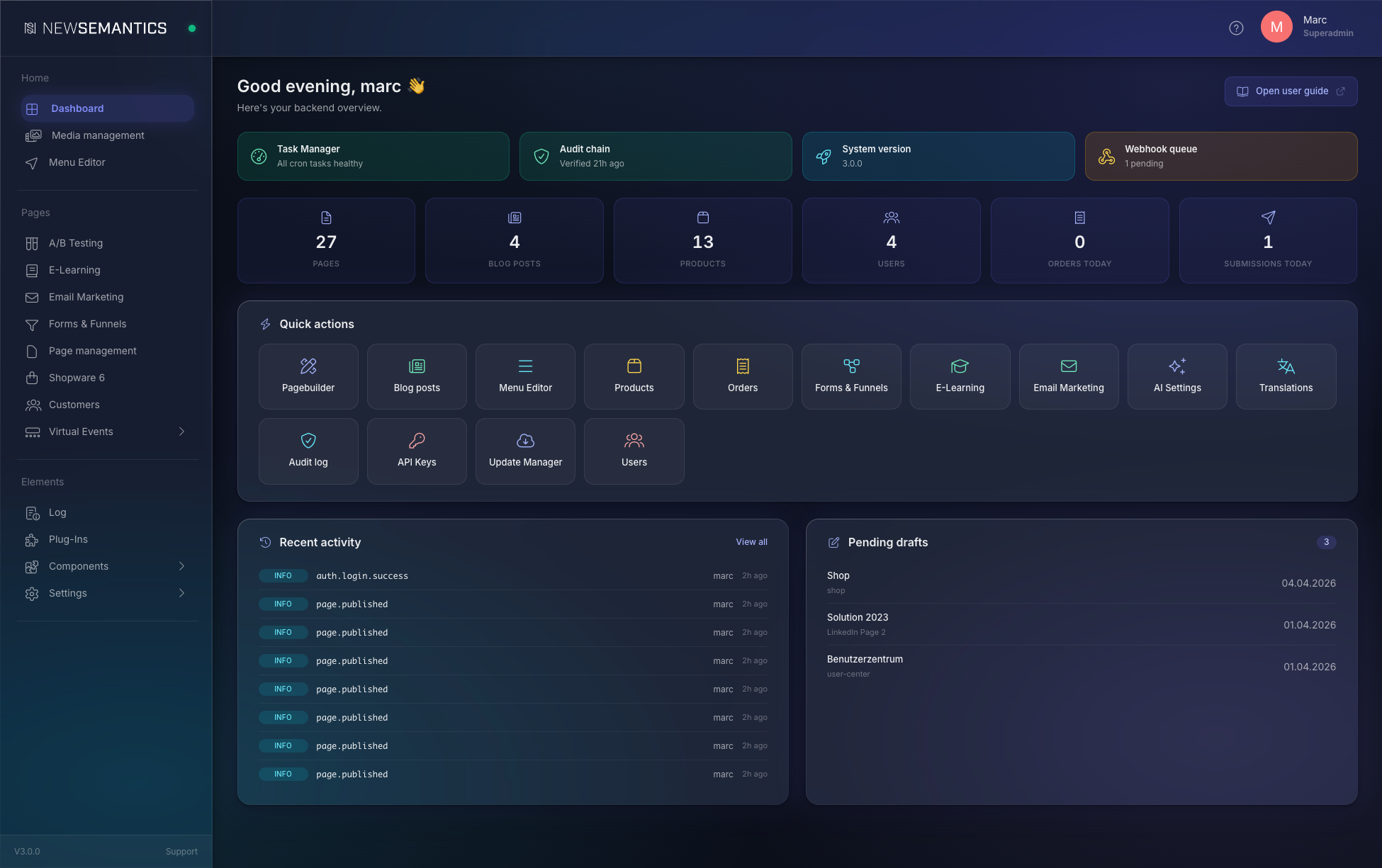
Three regions shape every screen:
- Top bar — your user menu, language switcher, light/dark toggle, logout.
- Sidebar — all modules, grouped by purpose (Home, Pages, Components, Settings, …).
- Main area — the current module's content.
Step 2 — Use the sidebar to switch modules
The sidebar is grouped into sections that mirror the nature of your work:
- Home — Dashboard, Menu Editor.
- Pages — everything related to building public content (A/B Testing, E-Learning, Email Marketing, Page management, Customers, Shopware 6).
- Virtual Events — exhibitions and event-related content.
- Elements — logs, plug-ins.
- Components — reusable building blocks: attributes, blog categories, products, forms, translations.
- Settings — system configuration: redirects, AI, API keys, cache, design tokens, languages, payment providers, user administration.
Finding a module fast
Use your browser's find-in-page (Ctrl/Cmd + F) if the sidebar gets long — all items are plain text links.
Step 3 — Open Page Management
Click Page Management in the sidebar. This is where every public page of the site lives.
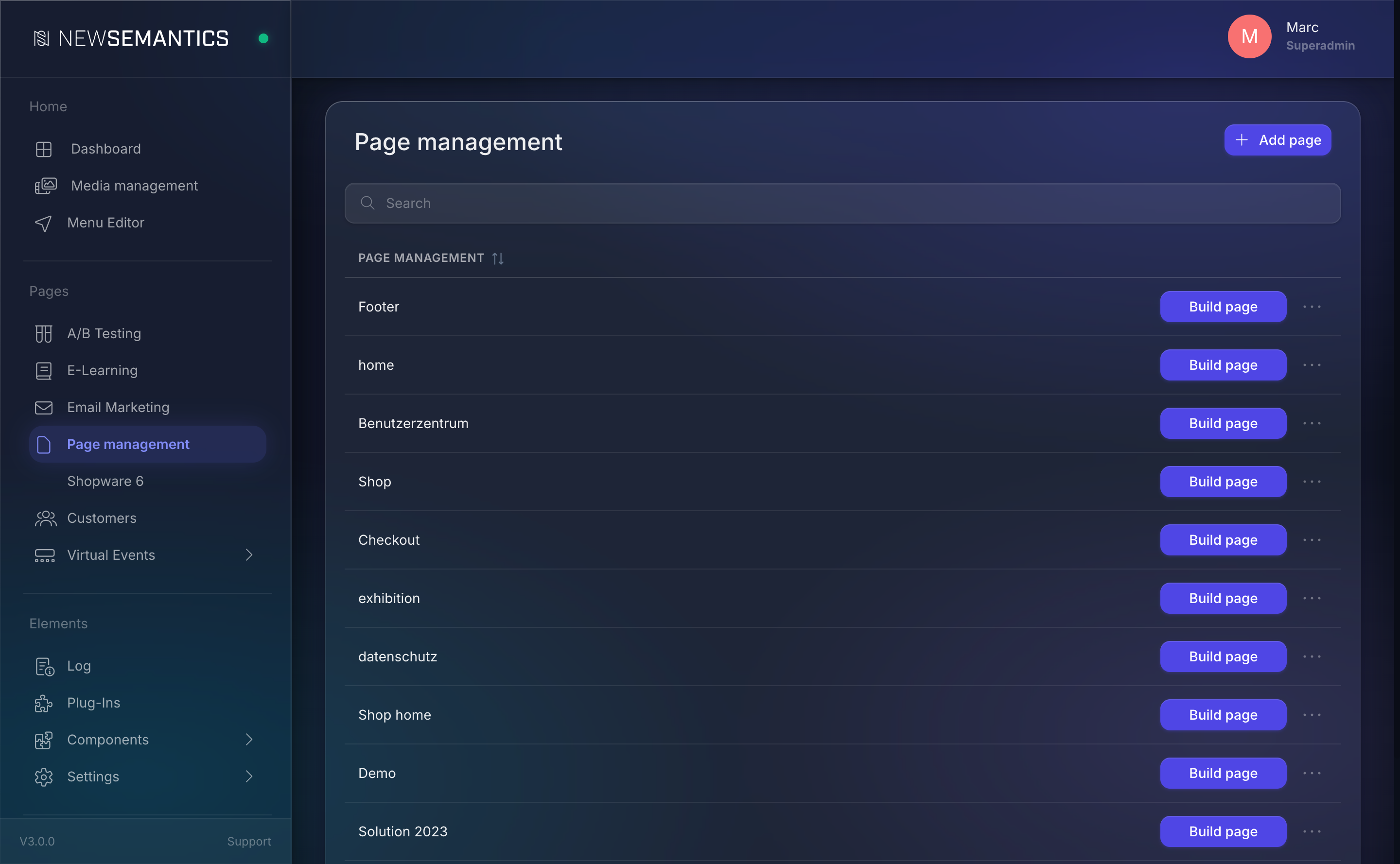
The list shows every page you can edit. From here you can:
- Add Page (top right) — create a new page.
- Build Page — open the Pagebuilder for layout and widgets.
- Edit — change title, SEO meta, URL.
- Duplicate Page — copy an existing page as a starting point.
- Delete — remove the page (ask twice before you do this on live content).
Step 4 — Switch language and theme
The top bar has three personal settings:
- Language — the language of the admin UI (not the content language, which is set per page).
- Light Mode / Dark Mode — UI theme. The switch also changes every screenshot in this guide.
- Change password — opens your profile.
Step 5 — Get help
Every admin screen has a ?-icon in the top bar. Click it to open the User Guide in a new tab. If your session language is German, it opens the German mirror.
What you've learned
- The three regions of every admin screen: top bar, sidebar, main area.
- How the sidebar groups modules by purpose.
- Where to find the list of pages and what you can do with each.
- How to switch language and theme.
- Where the in-app help link lives.
See also
- Key Concepts — the mental model behind pages and Widgets.
- Pages & Pagebuilder — build your first page.
- User Guide overview
- Developer Docs — if you also extend the CMS with code.