
Manage blog categories
Create, rename, and delete the categories you assign to blog posts. Categories drive the category filter on the public blog overview and power the category-specific URLs.
Create a new category
- In the sidebar, click News Categories.
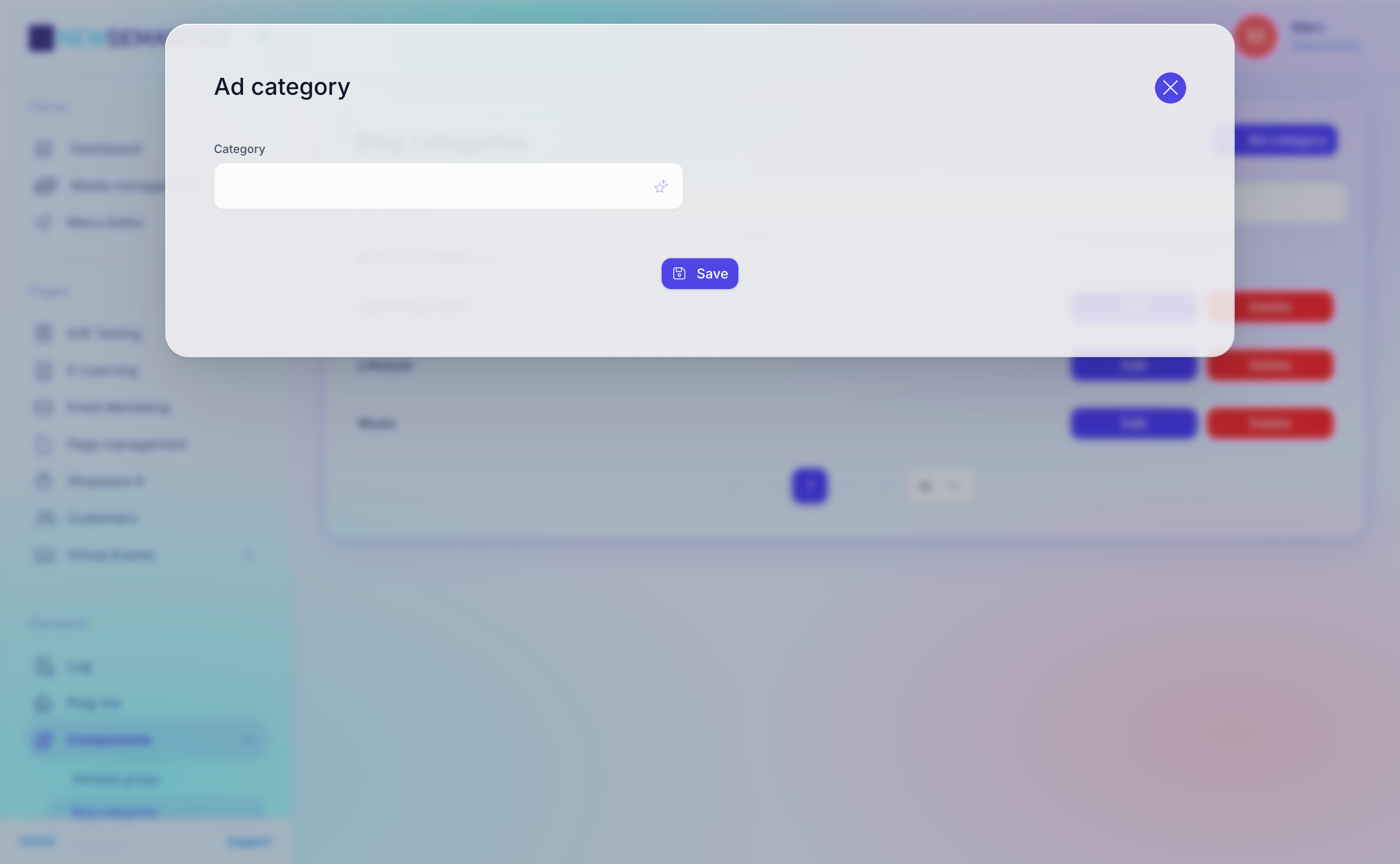
- Click Ad category (top right).
- Type the category name in the modal.
- Click Save.

The category is immediately available in the News edit modal's Category dropdown.
Rename a category
- In the News Categories list, click Edit on the row.
- Change the Category field.
- Click Save.
Renaming is safe
Renaming a category does not re-assign posts. Every post that used the old name now shows the new name automatically — the relation is by ID, not by text.
Translate a category
Category names are per language. In the edit modal, the language-tab row at the top lets you enter a localized name per language.
If a translation is missing, the public blog overview falls back to the master-language name.
Delete a category
- In the News Categories list, click the red Delete button.
- Confirm once.
Posts keep their category ID
If you delete a category that posts still reference, those posts keep a dangling category ID. They continue to render, but the category name on their card is empty. Re-assign them to a new category before deletion.
See also
- Create and edit blog posts — assign the categories you created here.
- Blog overview
- Key Concepts — multi-language content model.