
Customers
Customers are the accounts that bought — or attempted to buy — something on your Native Shop. A customer is created automatically on the first successful checkout. You can also create customers manually.
Open the customers screen
Click VOD / Shop → Customers in the sidebar.
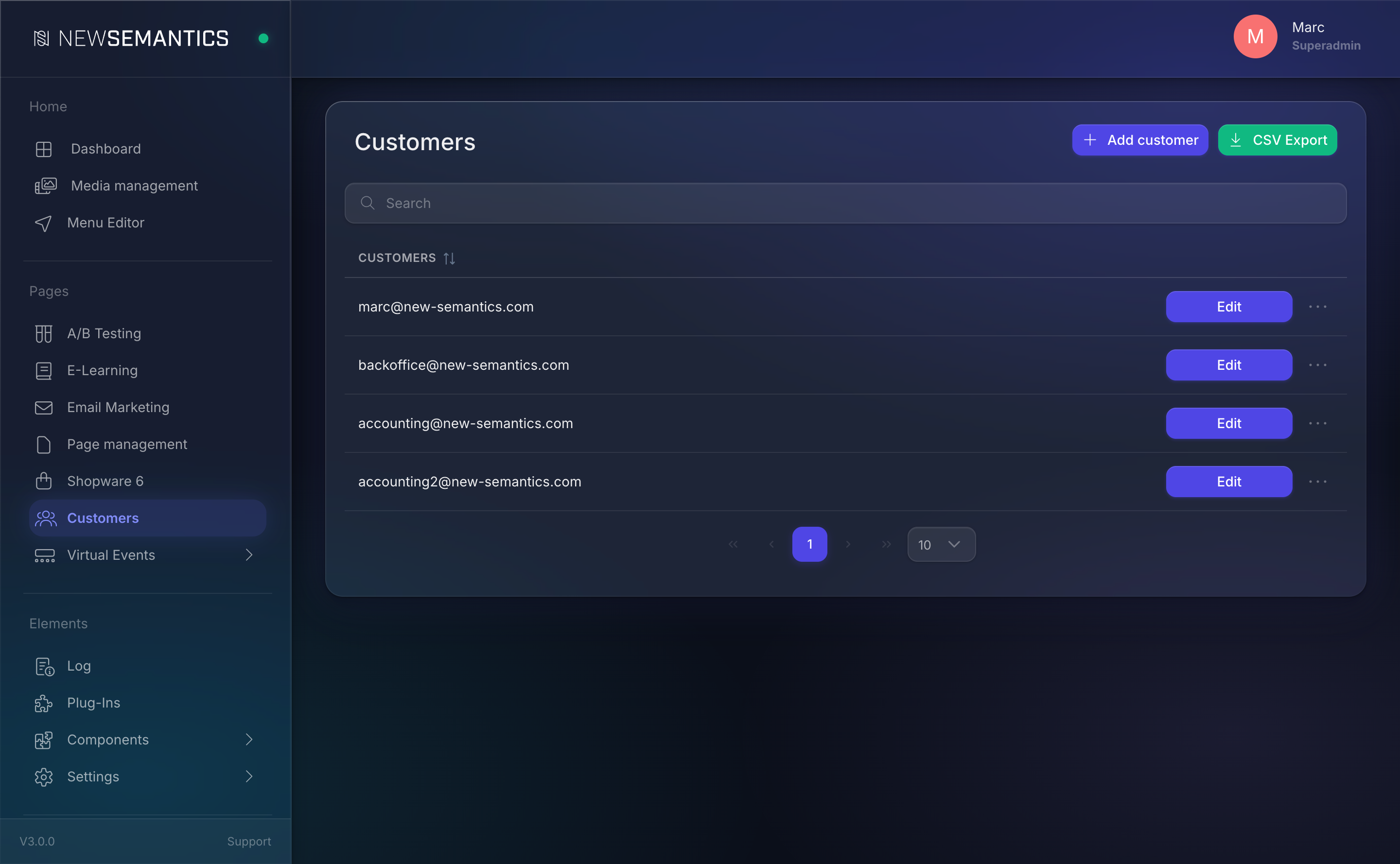
The list shows every customer. Columns: E-Mail, Edit, Orders, Addresses, Subscriptions, Delete.
Create a customer manually
- Click New customer (top right).
- Fill the basics:
| Field | Purpose |
|---|---|
| Unique login e-mail. | |
| Firstname | First name. |
| Lastname | Last name. |
| Password | Initial password (customer can change it later). |
- Click Save.
Edit a customer
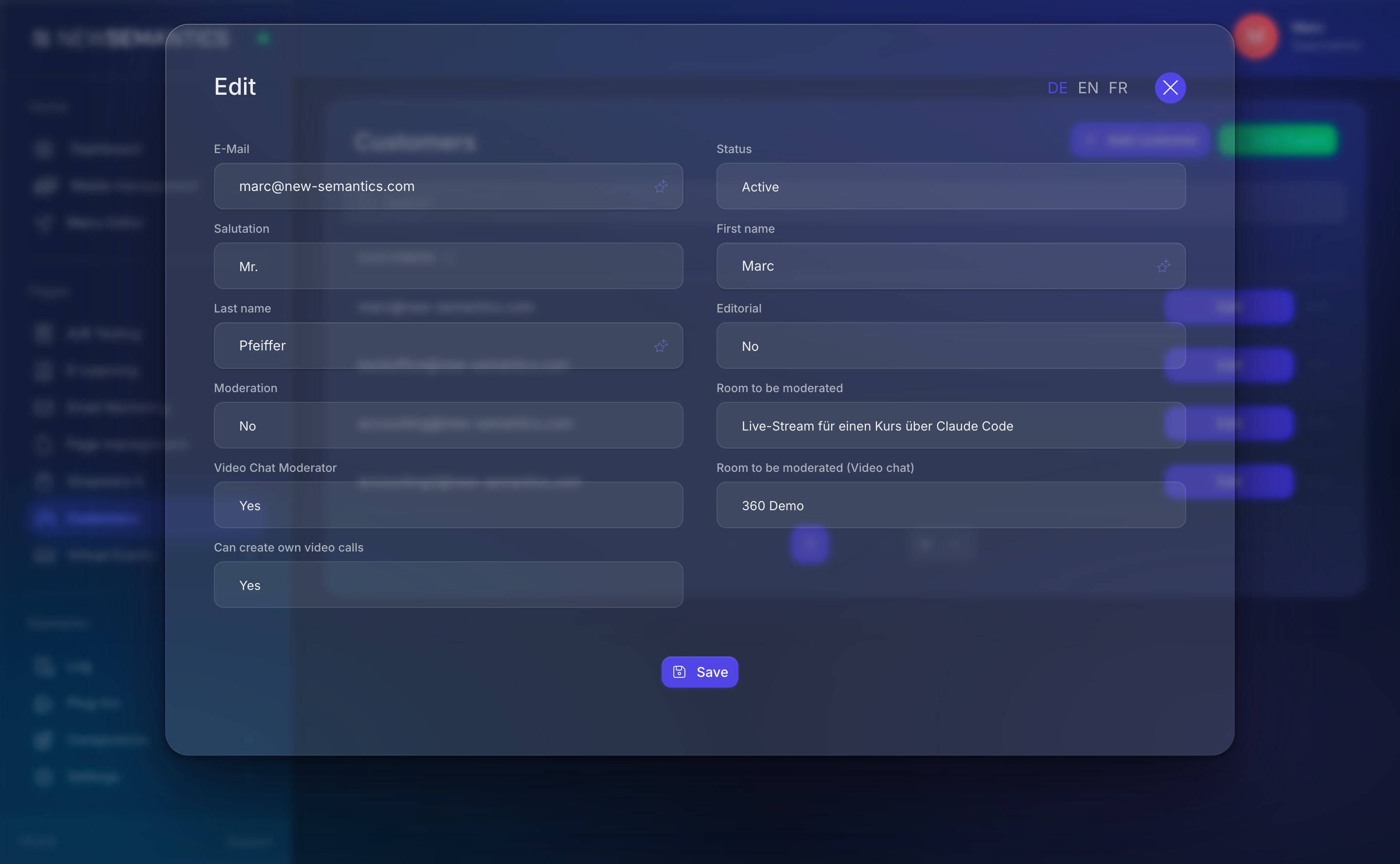
Click Edit on the row:
- Basics — e-mail, name, password (empty = unchanged).
- Addresses — add one or more billing / shipping addresses. A customer can hold several (e.g. billing + shipping).
- Subscriptions — active and past subscriptions with next billing date.
- Orders — all past orders (see Orders).
Reset a password
Open the customer, type a new value in Password, click Save. Leave Password empty to keep the current password unchanged.
The customer is not notified — send them the new password separately through a channel you trust. If you want the customer to pick their own password, ask them to use the "Forgot password" link on the frontend instead.
Delete a customer
Click the trash icon on the row and confirm.
Orders survive deletion
Deleting a customer keeps their past orders — the order keeps the snapshot of the billing address. This is intentional for book-keeping and tax audits. If you need to fully remove a customer for GDPR reasons, delete the orders first, then the customer.
Common issues
Duplicate accounts via guest checkout
Guest checkouts create a customer with the provided e-mail. If a customer uses two slightly different e-mails (e.g. with / without a trailing dot alias), you end up with duplicate accounts. Merge manually by moving orders and cancelling one.
Subscription customers without access
If a subscription customer loses access on the frontend, check their customer detail → Subscriptions. A subscription with status Cancelled and past end date is the usual cause.
See also
- Orders — order list per customer.
- Shop Master Data — e-mail templates sent to customers.
- Payment Providers