
Language Mapping
Shopware 6 identifies languages with UUIDs. newmeta uses short codes (en, de, fr, …). The Language Mapping tab bridges the two: each CMS language gets one Shopware language UUID.
Every Store API request from the CMS to Shopware attaches this UUID as the sw-language-id header. Without a mapping, the CMS uses Shopware's default language — regardless of which language the visitor is browsing.
Open the tab
Click VOD / Shop → Shopware 6 → Language Mapping.
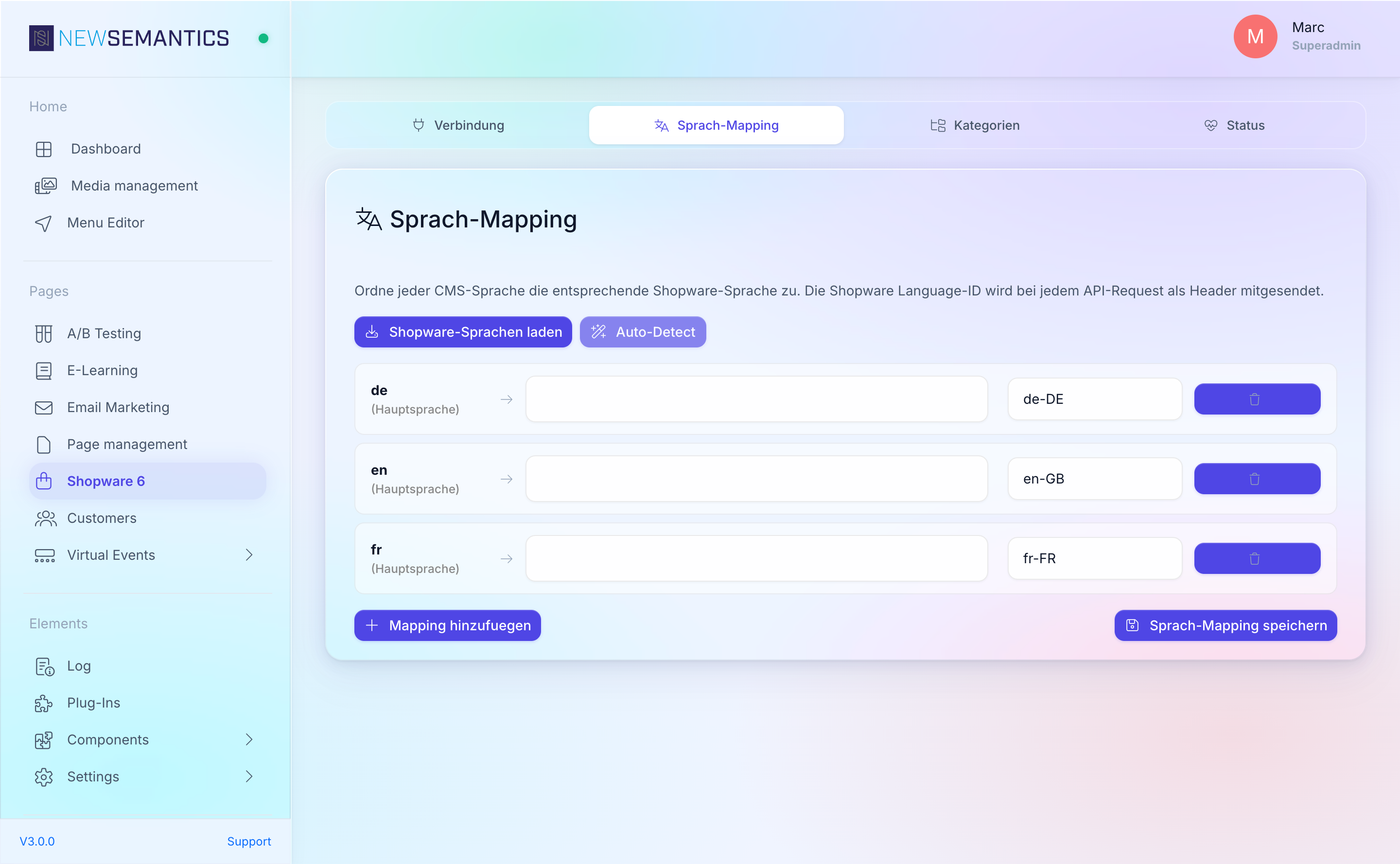
1. Load Shopware languages
Click Load Shopware languages. The button calls /api/backend/shopware6 ?action=sw6_languages and populates the Shopware-side dropdowns.
Requires a working connection
The load call talks to Shopware. If the connection test on the Connection tab is red, fix that first — see Shopware 6 Setup.
2. Auto-detect
Click Auto-Detect to have the CMS match each CMS language to a Shopware language with the same two-letter code (de → de-DE, en → en-GB).
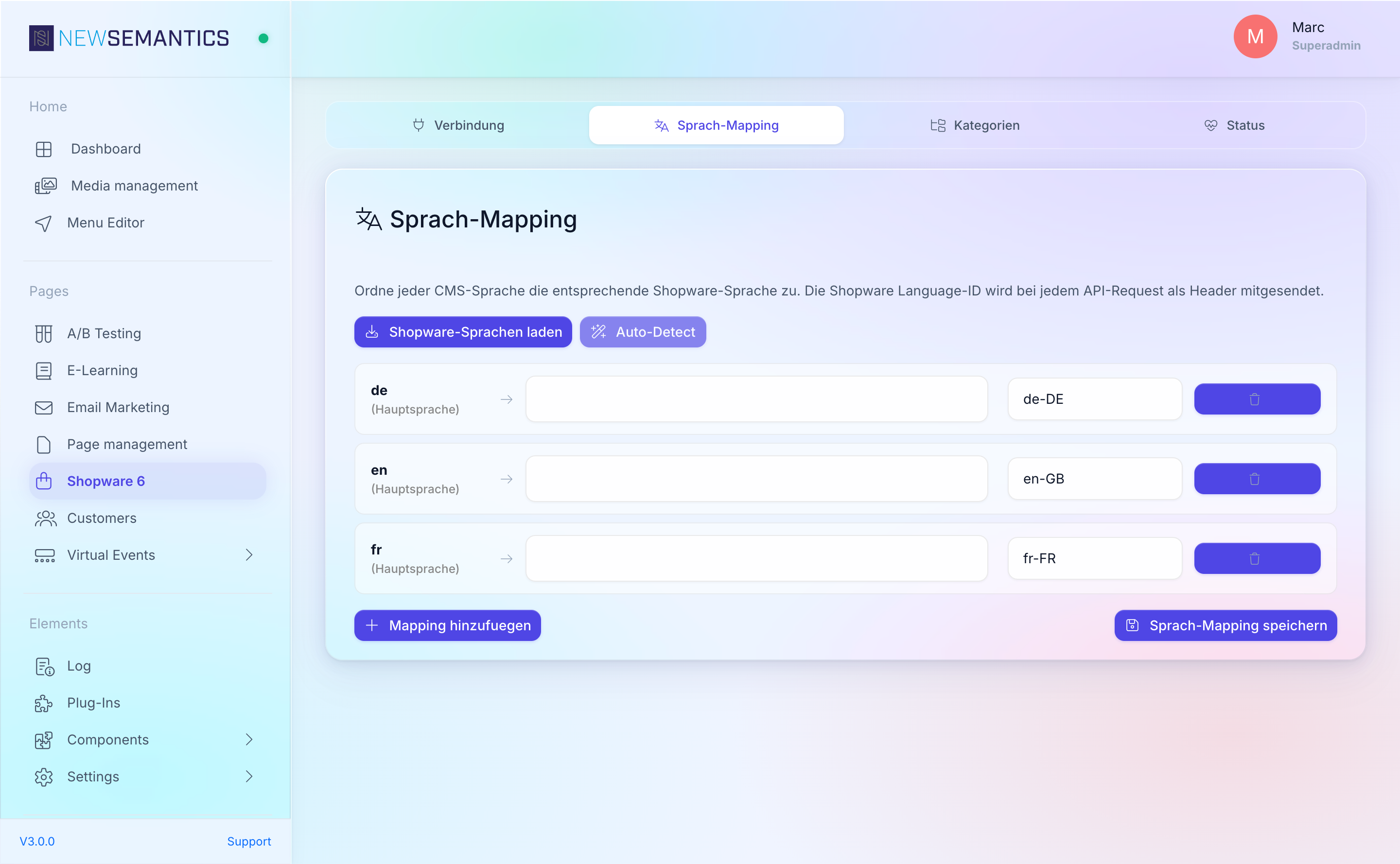
Verify the suggestions — Shopware often has both en-GB and en-US, and Auto-Detect picks the first hit. Override any mismatch manually.
3. Add mappings manually
If Auto-Detect missed a language:
- Click Add mapping.
- Pick the CMS language on the left.
- Pick the Shopware language UUID on the right from the dropdown.
- Fill Locale with the Shopware locale code (e.g.
de-DE,en-GB). - Click Save language mapping.
Field reference per row
| Field | Purpose |
|---|---|
| CMS Language | Short code from the CMS (en, de, fr, …). Read-only after creation. |
| Shopware Language | UUID + name + locale of the Shopware language. |
| Locale | Shopware locale code. Used by some Shopware plugins that read the locale string explicitly. |
Remove a mapping
Click the trash icon in the row. Then click Save language mapping to persist the change.
Removing the mapping for the current language
If you remove the mapping that matches the currently browsed language, the CMS falls back to Shopware's default language on every request — all product titles suddenly appear in that default language. Always keep a mapping for every CMS language that is live on the frontend.
Common issues
Dropdown empty
If the Shopware Language dropdown is empty, you did not click Load Shopware languages, or the call failed. Load again. If it still fails, the connection test on the Connection tab is the first place to look.
Product titles in the wrong language
Wrong language rendering usually means the UUID points to a Shopware language that is not enabled on the Sales Channel. In Shopware: Sales Channels → your channel → Languages — add the language there first, then re-map in the CMS.
Locale ignored by a Shopware plugin
Some plugins use locale rather than the language UUID. Set the Locale column to the Shopware locale code (de-DE, en-GB) if you see plugin-side translations missing.
See also
- Shopware 6 Setup — prerequisite for loading SW languages.
- Categories & Canonical — category cache is language-scoped.
- Troubleshooting