
A/B Testing overview
Run page-level A/B tests with server-side variant routing. A test takes one page, runs two or more variants at different traffic percentages, tracks impressions and conversions, and tells you which variant wins.
Variants are snapshots of the page. The control variant is the live published page; additional variants are saved versions of the same page. Switching a winner copies the winning snapshot back onto the published page.
This page explains the concepts. See Create a test for step-by-step setup.
Where the module lives
Open Pages → A/B Testing in the sidebar. The landing screen shows a flat list of all tests with their status.
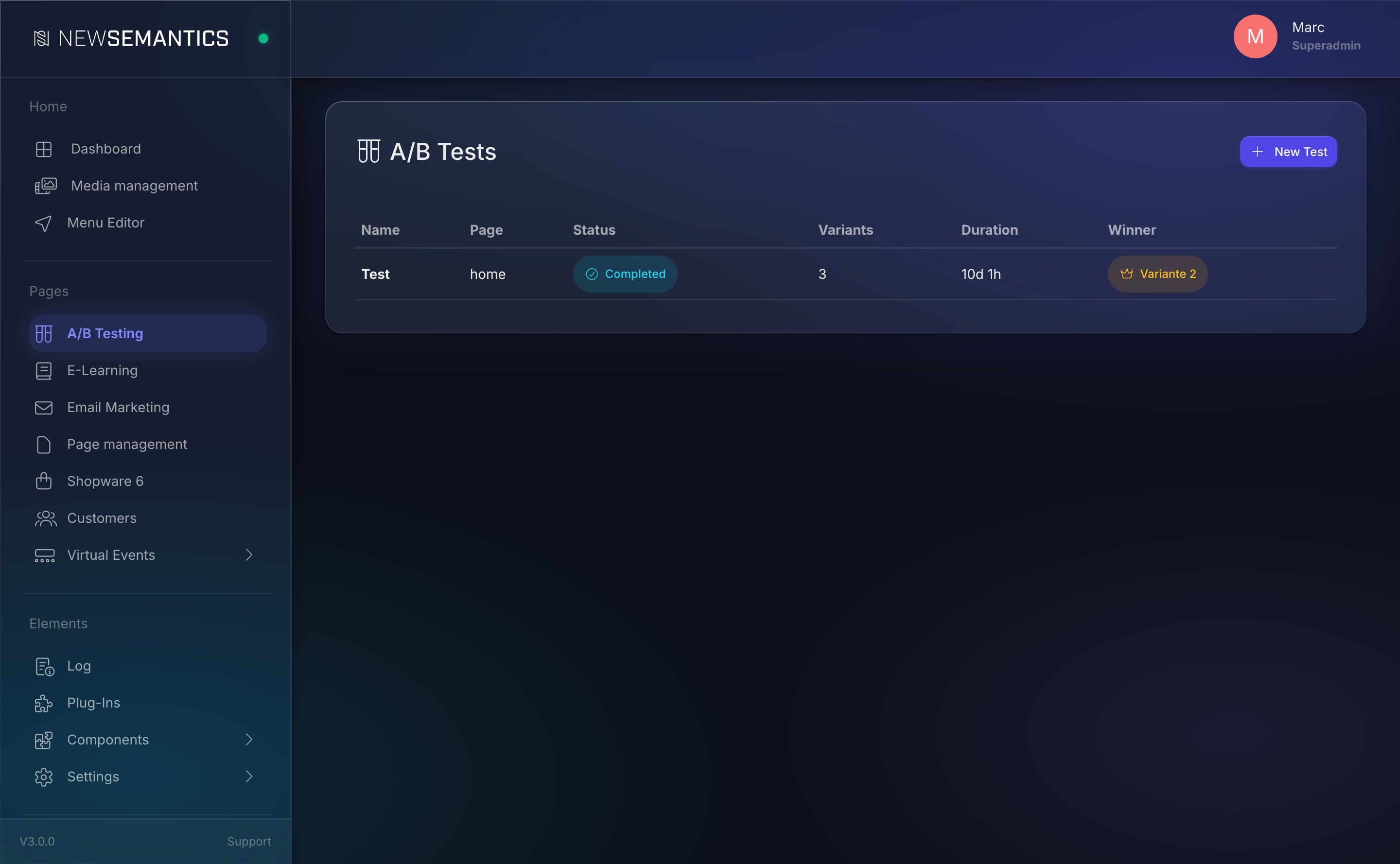
The test lifecycle
draft ── Start Test ──▶ active ── Pause ──▶ paused ── Resume ──▶ active
                         │                                           │
                         └──────────── End Test ────────────────────┘
                                            │
                                            ▼
completed ── Apply Winner ──▶ live page updated| Status | What it means |
|---|---|
draft | Test is configured but not running. Add or remove variants freely. |
active | Test is live. Visitors are randomly assigned variants per the traffic distribution. |
paused | Test is running but new visitors are not assigned. In-flight cookies still see their variant. |
completed | Test has ended. Results are frozen, no new impressions are tracked. |
How variants are assigned
- A visitor lands on a page with an active test.
- The server checks the consent cookie (category
statistics). If the visitor has not consented, the control variant is served and no tracking happens. - The server rolls a random number against the traffic distribution and picks a variant.
- A cookie
ns_ab_vidis set so the same visitor sees the same variant on later visits.
Variants live server-side. The visitor's URL never changes — they see /landing-page regardless of which variant they got.
Consent-gated tracking
A/B tracking sits in the statistics cookie-consent category. If the user has not accepted statistics, they see the control variant and no impression is recorded. The test still runs — you just capture fewer data points.
Conversion types
When you create a test you pick what counts as a conversion:
| Type | Trigger |
|---|---|
| Page Visit | The visitor reached a specific target URL. Use the path, e.g. /thank-you. |
| Button Click | A button with a matching CSS selector was clicked. Use a #id or .class selector. |
| Form Submit | A form element was submitted. Use the form's CSS selector. |
| Custom | Triggered by a dispatchEvent('ab-conversion') in custom JavaScript. Advanced use only. |
Results and confidence
Each variant card on the detail view shows:
- Impressions — how many visitors were assigned the variant.
- Conversions — how many of them converted.
- Rate — conversions over impressions.
- Improvement — relative difference to the control.
- Confidence — statistical confidence of the difference (simplified z-test against control).
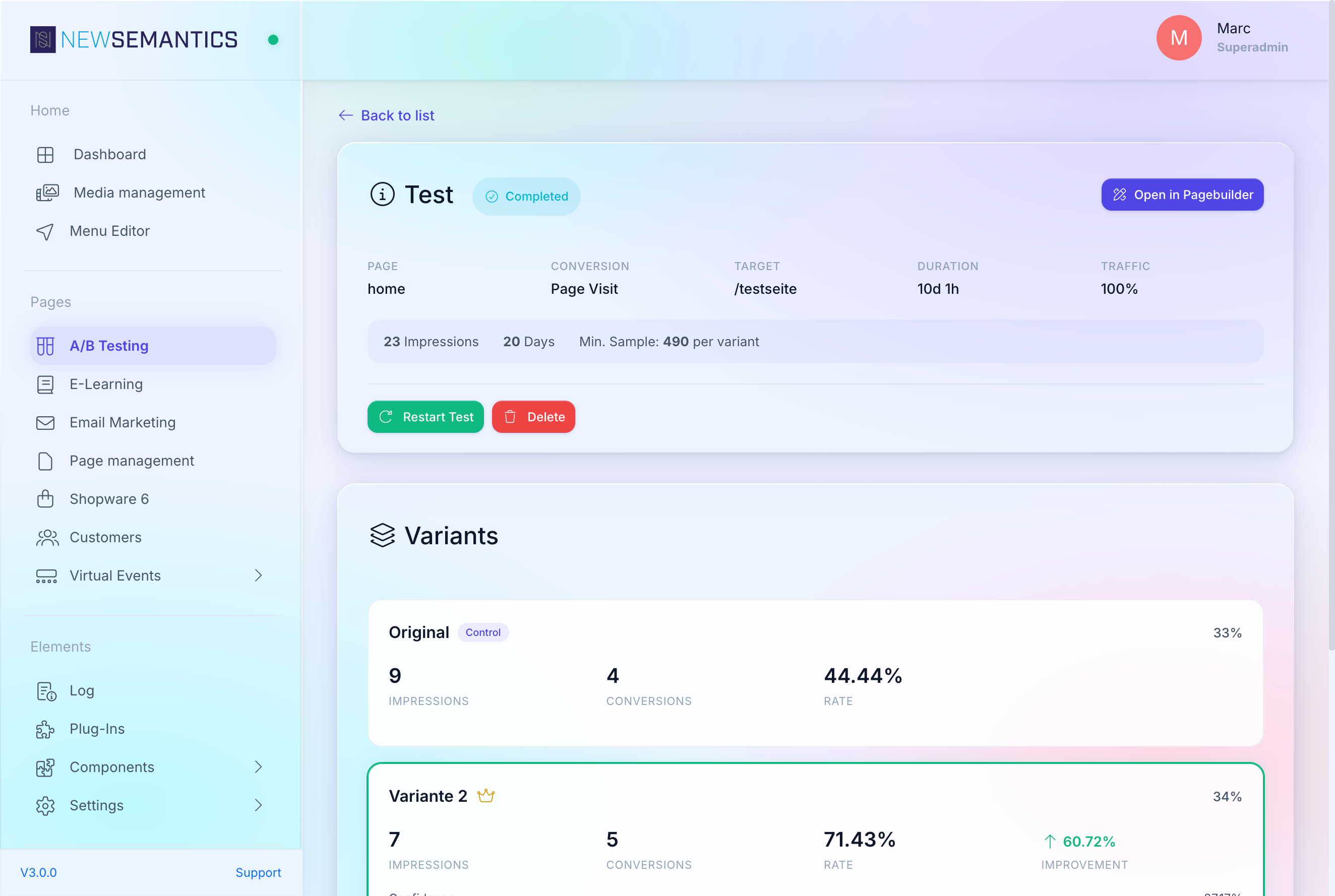
The confidence bar turns green at 95% confidence. Do not apply a winner before the bar is green and you have at least min_sample_size impressions per variant.
Apply a winner
When a test is completed, click Apply Winner. Pick the winning variant from the dropdown. The CMS copies that variant's page snapshot onto the live page — the change is immediate and visible to every visitor, regardless of cookie state.
Applying a winner replaces the live page
Make sure the winner is the version you want to ship. The original published page is overwritten by the variant's snapshot. A/B test records stay, but the live page now matches the winner.
Analytics integration
Impressions and conversions are also dispatched to:
- Google Analytics 4 — if
analyticsconsent is granted. - Matomo — if
analyticsconsent is granted. - Facebook Pixel — if
marketingconsent is granted.
Nothing is sent without the matching consent — the CMS respects the cookie-consent banner strictly.
Permissions
- Editors create tests, manage variants, end tests.
- Admins additionally apply winners to live pages.
See also
- Create a test — how-to
- Draft vs. Published — how page snapshots work