
Exam questions
Build the question pool the learner sees at the end of a course. Every question is multiple choice. Questions and answers are shuffled per attempt, and the exam is snapshot-frozen when a learner starts — later edits do not affect a running attempt.
Prerequisite: The course exists and is open in the detail view under Courses → Select course.
Exam rules at a glance
The exam follows BZAEK Kategorie C defaults. Change them on the course's General tab.
| Setting | Default | Where to change |
|---|---|---|
| Number of questions per attempt | 10 | Number of exam questions |
| Pass mark | 67 % | Pass threshold (%) |
| Attempts per learner | 3 | Max. exam attempts |
| Point value on pass | from Exam points | Exam points |
Always enter more questions in the pool than Number of exam questions — otherwise the shuffle has nothing to pick from and every learner sees the same order.
Correct answers are never sent to the learner
The server never ships the is_correct flag to the client. Learners can see the question, the shuffled answers, and their result — but never the correct answer.
1. Open the Questions sub-tab
Inside the course detail view switch to Questions. An empty state shows if no questions exist yet.
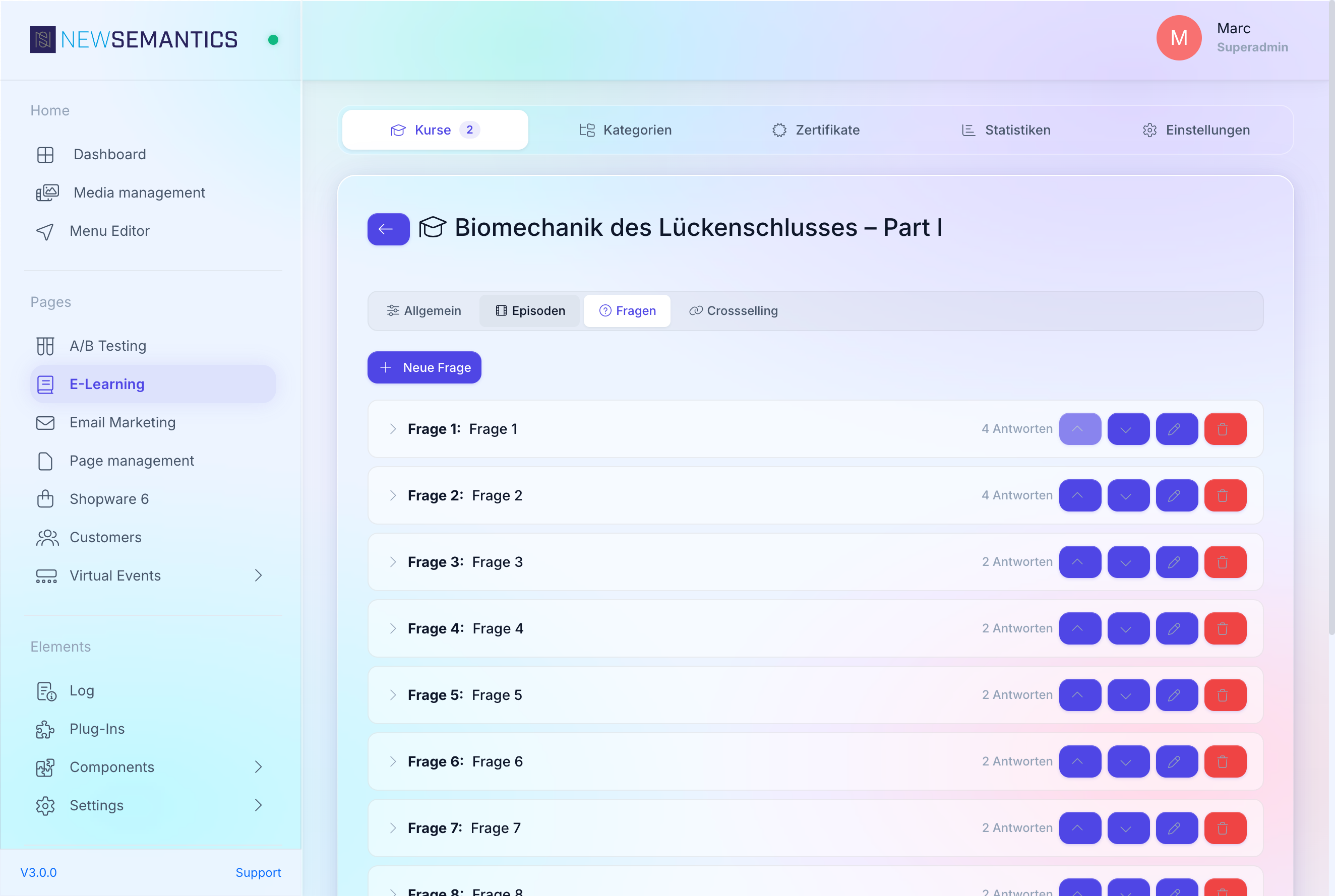
2. Add a question
Click New Question. A modal opens with a single textarea.
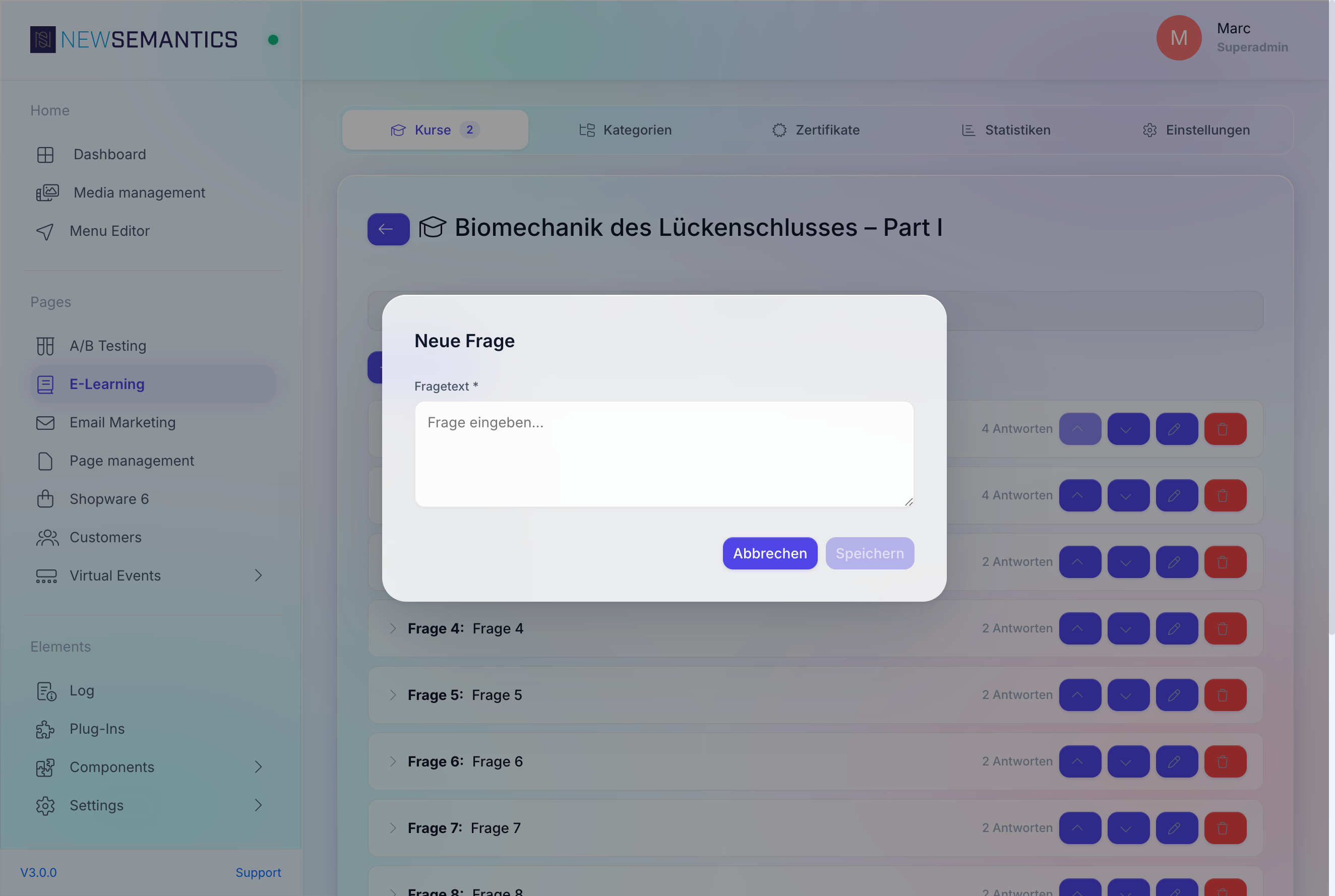
Type the question text and click Save. The question appears in the collapsed list.
3. Add answers to a question
Expand the question by clicking its header. The answers section shows an empty state and a New Answer button.
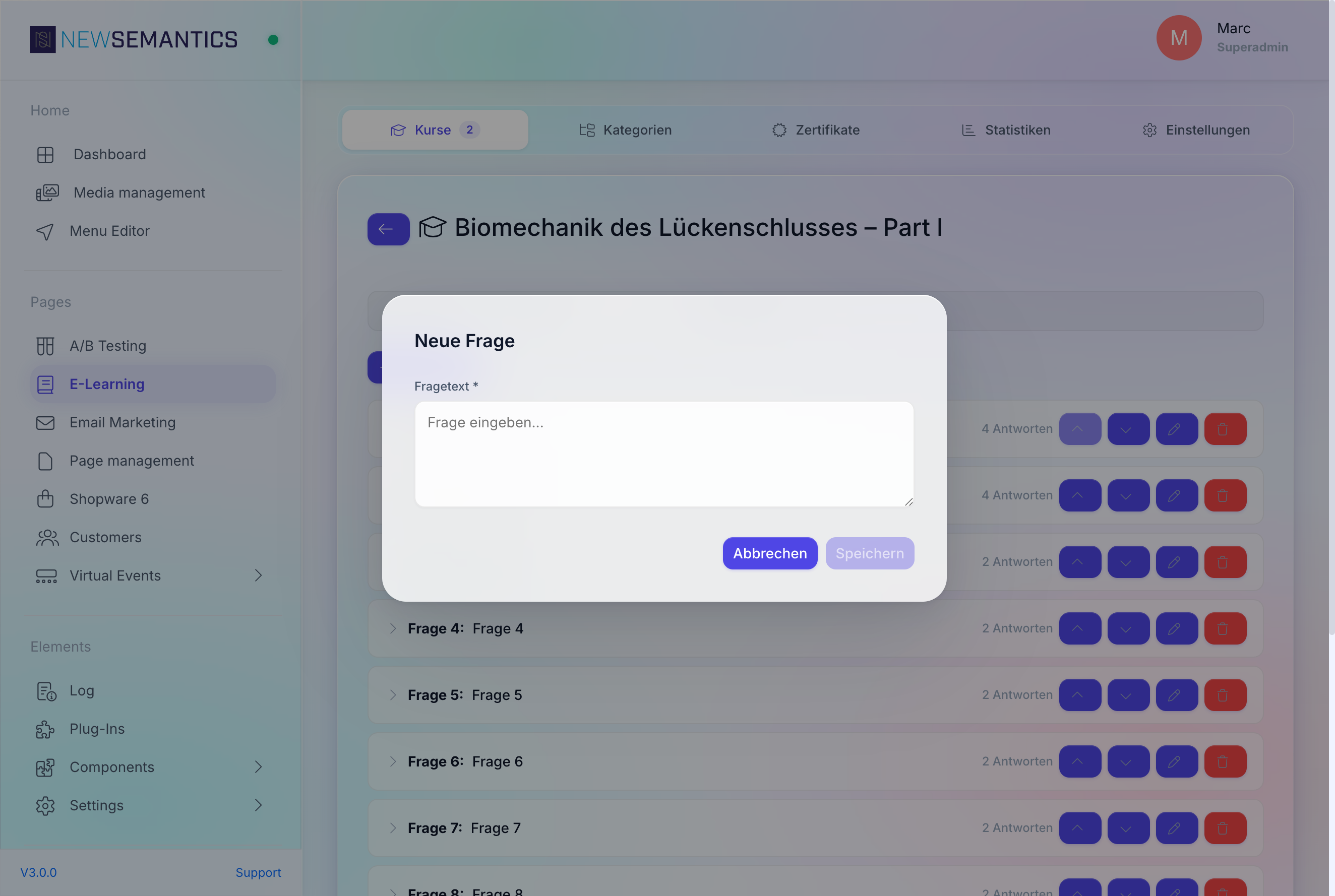
Click New Answer, type the answer text, and click Save.
Mark the correct answer(s) by ticking the checkbox in the Correct column. Multiple correct answers are allowed — the learner must pick the exact set to count the question as right.
Multi-select answers
Tick more than one Correct answer to turn the question into a multi-select. The grader requires an exact match — a partial selection is wrong.
4. Reorder questions
Use the up/down arrows next to the question title to change the pool position. The shuffle is random per attempt, but if your pool has fewer entries than Number of exam questions, the order you set here is the display order.
5. Edit or delete
Every question row has a pen and a trash icon. Editing a question does not break ongoing attempts — the server snapshots the question text, answer text, and is_correct flag into the attempt row when the learner starts. Later edits only apply to new attempts.
Question pool sizing
To keep exams fair and varied, add roughly 2–3 times the number of questions the learner actually sees. Example: with Number of exam questions = 10, aim for a pool of 20–30 questions. This is not enforced by the backend, but it is the editorial convention.
Attempt tracking
Attempts are stored in the elearning_exam_attempts table. You cannot edit them. What you can see:
- Statistics tab — average exam score across all courses.
- Certificates tab — which exams actually led to a certificate.
Common issues
Every learner sees the same questions in the same order. Your pool size equals Number of exam questions. Add more questions so the shuffle has something to pick.
A learner failed three times and cannot retry. The attempt limit is hard. Adjust Max. exam attempts on the General tab and ask the learner to reload — the new limit applies to future attempts.
A learner complains that an answer was wrong. Check the answer's is_correct flag on the Questions sub-tab. If you mis-marked an answer, fix it and save. Running attempts keep the old snapshot; new attempts get the corrected version.
See also
- Create a course — how-to
- Episodes and video tracking — how-to
- Certificates — how-to