
301 Redirects
Redirects forward visitors and search engines from an old URL to a new one. When you rename a page, move a blog article, or retire a product, a redirect keeps inbound links and search rankings alive.
This page shows you how to create a redirect, toggle it active, and watch the hit counter.
Where the module lives
Click Settings → 301 Redirects in the sidebar. The list shows every configured redirect with source, target, status code, state, and a hit count.
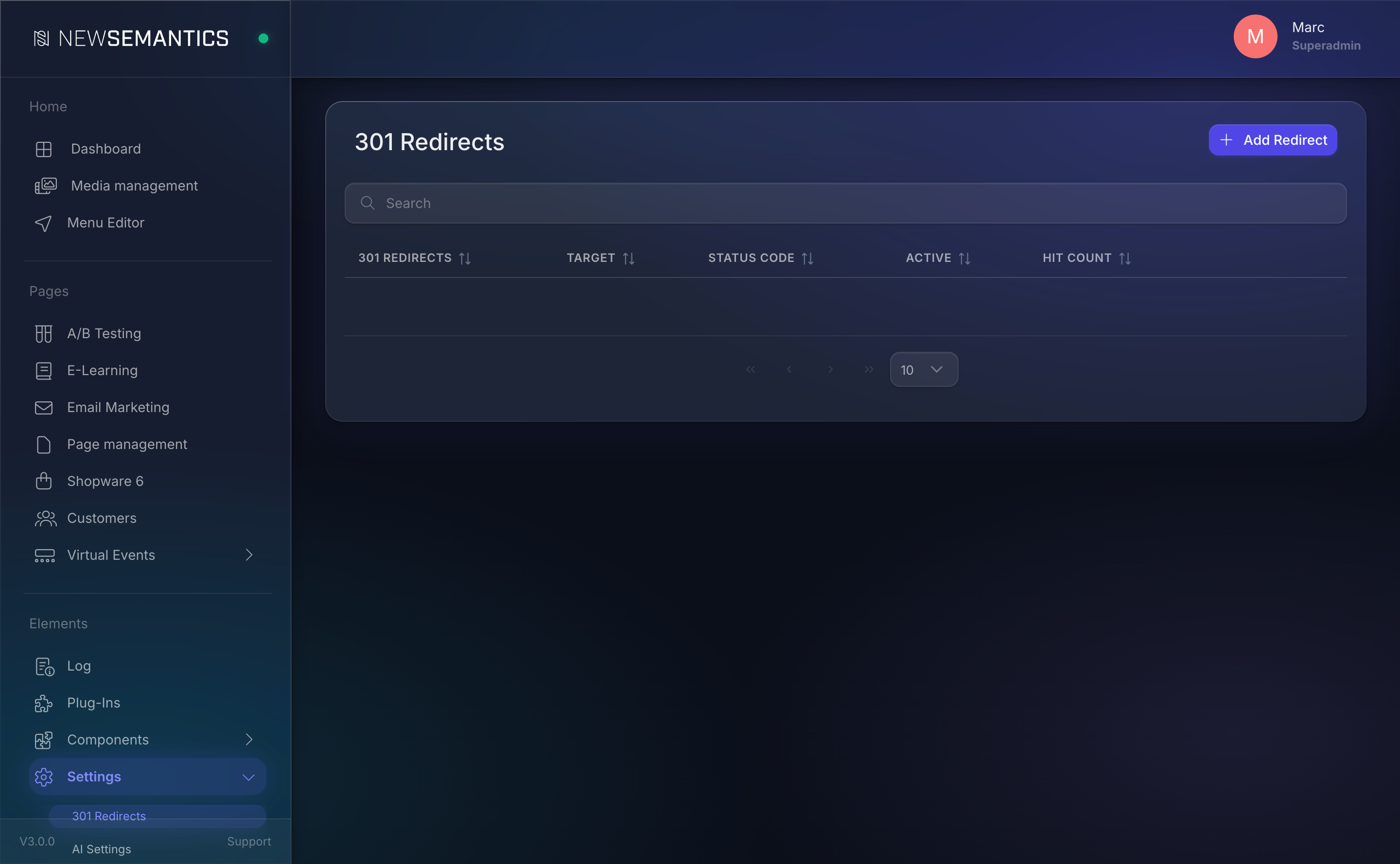
Create a redirect
- Click Add Redirect in the top right.
- Fill the fields in the modal (see the table below).
- Click Save.
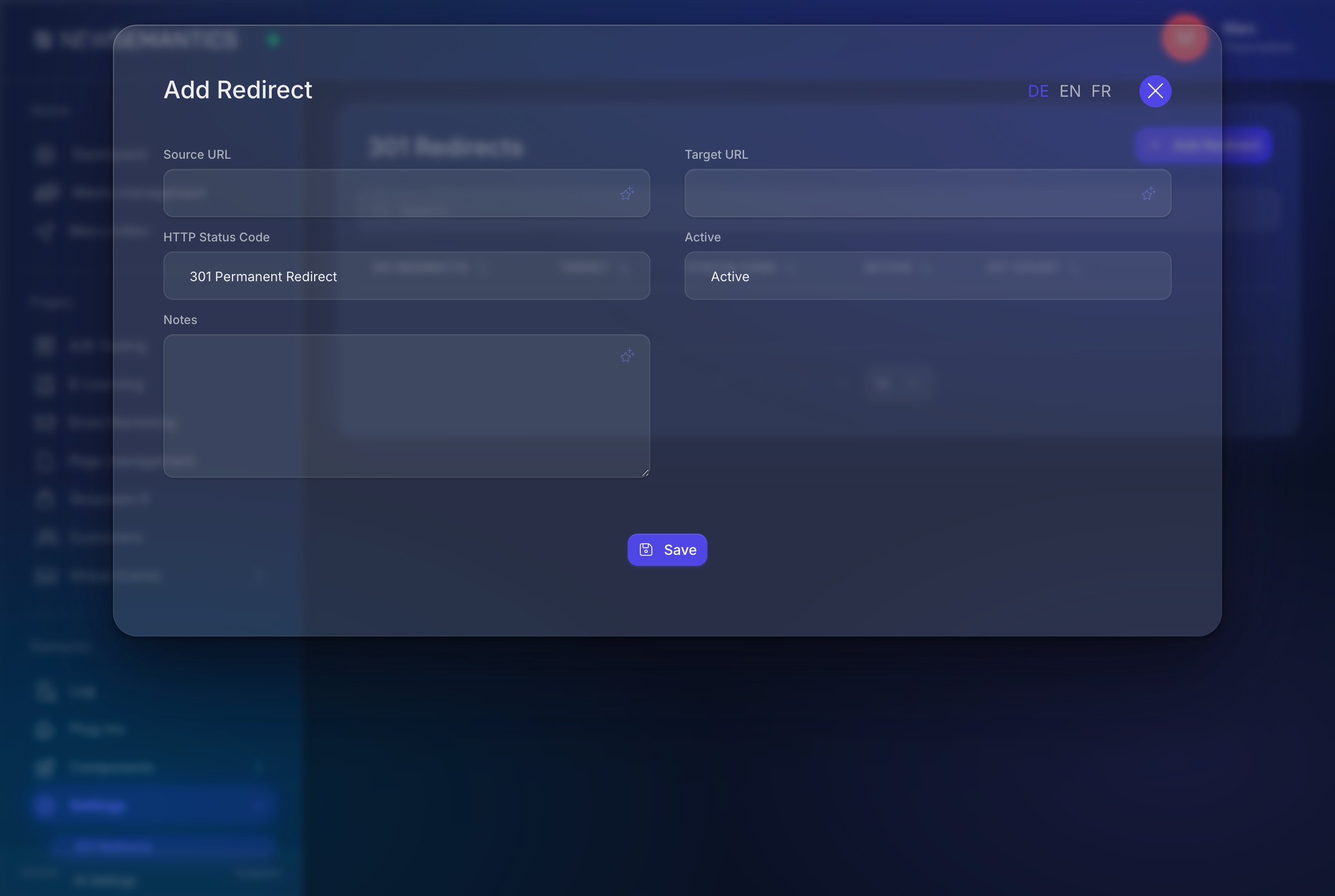
Fields
| Field | Purpose |
|---|---|
| Source URL | The old path visitors reach. Relative, starts with / (for example /alte-seite). Absolute URLs work too when the source is an external link you own. |
| Target URL | The new path. Relative or absolute. |
| HTTP Status Code | 301 Permanent Redirect (default — tells search engines to replace the old URL) or 302 Temporary Redirect (short-term move). |
| Active | Active applies the redirect, Inactive keeps the row but stops redirecting. |
| Notes | Free text. Useful for "replaced by new product line, 2026-02". Not shown to visitors. |
Always use 301 for permanent moves
Search engines only transfer link equity on a 301. Use 302 only when you genuinely plan to restore the old URL later.
Activate or deactivate a redirect
Click the edit icon on a redirect row, switch Active to Inactive, and save. The row stays in the list but the redirect stops firing. Flip it back to Active to resume.
Deactivating is safer than deleting — you keep the audit trail and the hit counter.
Hit counter
Every time a redirect fires, the Hit Count column increments and the Last Hit timestamp updates. Sort the list by hits to find:
- Your most valuable old URLs (keep those redirects forever).
- Redirects that have not been hit in months (candidates for clean-up).
What to do when a page is deleted
When you delete a page — in Page management, Blog, Shop, or E-Learning — its old URL returns 404 on the next visitor. Always add a redirect before you delete:
- Note the page's URL (for example
/mein-kurs-2024). - Decide where to forward traffic — a newer version, the parent category, the home page.
- Create the redirect first.
- Then delete the original page.
Orphaned URLs kill SEO
If a page ranks well and you delete it without a redirect, search engines drop it from the index within weeks. The ranking goes to zero. A 301 transfers most of the ranking to the target.
Bulk imports
The Backend UI does not currently offer a CSV import. For large migrations — for example when you relaunch a site and carry over hundreds of legacy URLs — ask a developer to insert the rows directly into the redirects table.
Redirect order of precedence
The CMS applies redirects in two layers: the PHP entry (index.php) handles them before routing, and the Pages API enforces them again for frontend calls. The same source_url can only exist once; create only one row per old URL.
Common issues
Source URL with trailing slash
/products and /products/ count as different URLs. If you are not sure which form your old links use, create both redirects (or drop the trailing slash consistently in all internal links).
Redirect loop
If A → B and B → A both exist and both are Active, visitors bounce forever. The browser eventually shows "too many redirects". Audit the list after bulk changes.
Conflict with URL-Rewrites
A redirect's Source URL must not collide with an existing page URL. If you set /about as Source but a published Page uses /about as URL-Rewrite, the Page wins — the redirect never fires.
See also
- SEO Meta per page — set URL-Rewrite, title, description.
- Sitemap — redirected URLs are excluded from the sitemap automatically.
- Pages & Pagebuilder — where URL-Rewrites live.