
Common Issues
A playbook for the concrete errors editors and admins hit most often. Every entry follows the same shape: Symptom (what you see), Cause (what it actually is), Solution (what to do). Work through the steps in order — the first step is the most likely cause.
1. Widget does not appear in the frontend
Symptom: A Widget is placed on the page, the Pagebuilder shows it in the Preview, but the live site renders an empty Row.
Cause: The Widget is hidden by a responsive-visibility flag, or the page is not published.
Solution:
- Open the Widget in the Pagebuilder and check the Visibility section. Confirm at least one of Desktop, Tablet, or Mobile is enabled. If all three are disabled, the Widget is hidden on every breakpoint.
- Confirm the page itself is published — the top bar must not show the DRAFT badge. If it does, click Publish.
- Clear the API cache under Administration → Cache → Clear cache.
2. Shopware 6 categories are empty
Symptom: The category teaser widget or the SW6 menu renders with no categories. A console error may say SW6: empty root_category_id response or circuit breaker open.
Cause: The Shopware connection is misconfigured, the access key rotated, or the Sales Channel's root category ID is wrong.
Solution:
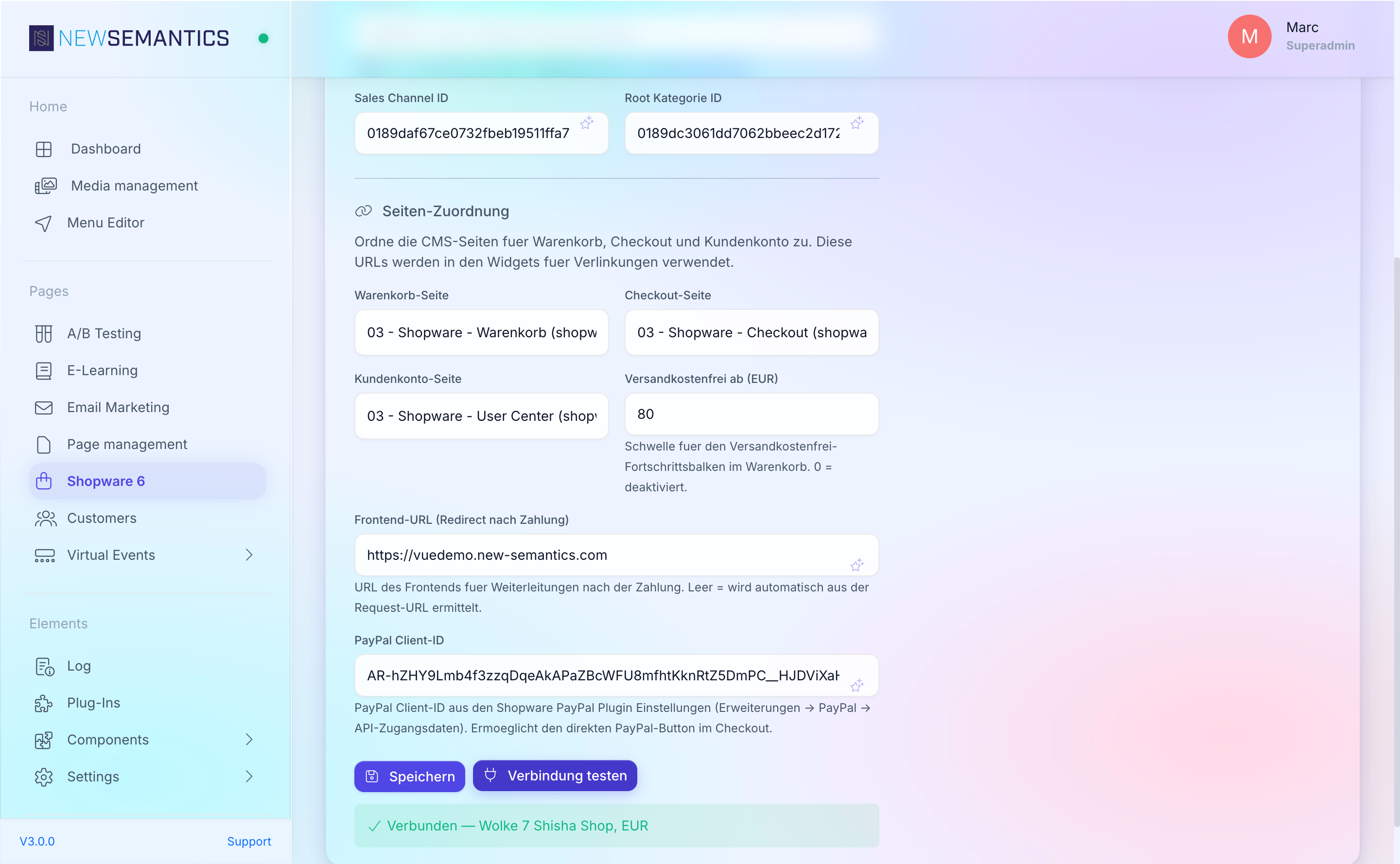
- Open E-Commerce → Shopware 6 → Connection and click Test connection. A red lamp means the credentials are rejected — reissue the access key in the Shopware admin and paste it in.
- Check Sales Channel ID and Root Category ID. Both UUIDs come from the Shopware admin under Sales Channels → {your channel}. A typo here yields an empty category tree.
- If the circuit breaker is open, wait 60 seconds or click Reset circuit breaker on the connection page. The breaker opens after 5 consecutive API failures and auto-closes after the cooldown.
- Trigger a category sync manually under E-Commerce → Shopware 6 → Categories → Sync now.
3. Sitemap is out of date
Symptom: Pages published yesterday still do not appear in /sitemap.xml. Search engines keep indexing old URLs.
Cause: The scheduled sitemap task is stuck, disabled, or never ran.
Solution:
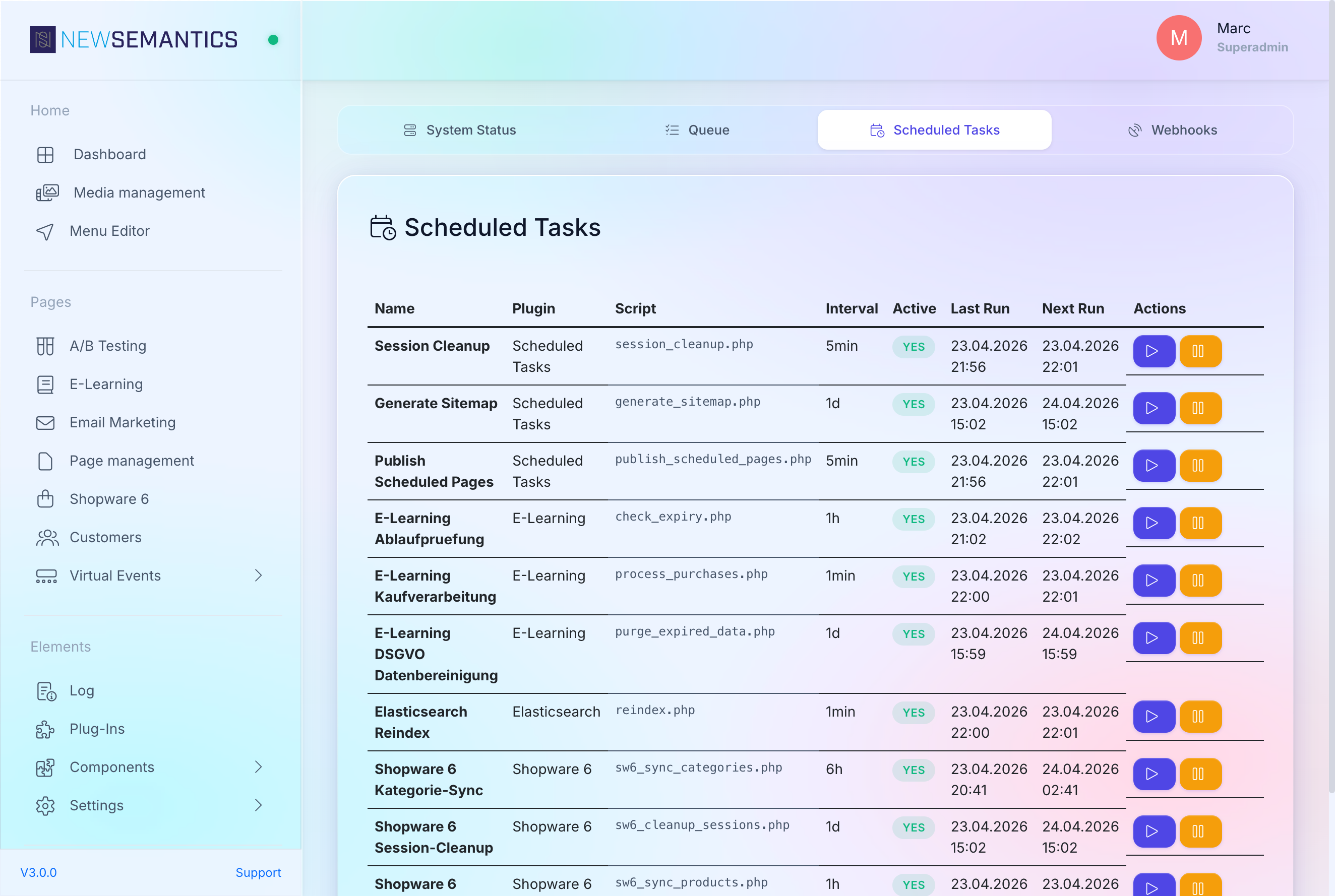
- Open Administration → Task Manager → Scheduled Tasks. Find Sitemap Generation and check Last Run — should be within 24 hours.
- If the task is disabled, toggle it on.
- If the task is enabled but has not run, click Run now. Watch the Queue tab for errors.
- For Shopware 6 content, confirm sw6_config → last_sync is recent. Stale SW6 data will not enter the sitemap.
- Clear the API cache; the sitemap endpoint itself is cached for 1 hour.
4. Pagebuilder loads endlessly
Symptom: Opening a page in the Pagebuilder shows the loading spinner for minutes. No error toast, no structure tree.
Cause: A corrupt draft blocks the snapshot load, browser cache holds stale JS, or APCu is empty and the first load is rebuilding catalogs.
Solution:
- Hard-reload with
Ctrl+F5/Cmd+Shift+Rto bypass the browser cache. - If the spinner persists, open the browser console and look for a 500 error on
/api/backend/pagebuilder. A 500 usually points to a corruptpage_versionsrow. - Open Versions on the page. If the latest Draft has a weird timestamp or a (corrupt) marker, delete it — the Pagebuilder falls back to the previous Published version.
- If APCu is empty, the first Pagebuilder load builds the widget catalog and takes 10-30 seconds. Subsequent loads are fast.
5. Email Marketing connection test fails
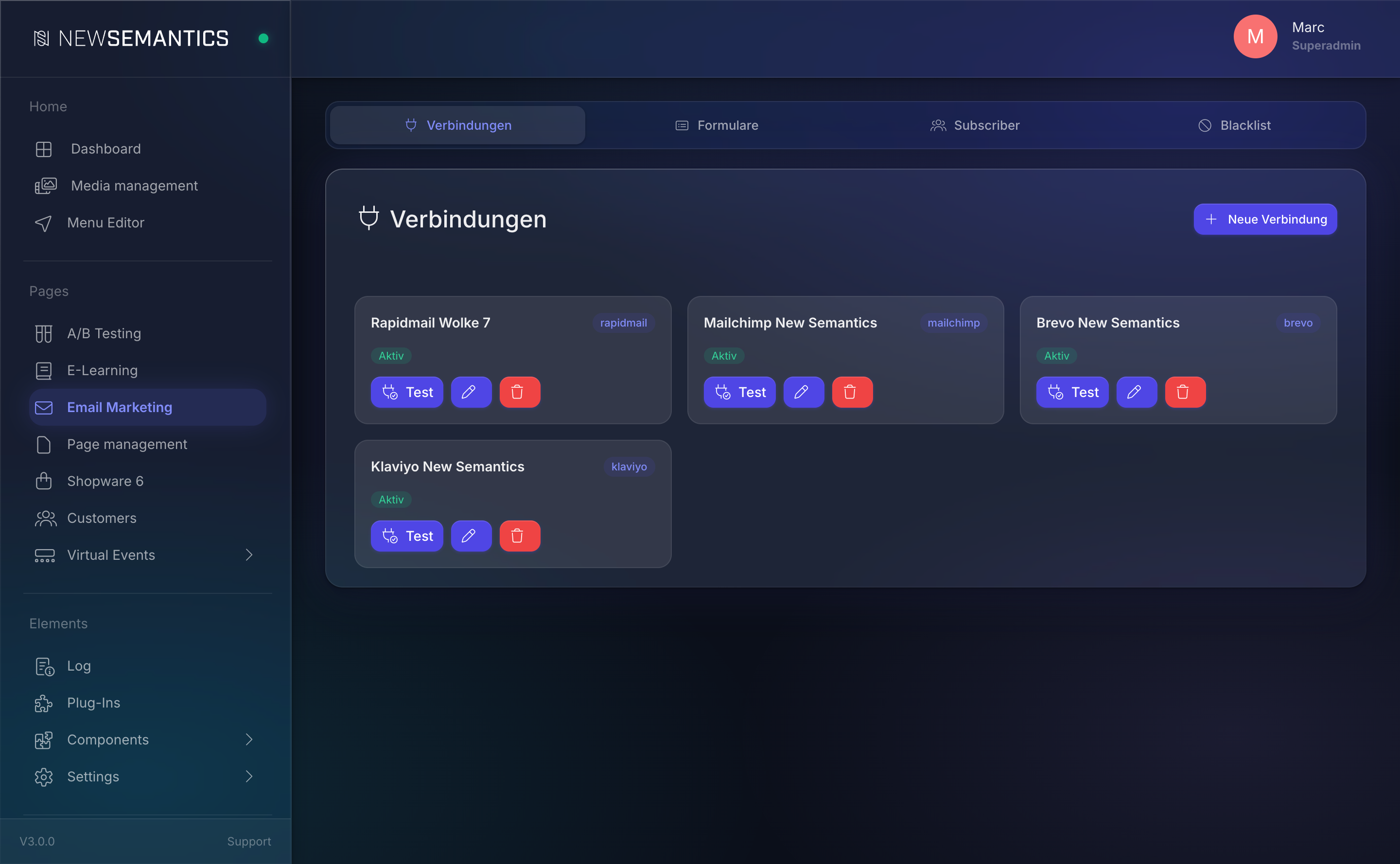
Symptom: The Test connection button on an email-marketing connection returns an error: 401 Unauthorized, 403 Forbidden, or invalid API key.
Cause: Wrong API key, missing data-center suffix (Mailchimp), or revoked credentials.
Solution:
- Mailchimp: the API key must include the data-center suffix (
-us21,-us5, etc.). Without it, all calls 401. - Brevo: regenerate the key in Brevo → SMTP & API → API Keys. Old keys silently stop working after provider maintenance.
- Rapidmail: the provider uses Basic Auth — confirm both User and Password fields are filled.
- Klaviyo: the key must have the full-access scope. A read-only key cannot subscribe users.
- For Double-Opt-In flows, confirm a DOI template ID is configured on the Form — not just the connection.
6. Stripe or PayPal payment fails
Symptom: At checkout, the user clicks pay and gets an error — Payment could not be completed, Order creation failed, or a silent redirect back to the cart.
Cause: Webhooks are not registered, a Dev-Sandbox key is in use in Production, or the order was created but the payment capture never returned.
Solution:
- Open E-Commerce → Payment Providers → Stripe (or PayPal). Confirm the keys are Live/Production keys, not Test/Sandbox.
- For Stripe: the webhook endpoint must be registered in the Stripe dashboard pointing to
https://{your-site}/api/shop/stripe/webhook. Without it, payments appear successful but the order stays inpending. - For PayPal: confirm the Return URL and Cancel URL are both HTTPS and match the production domain.
- Check Log → Filter: Payment for the exact error. Card declines and fraud blocks leave clear entries.
- If payments fail only in certain countries, check the currency and regional settings in the provider dashboard — some methods are geographically restricted.
7. Page redirects endlessly
Symptom: Opening a page in the browser loops forever. The browser eventually shows ERR_TOO_MANY_REDIRECTS.
Cause: A 301-redirect entry points to itself or to another URL that redirects back.
Solution:
- Open SEO & Design → Redirects. Search for the page slug in both From and To columns.
- Delete any entry where From and To resolve to the same URL (directly or transitively).
- Confirm no
url_rewriteentry conflicts with a redirect for the same slug — the rewrite wins, but if the rewrite target itself has a redirect, you get a loop. - Clear the API cache to drop cached redirect responses.
8. File upload fails with error 413
Symptom: Uploading a large image or video in the Media Manager returns 413 Payload Too Large or Request Entity Too Large. Small files upload fine.
Cause: PHP or the web server blocks the upload size. Three limits stack: PHP upload_max_filesize, PHP post_max_size, and the web server's body limit (client_max_body_size on nginx, LimitRequestBody on Apache).
Solution:
- Ask your hoster or server admin to raise all three limits. A common safe set is
upload_max_filesize=128M,post_max_size=130M,client_max_body_size=150M. - Restart PHP-FPM (or Apache) after the change.
- The Backend shows the effective limit under Administration → General Settings → Upload Limit. If the value did not change after the edit, you edited the wrong
php.ini— checkphpinfo()for the active path. - For videos, consider linking to an external host (Vimeo, YouTube, S3) instead of uploading through the Backend.
9. Canonical URL points to the wrong category
Symptom: Google Search Console reports the wrong canonical URL for a Shopware 6 product. The product is in multiple categories, and the canonical points to the "wrong" one.
Cause: The canonical-category flag is not set, so the system picks the first category alphabetically.
Solution:
- Open E-Commerce → Shopware 6 → Categories. Find the category you want to be canonical for the product.
- Toggle Use as canonical category on.
- Regenerate the product cache under Shopware 6 → Products → Rebuild cache. The new canonical appears in
<link rel="canonical">after the next page render. - If the product is in multiple canonical-flagged categories, the first one by
sort_orderwins.
10. User-Center item does not appear
Symptom: A plugin promises to add an entry to the shop user account (e.g. My Courses, My Certificates), but the account page does not show it.
Cause: The plugin is not installed, or the logged-in user does not meet the isVisible() condition the plugin registered.
Solution:
- Open Administration → Plugin Manager and confirm the plugin is Installed and Active.
- Log in as the end-user (not the Backend admin). User-Center items render in the frontend account page, not in the Backend.
- Some items hide until the user has relevant data — e.g. My Courses is empty if the user bought no courses. Buy a test course or seed data.
- Hard-reload the frontend to drop cached JS bundles.
11. Media Manager shows no files
Symptom: The Media Manager opens but the grid is empty, even though you know files exist.
Cause: An active folder filter, a permission filter, or a filename with characters that break the file-scan.
Solution:
- Click All folders at the top of the folder tree to clear the current filter.
- Clear the search field — a stale filter from a previous session persists in localStorage.
- If the folder still looks empty but the disk has files, connect via SFTP and check for filenames containing
?,#, or control characters. Rename them to ASCII-safe slugs. - Run Administration → Task Manager → Rescan Media to rebuild the file index.
12. AI prompt returns nothing
Symptom: In any AI-powered field (SEO text, blog rewrite, layout generation), the spinner runs for a while, then returns empty or an error toast says AI request failed.
Cause: The AI connection is inactive, the API key is expired, or a rate limit kicked in.
Solution:
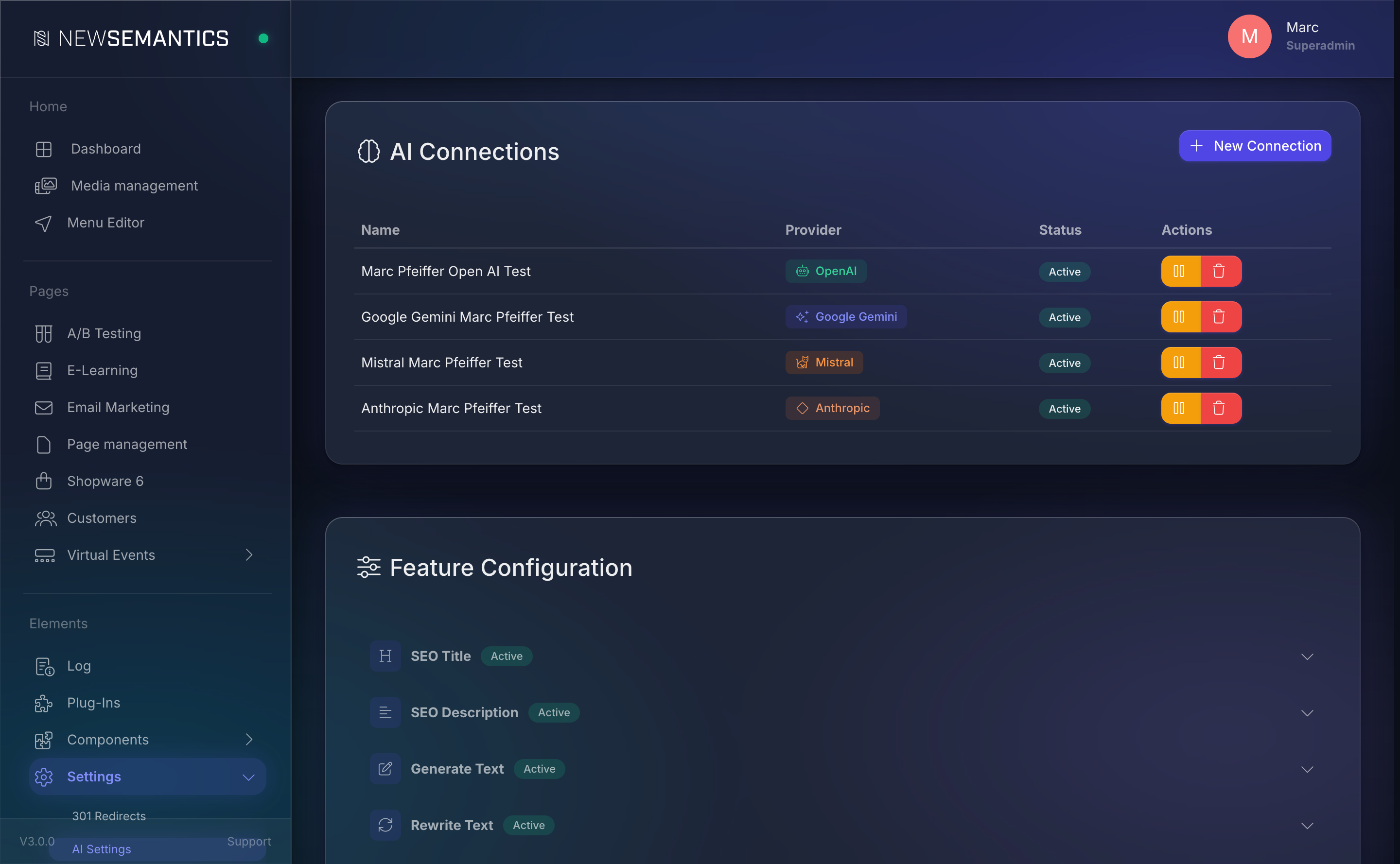
- Open SEO & Design → AI Text Generation → Connections. The active connection must have a green lamp.
- Click Test connection — a red lamp with
401means the key is revoked. Regenerate in the provider dashboard (OpenAI, Anthropic, Google, Mistral) and paste it in. - Check the provider's usage / billing page. Spent credits or exceeded quotas return 429; the Backend shows this as a generic failure.
- For long outputs (layout generation, long blog text), the request can take 30-60 seconds. Wait past the initial spinner — the Backend polls for up to 5 minutes before giving up.
- If the connection works but one specific feature fails, open AI Features reference and confirm the feature is mapped to a connection with the right capability (vision, JSON mode).
13. Sitemap contains deleted pages
Symptom: /sitemap.xml lists pages that were deleted weeks ago. Search engines crawl 404s.
Cause: The page was deleted but the sitemap task ran before the delete was committed, or a 301-redirect keeps the URL alive in the task's output.
Solution:
- Trigger a fresh sitemap run under Administration → Task Manager → Scheduled Tasks → Sitemap Generation → Run now.
- Check SEO & Design → Redirects for a stale redirect pointing at the deleted slug. A redirect keeps the source URL in the sitemap as the redirect origin.
- If the deleted page had child pages, restore the parent briefly, delete the children explicitly, and then re-delete the parent. Orphaned children sometimes keep ghost entries.
14. Cache clear has no effect
Symptom: You clicked Clear cache, a success toast appeared, but the frontend still serves the old content.
Cause: A second cache layer is in play — CDN, nginx proxy cache, or browser cache. The Backend only clears its own APCu response cache.
Solution:
- Hard-reload with
Ctrl+F5/Cmd+Shift+R. - If a CDN sits in front (Cloudflare, Fastly, CloudFront), purge it from the CDN's dashboard. Your hoster may provide a wrapper for this.
- On nginx-cached setups,
fastcgi_cache_purgemust be wired up — ask your server admin if it is. Restarting PHP-FPM does NOT clear nginx's cache. - For Custom CSS changes, run Recompile CSS in addition to the regular cache clear — Custom CSS lives in a separate compiled file.
15. Scheduled publish did not go live
Symptom: A Draft was scheduled for 10:00, but at 10:15 the page is still showing the old version. No error is visible.
Cause: The scheduled-tasks worker is not running, the server clock drifted, or the Draft became invalid between scheduling and the publish time.
Solution:
- Open Administration → Task Manager → Scheduled Tasks. Publish Scheduled Pages must show a recent Last Run (within 5 minutes). If it is stale, the worker is not running — contact your hoster.
- Check server time:
Administration → General Settings → Server Time. If it drifts by more than a minute, schedules fire at the wrong wall-clock time. - Open the page in the Pagebuilder. If the Draft has a validation error (broken Widget, missing required field), it cannot publish automatically. The task logs the skip under Log → Filter: Scheduled Publish.
- Reschedule the publish manually to test.
See also
- FAQ — short Q/A for everyday questions
- Glossary — terminology reference
- Task Manager — queue + scheduled-task diagnostics
- Cache — clear API response cache and CSS cache
- Log — filter system log entries by type