
Product Categories
Categories group products. On the frontend, each category renders as a listing page that shows every product assigned to it.
Open the categories screen
Click VOD / Shop → Product categories in the sidebar.
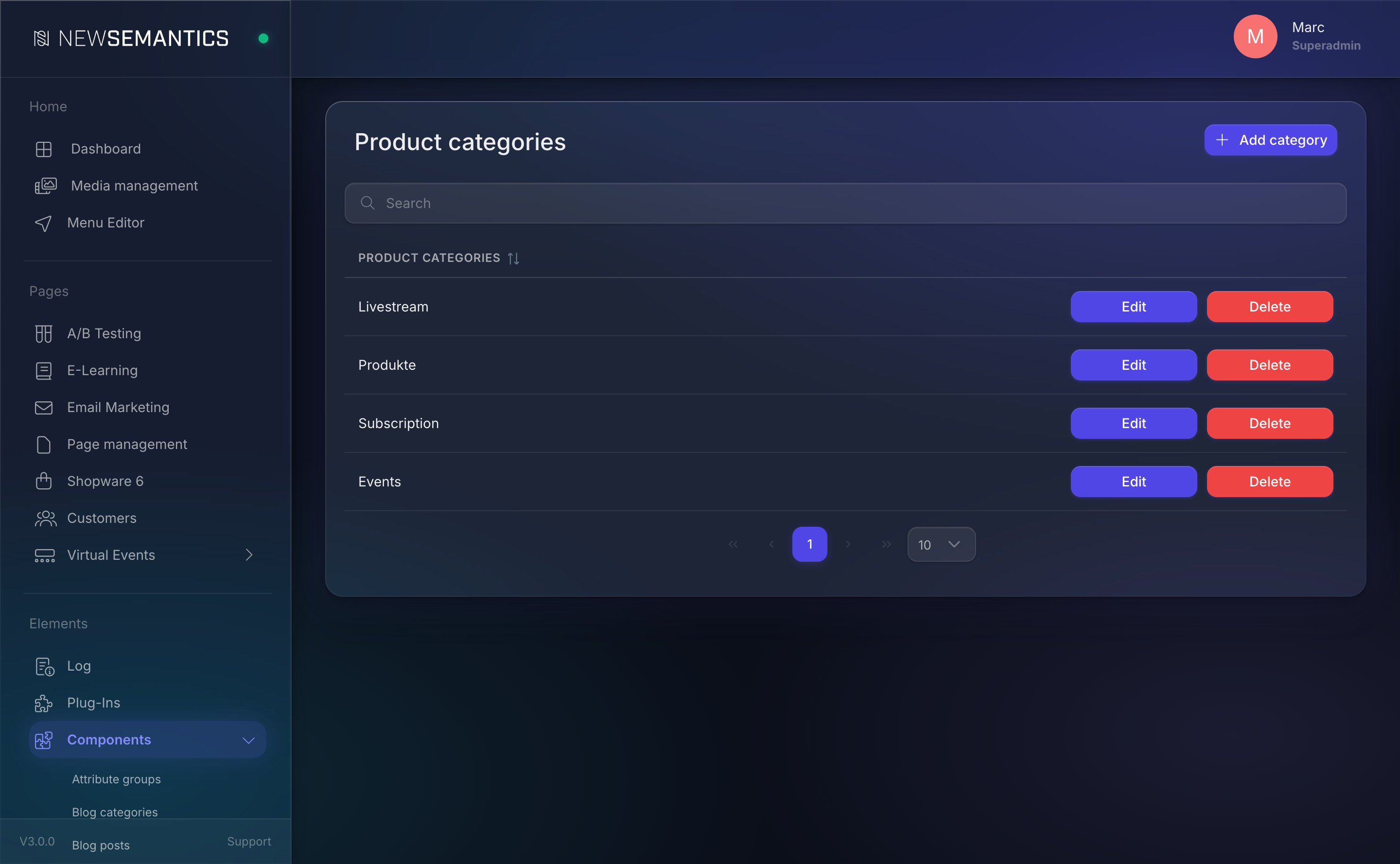
Create a category
- Click New category (top right).
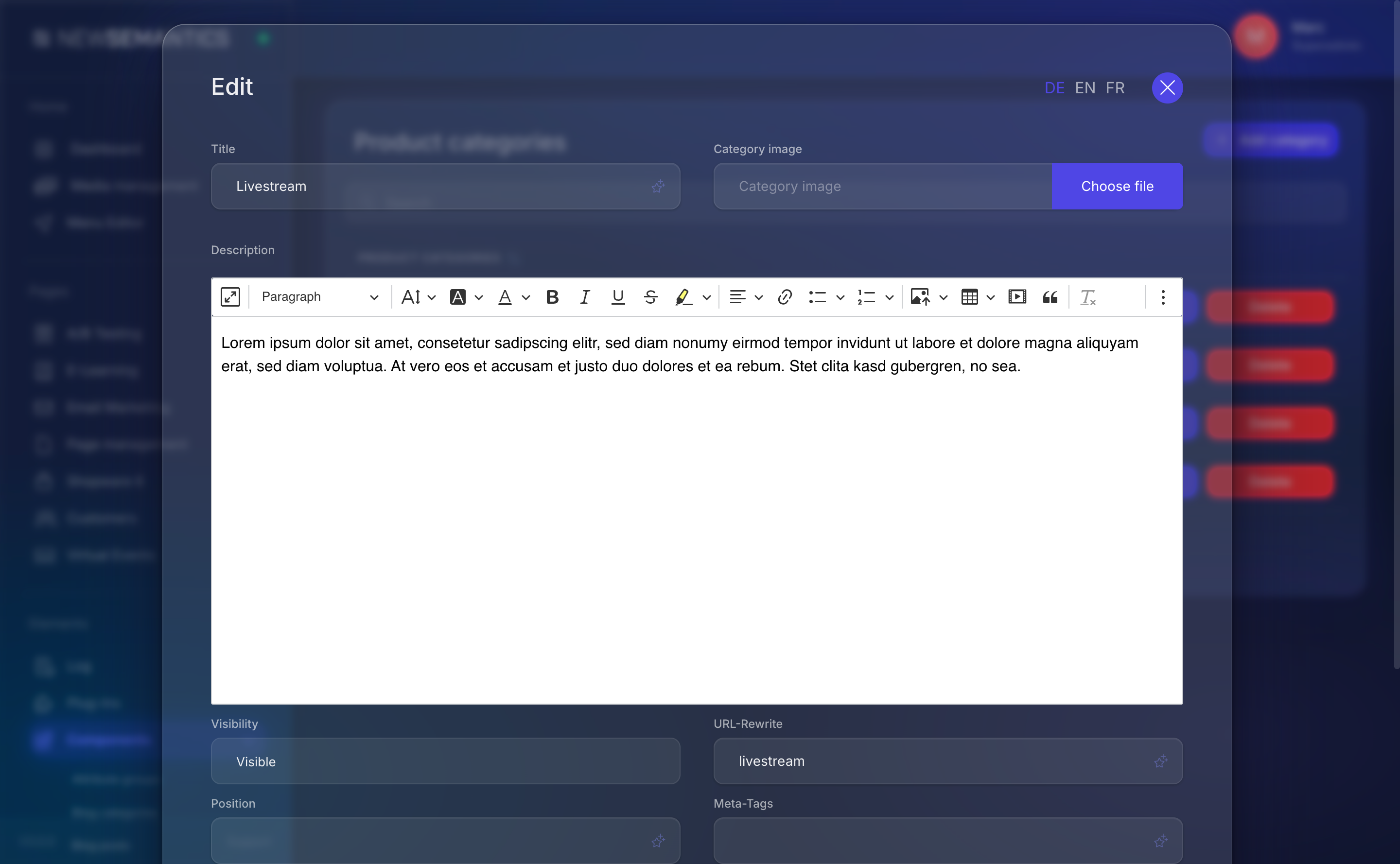
- Pick a language tab.
- Fill the fields:
| Field | Purpose |
|---|---|
| Title | Category name. Translated per language. |
| Subtitle | Optional short tagline shown above the listing. |
| Image | Category banner. |
| Description | Rich text shown on the listing page, above the products. |
| URL-Rewrite | Localised path — /{URL-Rewrite} on the frontend. |
| Meta-Tags | Comma-separated SEO keywords. |
| Meta-Description | SEO description. |
- Click Save.
Assign a product to a category
Categories are not assigned here — you pick a category when you edit a product. Open a product, set Catgory to the desired category, and save. One product belongs to exactly one category.
Show a category on the frontend
Drop the Category Banner or Shop widget onto a page in the Pagebuilder, then pick the category. The widget renders the banner image, subtitle, description, and the filtered product list.
Landing pages per category
You can build a fully custom category landing page: create a CMS page, drop a hero Row, then append the Shop widget filtered to the category. Use the category's URL-Rewrite as the page URL.
Delete a category
- Click the trash icon on the category row.
- Confirm.
Products without a category
If you delete a category that still has products assigned, those products keep the stale category ID. Re-assign them to a valid category before deleting.
See also
- Products — assign products to categories.
- Native Shop overview