
Create a course
Create a new E-Learning course with all CME-relevant metadata: title, price, EIV number, location, point values, and exam settings.
Prerequisite: You are signed in as editor or admin and the E-Learning module is open at Pages → E-Learning.
1. Open the course modal
On the Courses tab click New Course in the top-right corner. A small modal opens with the minimum fields to create the course shell.
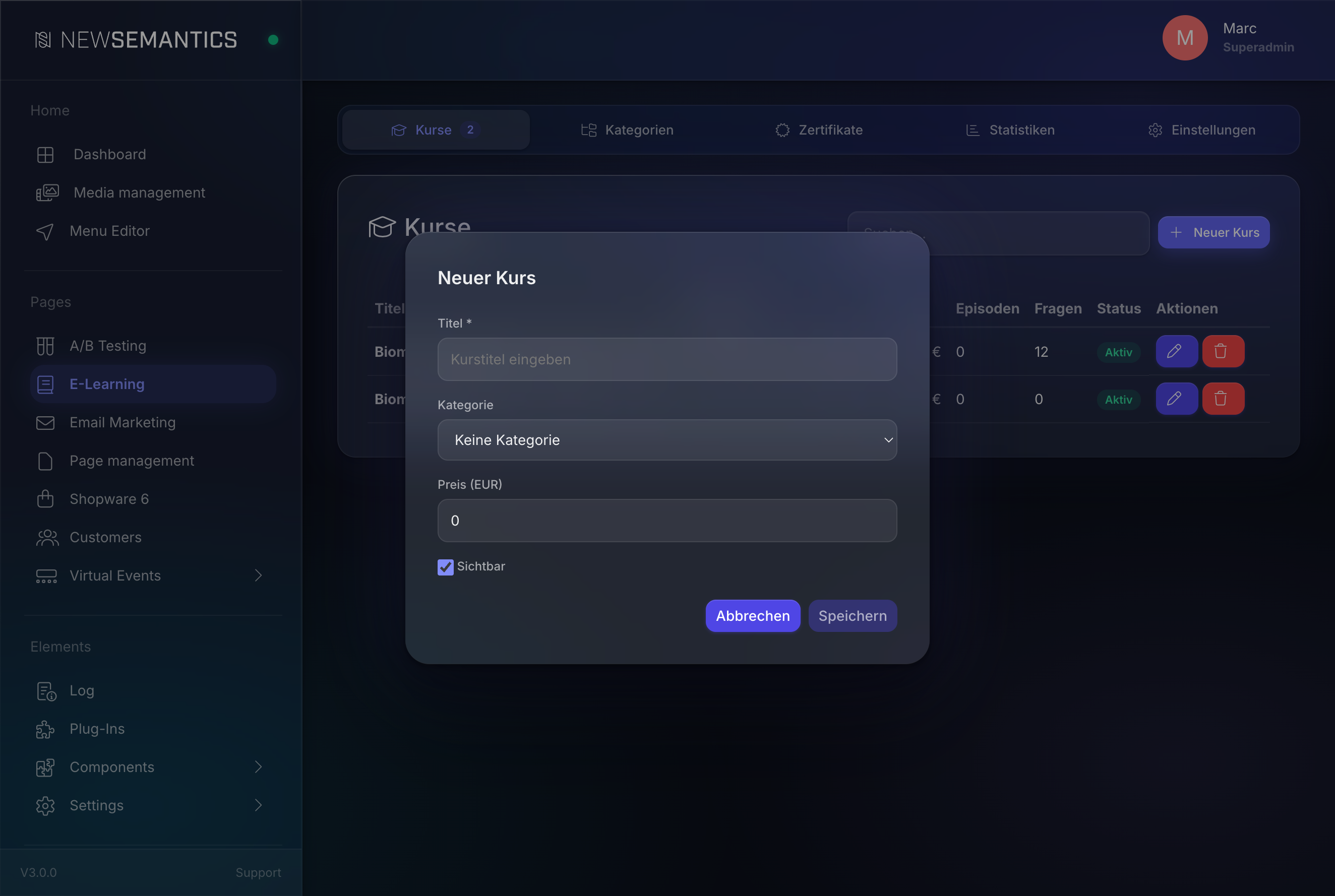
Fill in:
- Title — the course name shown to learners.
- Category — optional, pick a category from the dropdown.
- Price (EUR) — leave at
0for free courses. - Visible — uncheck to keep the course hidden while you prepare it.
Click Save. The course is created and opens in the detail view.
A matching shop product is created automatically
The CMS writes a product row in s_products with type=2 so the checkout can sell the course. You do not create the product yourself.
2. Complete the General tab
The detail view opens on General with the full metadata form. Complete every BZAEK-relevant field — certificates will include this data as an unchangeable snapshot.
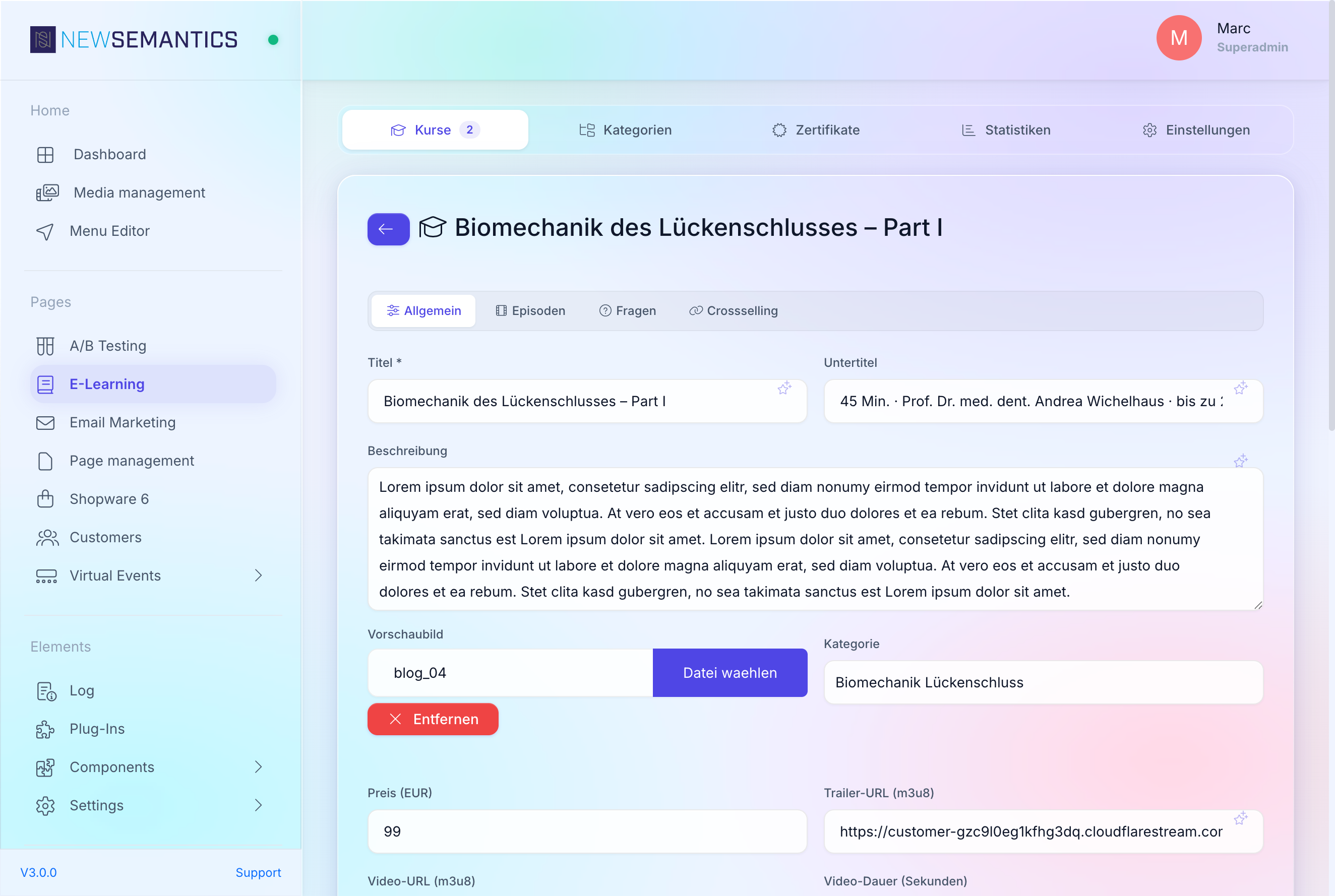
Core fields
| Field | Purpose |
|---|---|
| Title | Public course title. Required. |
| Subtitle | Optional second line on the catalog card. |
| Description | Longer description shown on the detail page. |
| Preview image | Catalog card image. Choose from the Media Manager. |
| Category | Optional grouping. |
| Price (EUR) | 0 for free, otherwise numeric with cents. |
Video fields
| Field | Purpose |
|---|---|
| Trailer URL (m3u8) | Optional public trailer played on the catalog detail page. |
| Video URL (m3u8) | Main video. Used when the course has no episodes. |
| Video duration (seconds) | Total duration in seconds. |
| Content duration (seconds, without outro) | Payload duration without intro/outro. Used for the 95 percent completion threshold. |
CME metadata (required for certificates)
| Field | Purpose |
|---|---|
| Speaker | Lecturer name. Printed on the certificate. |
| Reviewer | Reviewer name. Printed on the certificate. |
| Reviewer statement | Review statement. Printed on the certificate. |
| VNR (event number) | EIV number assigned by the medical association. Example: 2026-CME-001. |
| Event location | Location. For online courses use Online/Web-based. |
| Video points | CME points awarded when the learner finishes the video. |
| Exam points | Additional points awarded when the learner passes the exam. |
Exam configuration
| Field | Purpose |
|---|---|
| Number of exam questions | How many questions are drawn from the pool for one attempt. |
| Pass threshold (%) | Pass mark. Minimum 67 per BZAEK Kategorie C. |
| Max. exam attempts | Attempt limit. Default 3. |
Availability
| Field | Purpose |
|---|---|
| Availability after purchase (hours) | After how many hours the course expires after purchase. 0 means unlimited. |
| Availability after start (hours) | After how many hours the course expires after first play. 0 means unlimited. |
| URL rewrite | The slug under which the course appears, e.g. /courses/course-slug. |
| Visible | Toggle visibility in the public catalog. |
Click Save. The save button shows a spinner, then a check mark.
EIV number and location lock into every new certificate
When a learner completes the course and a certificate is issued, the EIV number and location you enter here are stored as a snapshot on the certificate. Changing them later does not affect already-issued certificates.
3. Verify the shop product
Switch to Pages → Products in the sidebar. A product with the same title, price, and image appears. The price and image stay in sync whenever you save the course.
Editing the product directly is not supported
The product is managed by the E-Learning module. If you edit title or price in the product list, the course save will overwrite your change.
4. Add content
Your course shell is live. Continue with:
- Episodes — break the video into chapters. See Episodes and video tracking.
- Exam questions — build the question pool. See Exam questions.
- Cross-Selling — link related courses shown at the bottom of the detail page.
5. Go live
When content is complete, re-open General and tick Visible. Click Save. The course appears in the public catalog immediately.
Common issues
The course does not appear in the catalog. Check Visible on the General tab. Also verify the category is visible if you assigned one — hidden categories hide their courses.
The price is ignored at checkout. Re-save the course. The shop product syncs on every save; if the price was edited directly in s_products, the course save restores the value.
See also
- E-Learning overview — module overview
- Episodes and video tracking — how-to
- Exam questions — how-to
- Certificates — how-to