
Payment Providers
The Native Shop ships with two payment providers out of the box: PayPal and Stripe (credit card). Each has its own screen under VOD / Shop and stores its credentials in its own table.
You need at least one configured provider to accept real payments. Both support Sandbox / Live modes for safe testing.
PayPal
Click VOD / Shop → PayPal API in the sidebar.
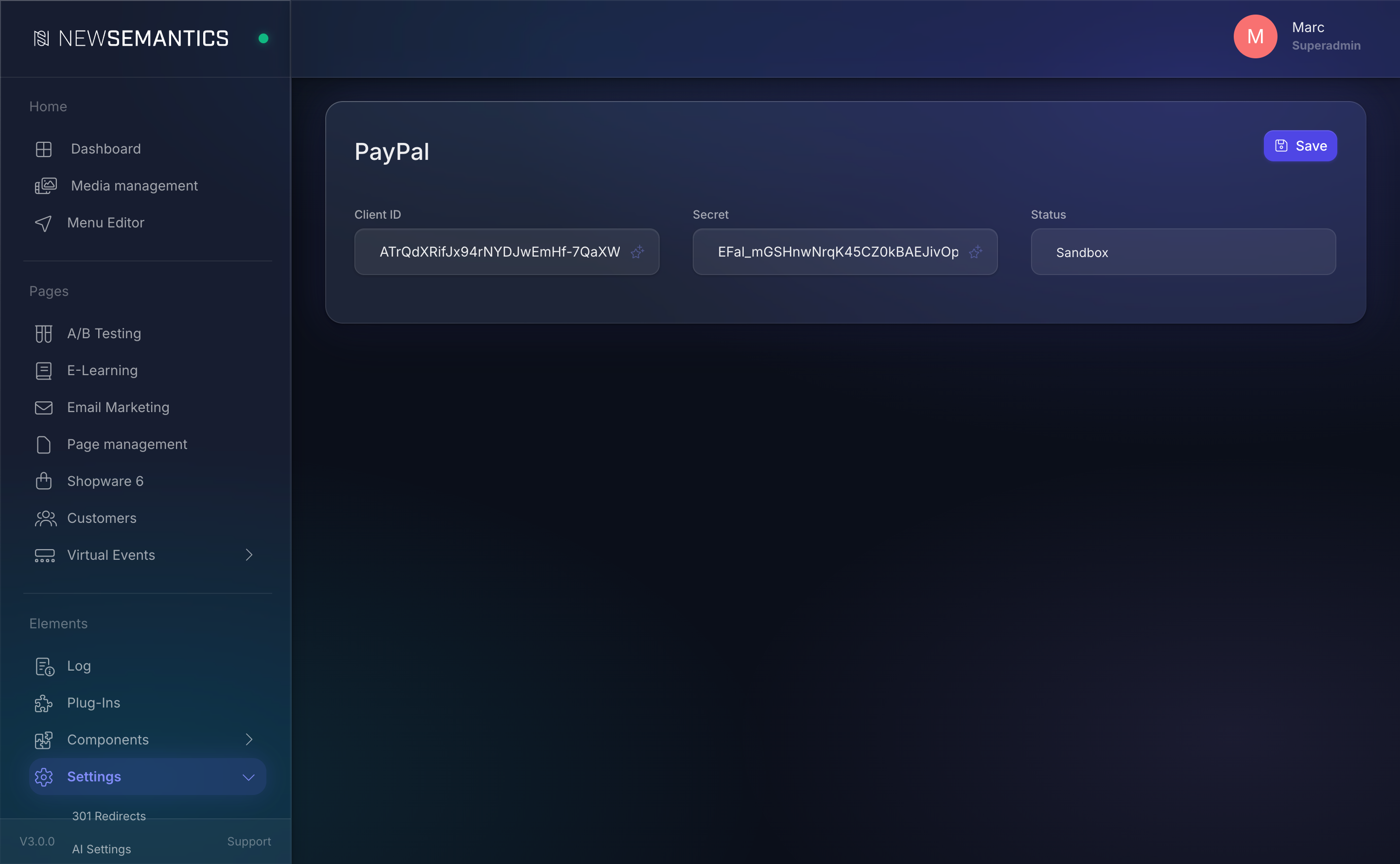
| Field | Purpose |
|---|---|
| Client ID | PayPal REST Client ID from the PayPal Developer Dashboard. |
| Secret | PayPal REST Secret matching the Client ID. |
| Status | Sandbox uses the test PayPal environment; Live uses the real one. |
Where to get Client ID and Secret
- Open the PayPal Developer Dashboard.
- My Apps & Credentials → REST API Apps → Create App.
- Copy the Client ID and Secret.
- Use the Sandbox credentials for testing, the Live credentials for production.
One PayPal account per language
PayPal credentials are stored per language. If your shop runs in multiple languages and you use different PayPal accounts per market, set the credentials once per language tab.
Stripe
Click VOD / Shop → Credit Card (Stripe API) in the sidebar.
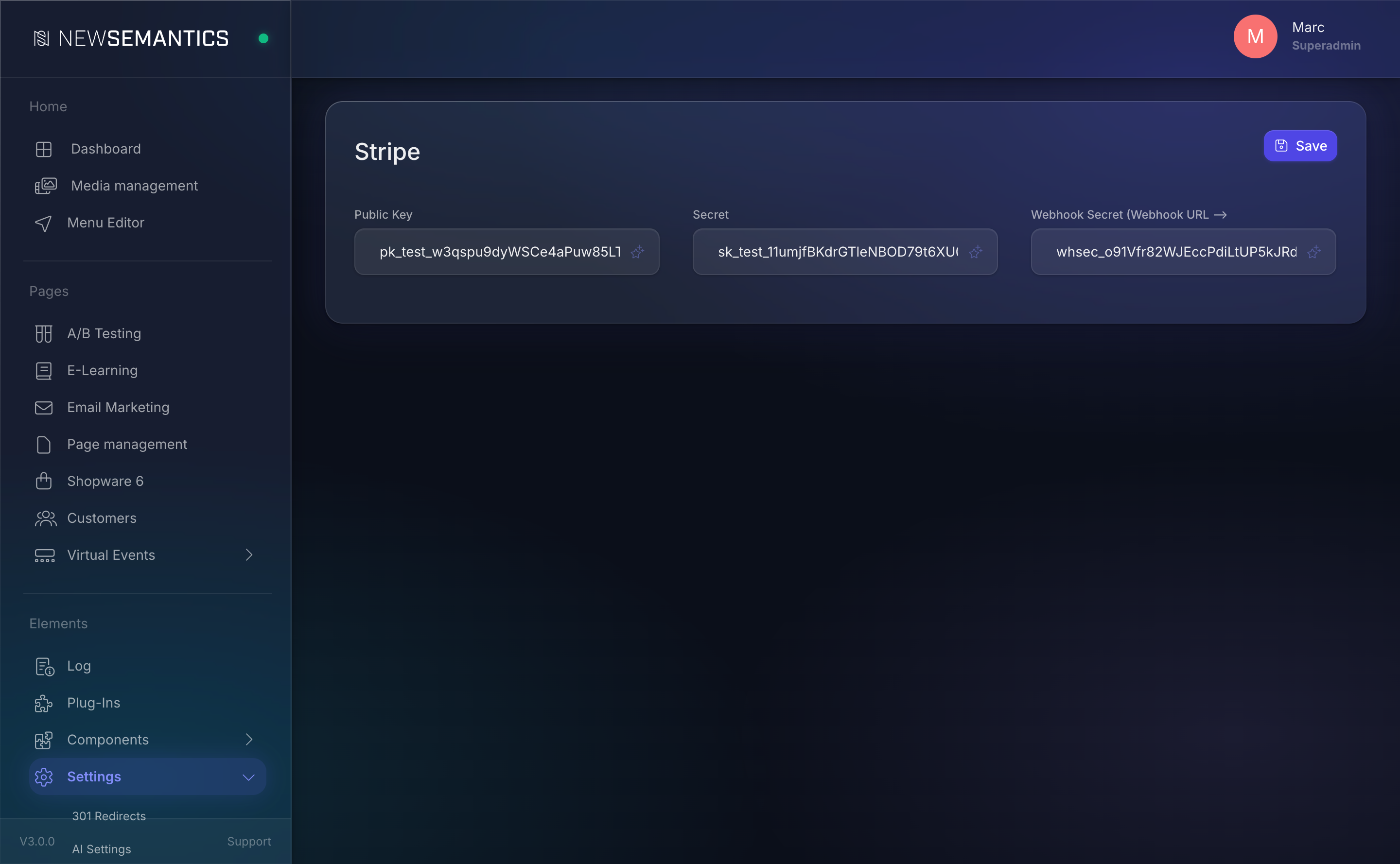
| Field | Purpose |
|---|---|
| Public Key | Stripe publishable key (pk_live_... or pk_test_...). Used on the frontend. |
| Secret | Stripe secret key (sk_live_... or sk_test_...). Used for server-side charges. |
| Webhook Secret | Stripe webhook signing secret (whsec_...). Used to verify gateway callbacks. |
Register the Stripe webhook
Stripe confirms payments back to the shop through a webhook. You must register the URL in Stripe so Stripe knows where to POST:
- In the Stripe Dashboard, go to Developers → Webhooks → Add endpoint.
- Set the URL to:
https://your-domain.com/_public/extensions/core/backend/shop/widgets/checkout/script/payment/libs/stripe/webhook.php - Listen to at least:
payment_intent.succeeded,payment_intent.payment_failed,charge.refunded,invoice.payment_succeeded,customer.subscription.updated,customer.subscription.deleted. - Copy the Signing secret (
whsec_...) from the new endpoint. - Paste it into Webhook Secret on the Stripe screen in the CMS and Save.
Use Stripe test mode first
Stripe has a full test mode with test cards (4242 4242 4242 4242). Configure test keys first, run a checkout end-to-end, verify the order lands on Paid, then switch to live keys.
Switching between Sandbox and Live
| Provider | How to switch |
|---|---|
| PayPal | Flip Status from Sandbox to Live and replace Client ID + Secret with the Live values. |
| Stripe | Replace Public Key, Secret, and Webhook Secret with the live counterparts (sk_live_…, pk_live_…, whsec_… from the live webhook endpoint). |
Common issues
Live payments with test credentials
If you forget to switch from Sandbox to Live, real customers see an error on PayPal or Stripe refuses the card. Always run at least one end-to-end test after switching credentials.
Webhook secret mismatch
If the Stripe Webhook Secret in the CMS does not match the Webhook Signing Secret in the Stripe dashboard, callbacks fail silently. Orders remain in Pending after a successful payment.
PayPal redirect to old URL
PayPal caches the return URL from its first configuration call. If you move domains, open a new PayPal REST App rather than editing the existing one.
See also
- Shop Master Data — e-mail templates sent around payment events.
- Orders — payment status of placed orders.
- Native Shop overview