
Product Cache
The Product Cache materialises a canonical URL for every Shopware product. Computing the canonical on every page load would mean traversing the category tree for every product; instead, a scheduled task precomputes and stores it.
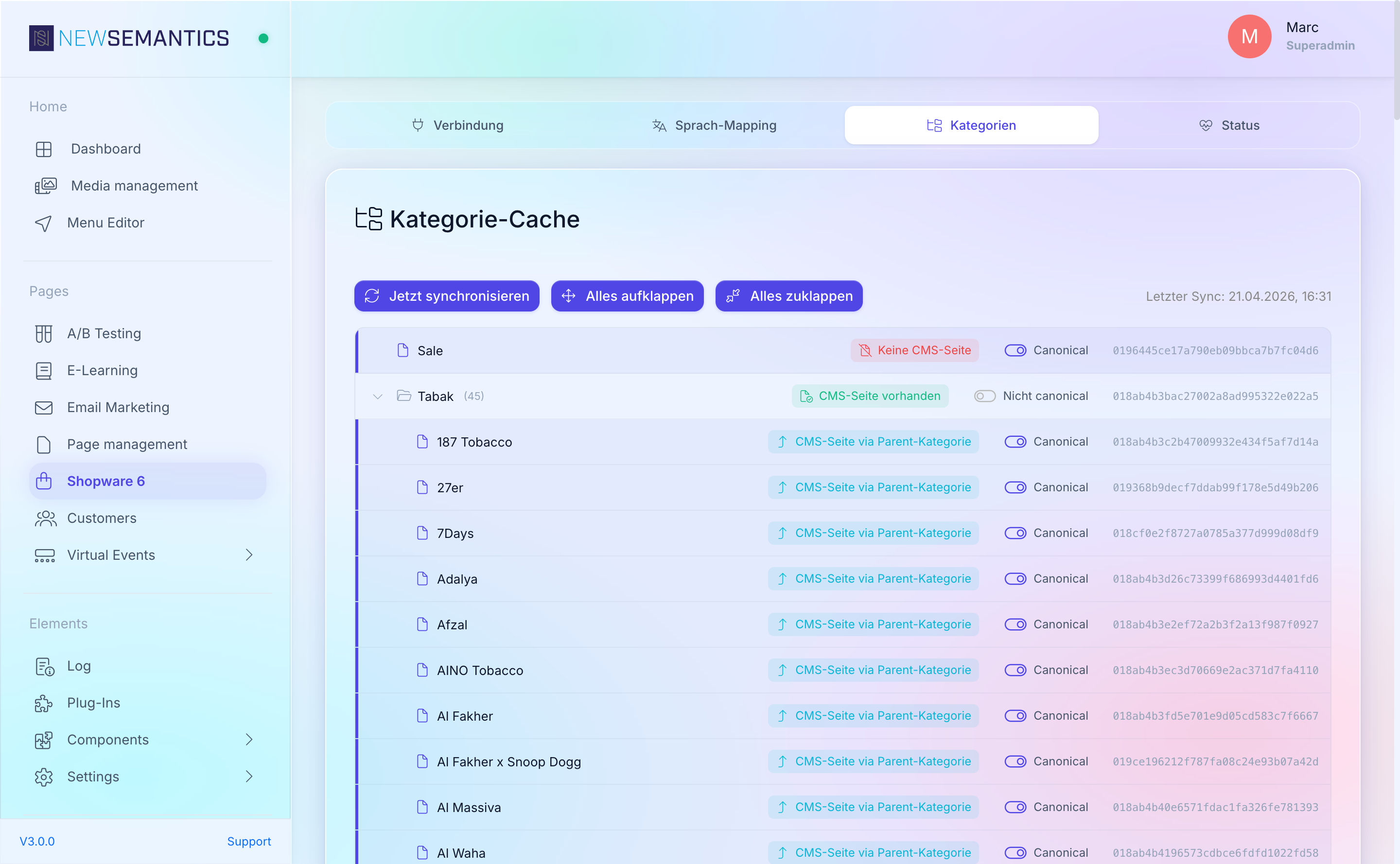
This page is not a separate tab — the Product Cache controls live at the bottom of the Categories tab, directly below the category tree.
Open the controls
Click VOD / Shop → Shopware 6 → Categories and scroll to Product Canonical Cache.
What the cache stores
For every Shopware product × CMS language, the cache stores:
- The canonical URL, derived from the deepest Canonical-enabled category the product belongs to.
- The last-seen title, slug, and category path used to build the URL.
- A timestamp of the last update.
Widgets (sw6ProductDetail, sw6ProductListing) read from this cache when they render <link rel="canonical"> or the internal navigation — no Shopware round-trip, no additional latency.
Configure the sync interval
| Field | Purpose |
|---|---|
| Sync interval (minutes) | How often the scheduled task runs. Default 60, minimum 5. |
Click Save interval to persist. The scheduled task sw6_sync_products.php picks up the new interval on its next tick.
Large catalogues
For shops with 10,000+ products, keep the interval at 60 minutes or longer — every run is a delta sync (only changed products), but the initial run can be slow.
Trigger a sync manually
Click Sync now. The API starts the sync task inline; the button state shows "Started...".
Use the manual trigger when:
- You just flipped a Canonical toggle in the category tree.
- You added a new product in Shopware and do not want to wait for the next scheduled tick.
- You changed the language mapping.
Inspect the cache state
Two status lines below the controls show:
- Last product sync — timestamp of the last run.
- Cached products — count per language (
de: 1,234/en: 1,150).
If a count is zero for a live language, something is off — see Troubleshooting below.
Common issues
Counts stay at zero
If Cached products is empty after a sync:
- The language mapping is incomplete — add the missing CMS → Shopware language mapping and re-run.
- The Sales Channel has no products in that language — verify in Shopware.
- The connection test failed silently during the sync — run the test on the Connection tab.
Frontend shows stale canonical
The Product Cache is re-read on every request, but the APCu cache in front of the product APIs holds cached responses for a few seconds. After a canonical change, wait 10–15 seconds for the APCu cache to expire.
Sync runs forever
If the scheduled task shows as running for more than a few minutes on the Task Manager, the shop is probably unreachable. Check the Circuit Breaker on the Status tab — see Troubleshooting.
See also
- Categories & Canonical — the Canonical toggles this cache reads.
- Shopware 6 Setup — connection prerequisites.
- Troubleshooting