
Pages & Pagebuilder
The Pagebuilder is the visual editor that builds every public page of your site — home, landing pages, product detail, blog overview, checkout. You compose layouts from Rows, Columns, and Widgets without writing code.
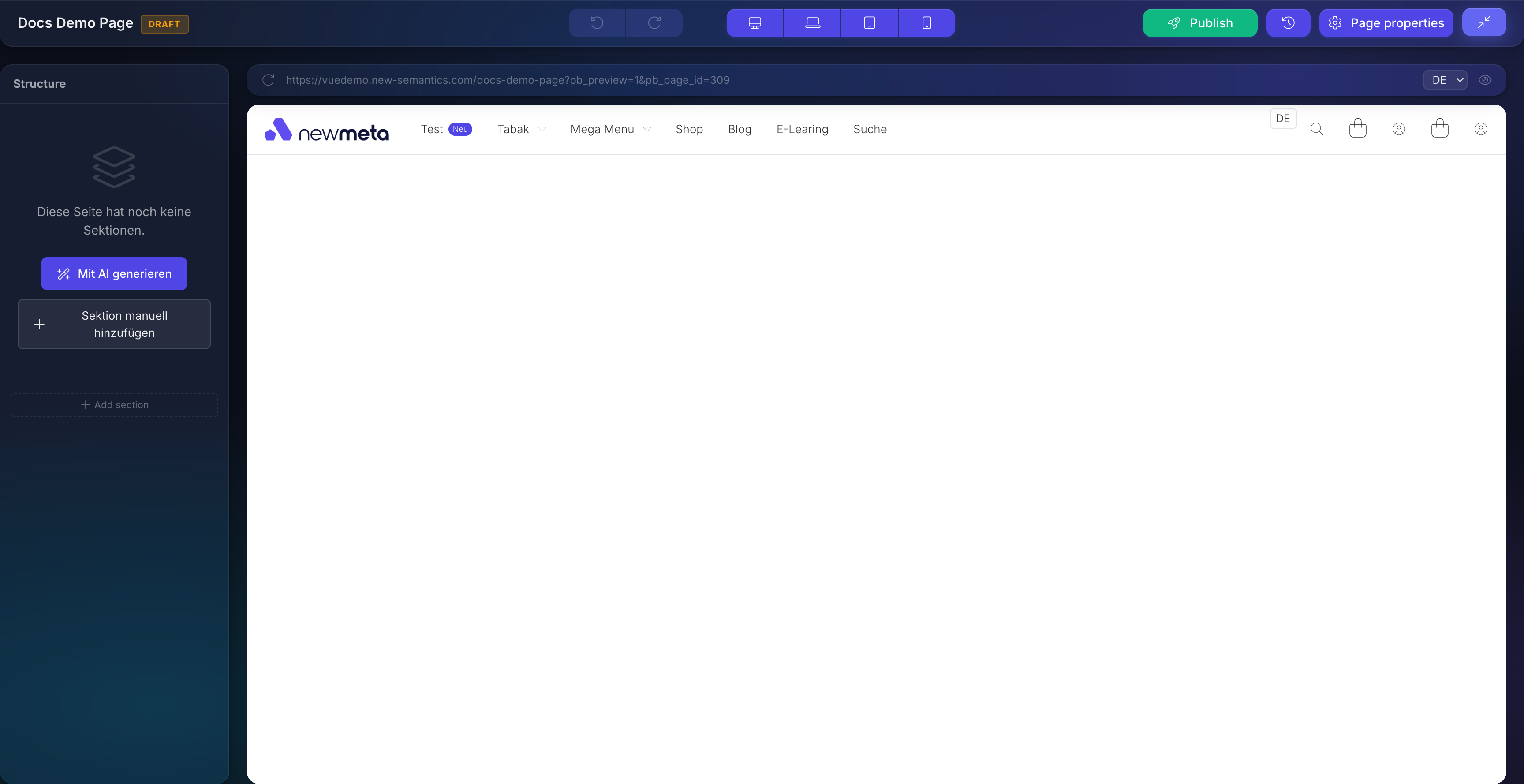
How a page is structured
A page is a stack of Rows. Each Row holds one or more Columns. Each Column holds one or more Widgets.
Page
├── Row (horizontal band)
│   ├── Column (vertical slice)
│   │   └── Widget (Text, Image, Button, ...)
│   └── Column
│       └── Widget
└── Row
    └── Column
        └── Widget
If you want a refresher on the concept, read Key Concepts.
The three-pane layout
Every Pagebuilder screen has three regions:
- Structure Tree (left) — a tree view of your Rows, Columns, and Widgets. Use it to select, reorder, duplicate, copy, and paste elements.
- Live Preview (center) — the page rendered exactly as a visitor would see it. The preview switches between Desktop, Laptop, Tablet, and Mobile breakpoints.
- Properties Panel (right) — settings for the currently selected element. Tabs: Settings, Animations.
The top bar
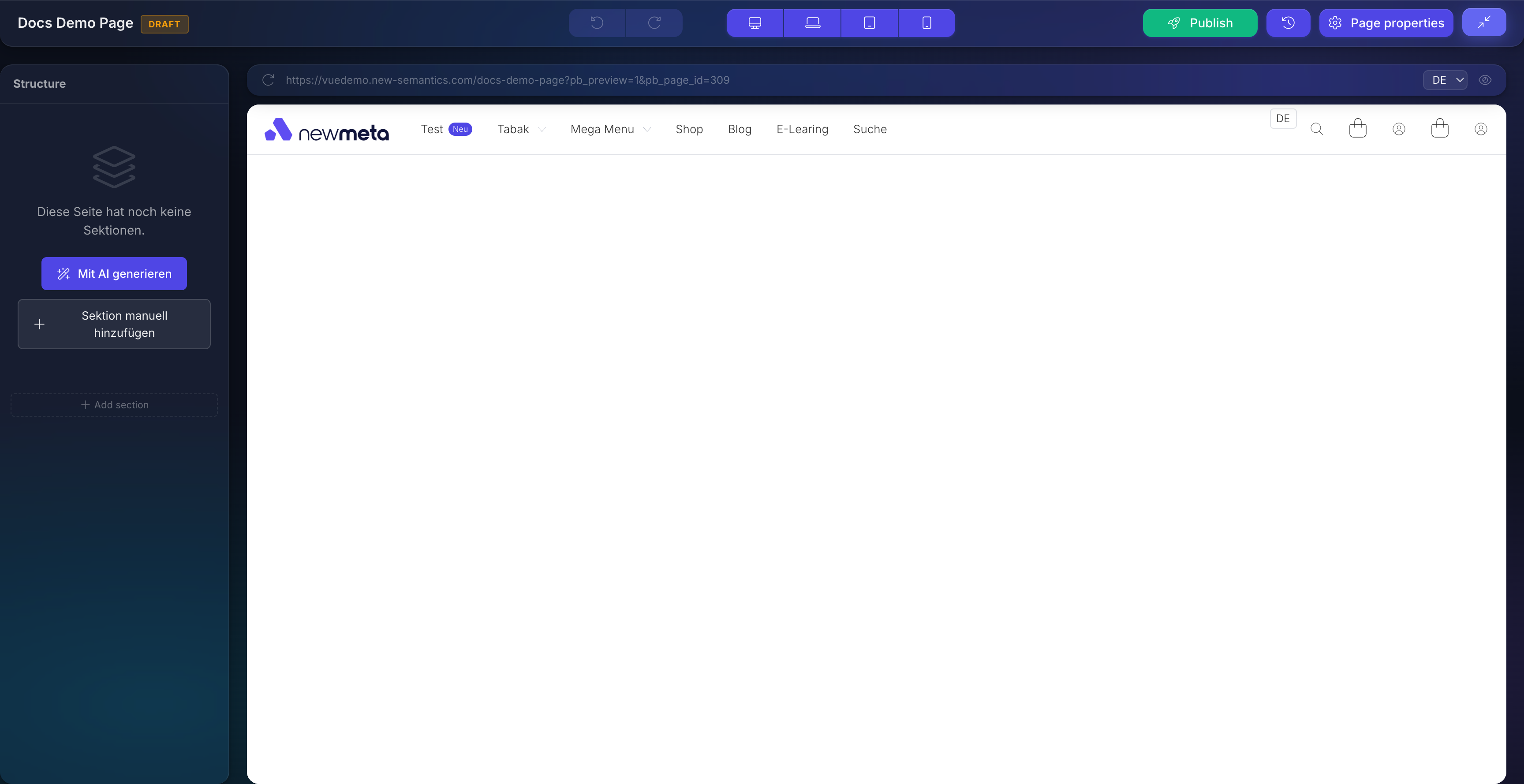
The top bar shows page-level controls:
- Save — saves your current Draft.
- Publish — opens the publish dialog (immediate or scheduled).
- Versions — opens the version history with restore options.
- Page settings — opens the page properties modal (title, URL, SEO, language variants).
- Breakpoint switcher — Desktop, Laptop, Tablet, Mobile.
- DRAFT / SCHEDULED badges — show the current status.
Auto-save behavior
Changes in the Properties Panel are not saved until you click Save in that panel. Page-level changes (add Row, delete Widget, reorder) save automatically as a Draft and never touch the live site.
The Widget Picker
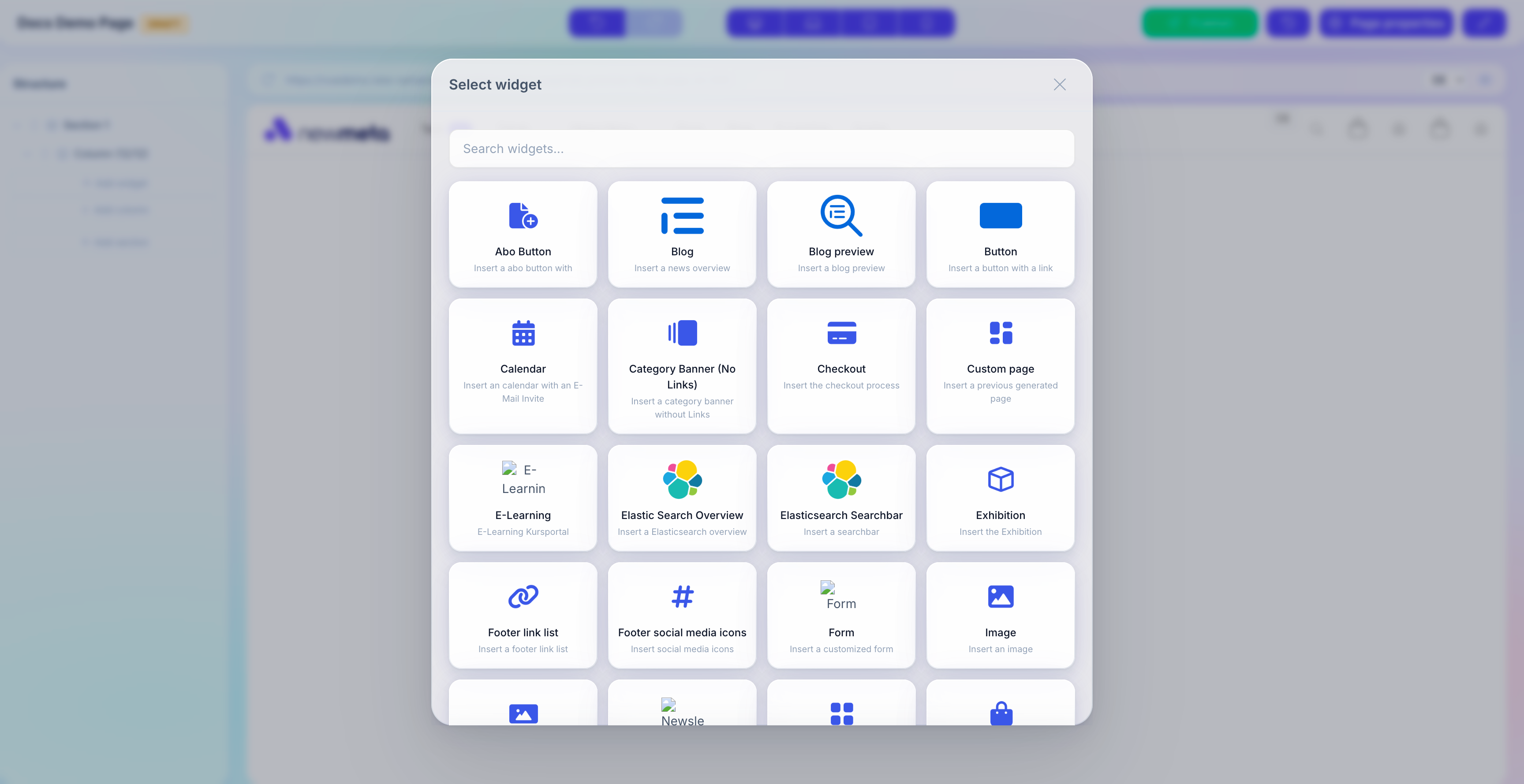
When you add a Widget, the Widget Picker modal opens. Widgets are grouped by category (Text, Media, Forms, Commerce, …) and filterable by search.
Draft and Published
Every page has two states. The Draft is what you see in the Pagebuilder. The Published version is what visitors see on the live site. Changes go live only after you click Publish.
You can schedule a publish for a future date and time, and you can restore any previous published version from Versions.
Read more in Drafts, Publishing, Versions.
See also
- Create your first page — guided walk-through.
- Place and configure Widgets — Widget catalog and settings.
- Rows, Columns, and responsive layout — structure and breakpoints.
- Drafts, Publishing, Versions — state model and scheduling.
- Key Concepts — what Rows, Columns, and Widgets mean.
- Backend Tour — overall admin layout.
- Menu Editor — link your page from the main navigation.