
Drafts, Publishing, Versions
Every page has two states. The Draft is what you see in the Pagebuilder. The Published version is what visitors see on the live site. This page explains how to move between them, schedule a publish for later, and restore a previous version.
Prerequisite: You have a page in the Pagebuilder with at least one unpublished change.
How the two states work
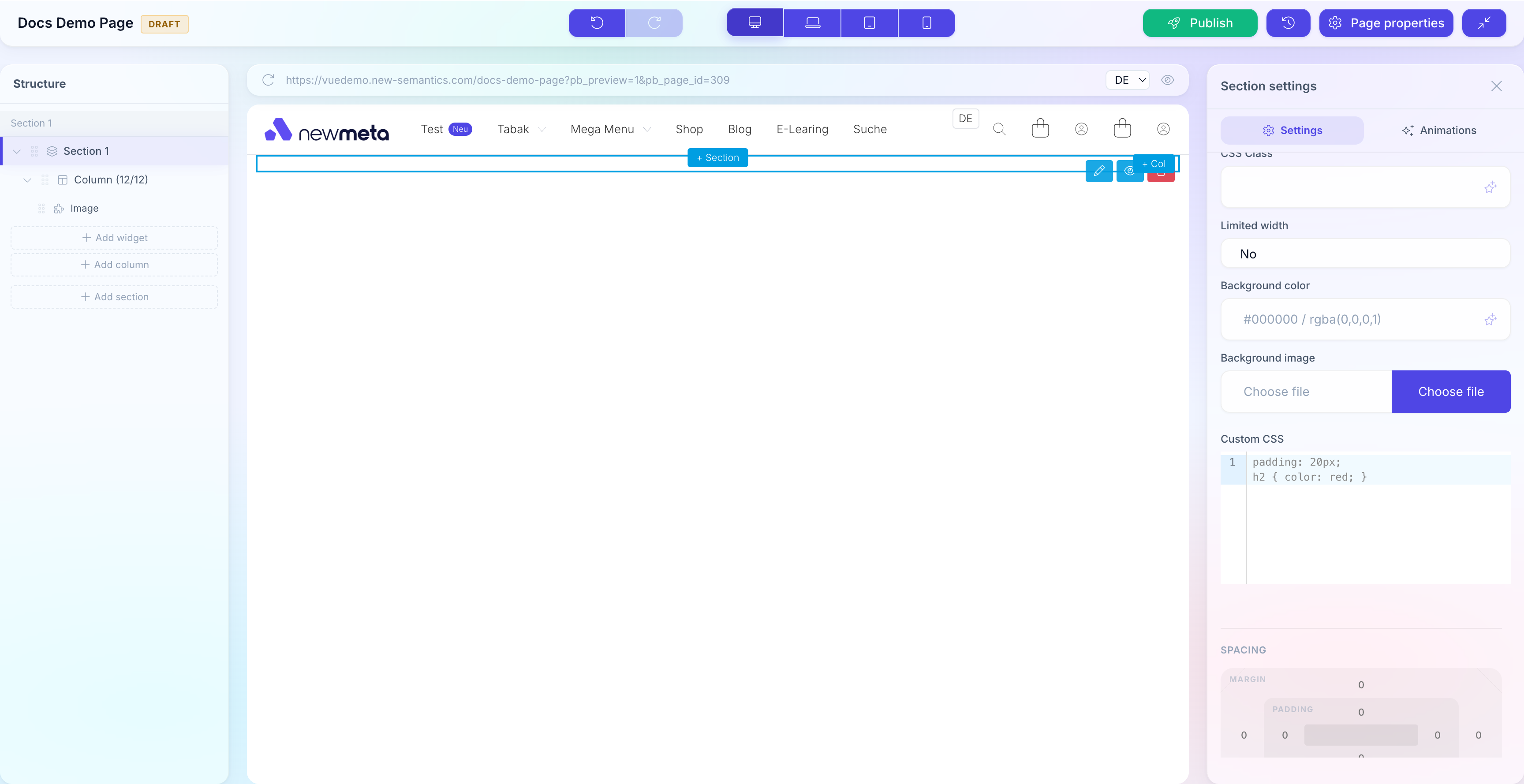
When you open an existing page in the Pagebuilder, you always edit the Draft. The Draft is a snapshot of the last Published version, plus any changes you have made since.
- If the page has no Draft yet, the Pagebuilder shows the live version and marks it as clean.
- If you make any change, a Draft is created and the DRAFT badge appears in the top bar.
- The live site keeps showing the published version until you publish your Draft.
Publish a Draft
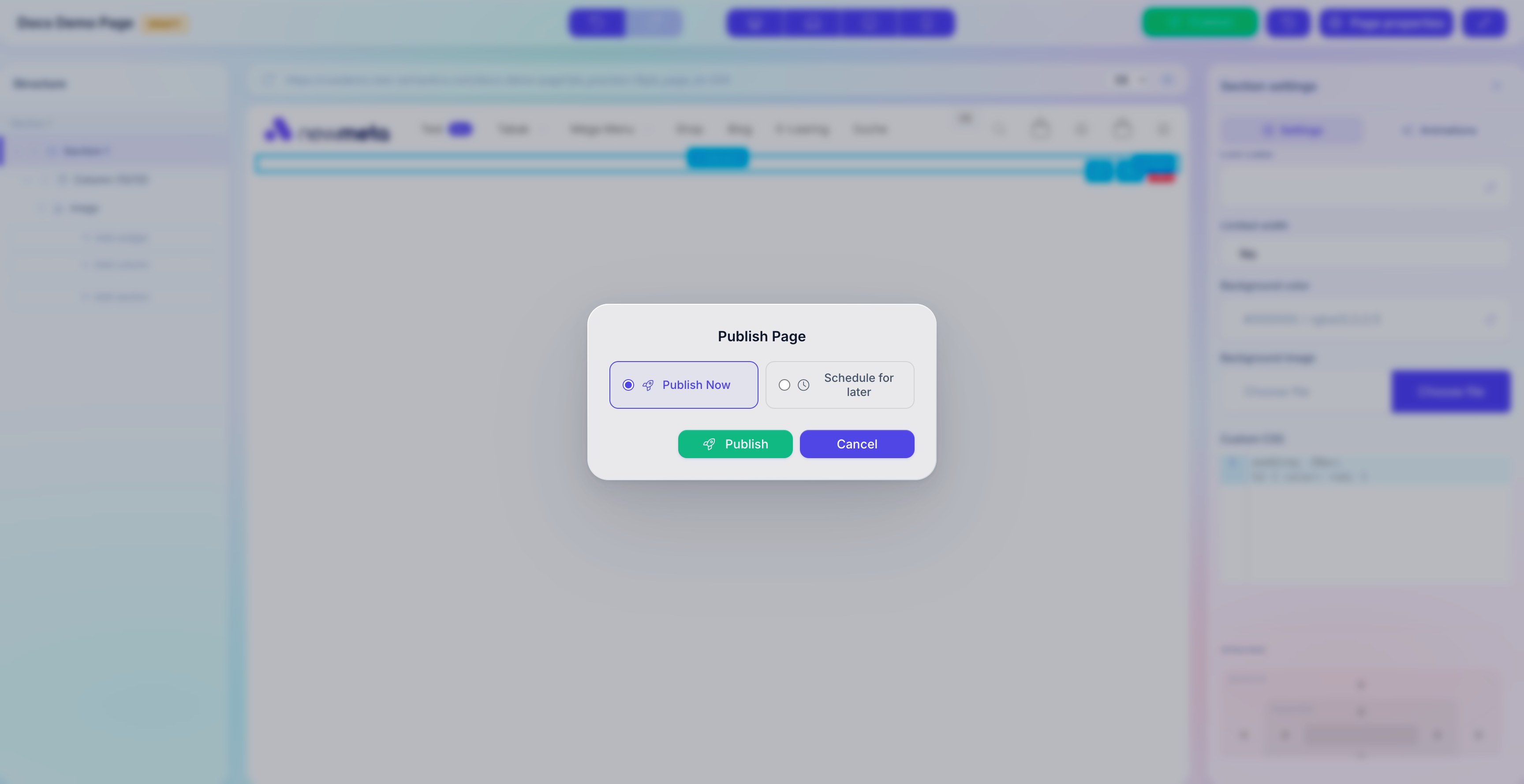
- Click Publish in the top bar. The publish dialog opens.
- Pick Publish now.
- Click Publish.
The DRAFT badge disappears and your changes are live.
Schedule a publish for later
- Click Publish.
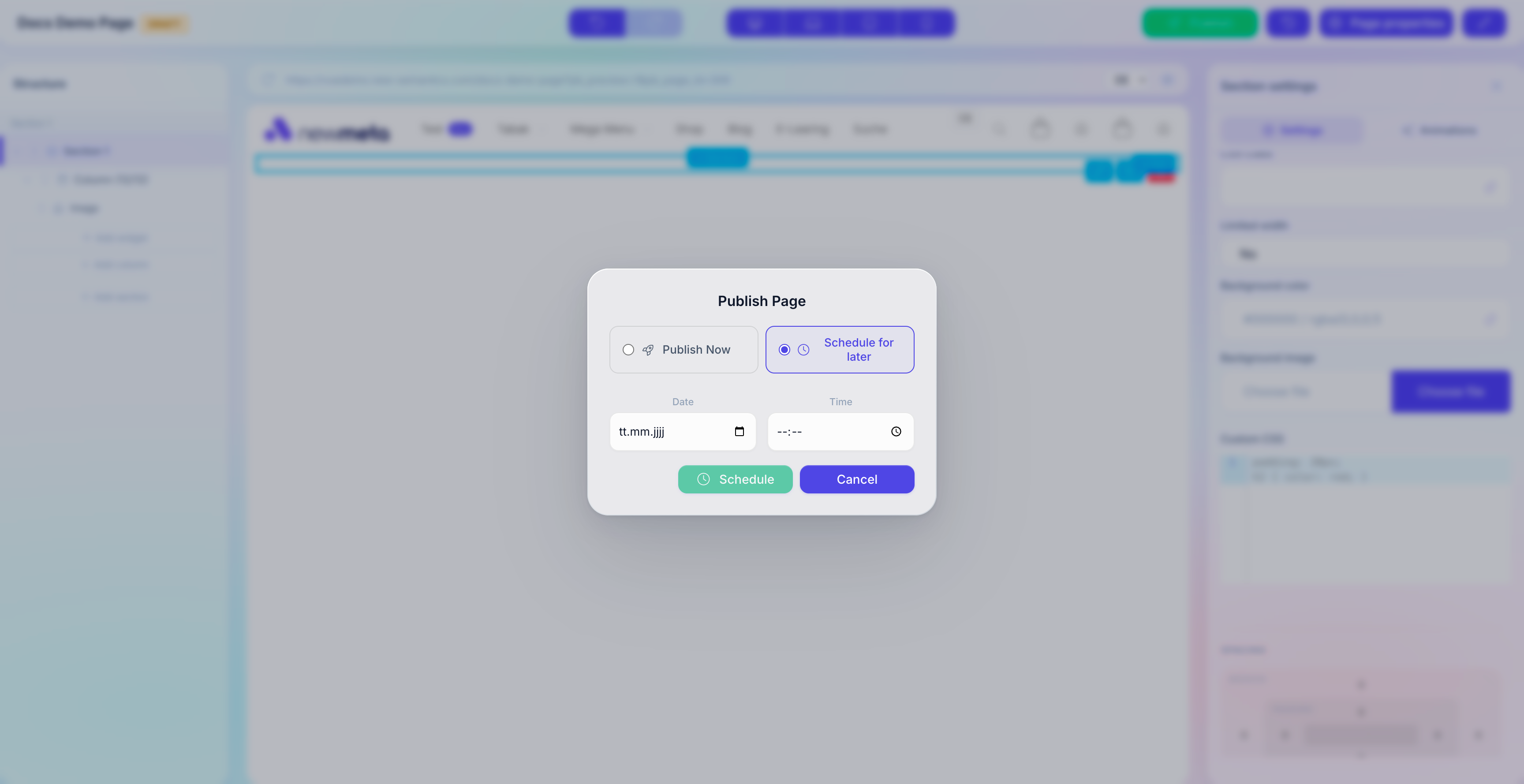
- Pick Schedule for later.
- Set a date and time.
- Click Schedule.
The badge switches to SCHEDULED: DD.MM.YYYY HH:MM. The page goes live automatically at the scheduled time.
Processing delay
Scheduled publishes run every 5 minutes. A schedule set for 14:03 goes live between 14:05 and 14:10.
Cancel a scheduled publish
Click the cross icon next to the SCHEDULED badge in the top bar. The schedule is removed and the Draft remains unpublished.
Override a scheduled publish
If a schedule exists and you click Publish → Publish now, a warning appears: the pending schedule will be cancelled and the page will go live immediately. Confirm to proceed.
Discard a Draft
Sometimes you want to throw away unpublished changes and go back to the live version.
- Click Versions in the top bar. The version history opens.
- Find the row marked Draft.
- Click Delete.
The Draft disappears and the Pagebuilder reloads with the live version.
Draft deletion is permanent
Discarding a Draft cannot be undone. If you are unsure, publish it to a hidden URL first or export it.
Restore a previous version
Every time you publish, a version is saved. Open Versions to see the history.
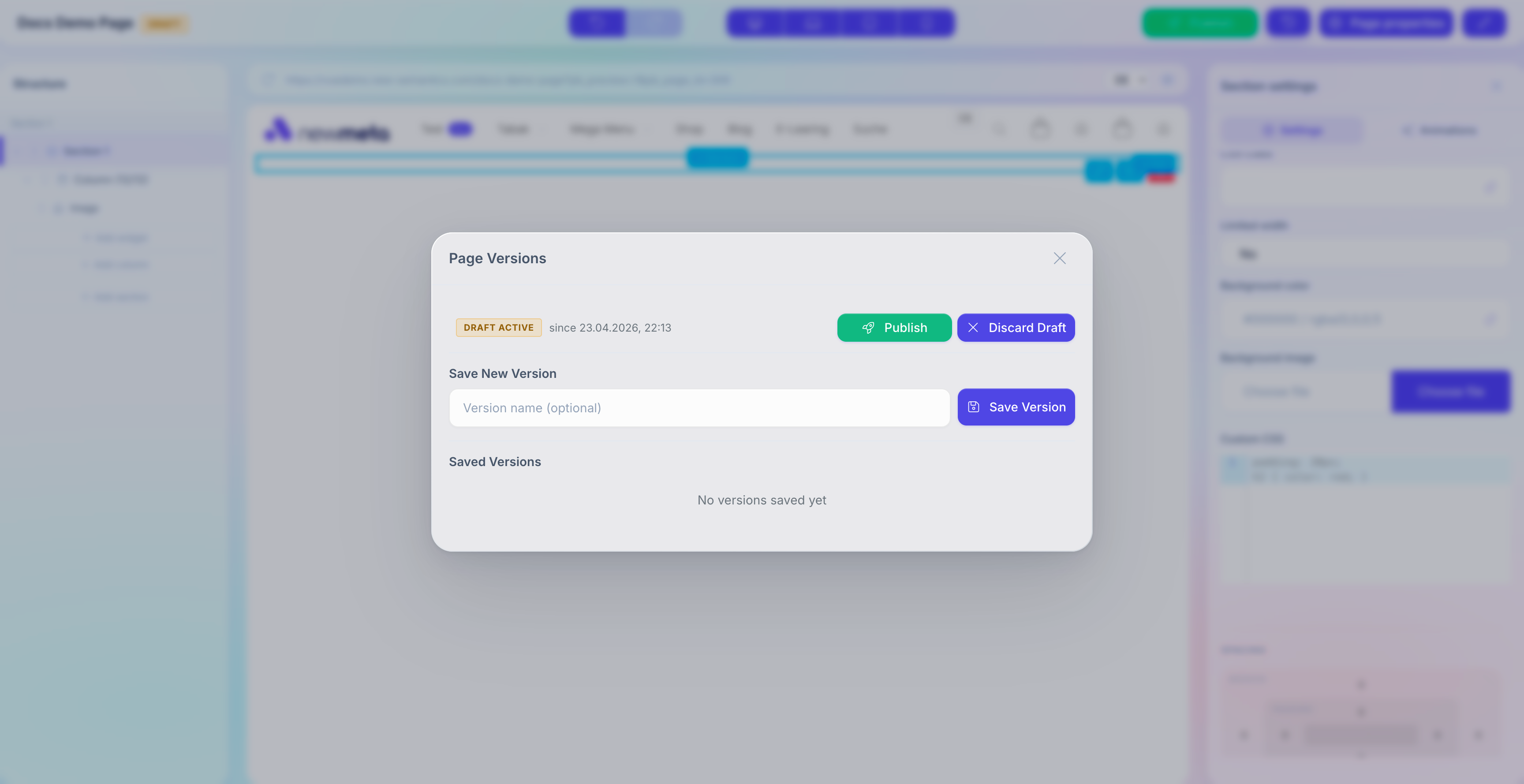
- Restore — creates a new Draft from this snapshot. Your current Draft is overwritten. Publish the restored Draft to go live with the old version.
- Compare — opens a diff view (if available) to compare the snapshot against the current state.
- Delete — removes the snapshot from history. Published-state snapshots older than the last 10 remain in the list; delete outdated ones if it gets long.
A/B test variants
If you run an A/B test on the page, additional snapshots of type Variant appear in the version list. Those are managed through the A/B Testing module — read A/B Testing for details.
See also
- Create your first page — the tutorial that introduces publishing.
- Pages & Pagebuilder overview
- Place and configure Widgets
- A/B Testing — variant snapshots and analytics.